


From last post, to recap a bit……
Do Excel stuff in VBA
In VBA there is a Evaluate("__") function. In simple terms, to a first approximation, we can put Excel formulas inside the quotes, here
Evaluate("here")
, and the result is returned, similar to what would be returned in a cell with that formula in it.
Exactly what may be "returned" (chucked at us from Evaluate("__") ) , may be many things, depending on the exact formula, so it makes sense that the thing is wired to return a Variant type, so that can hold whatever actual type comes from the evaluation. So something like this sort of form would be done in VBA
Dim Var As Variant
_Let Var = Evaluate("=A11:B11*1")
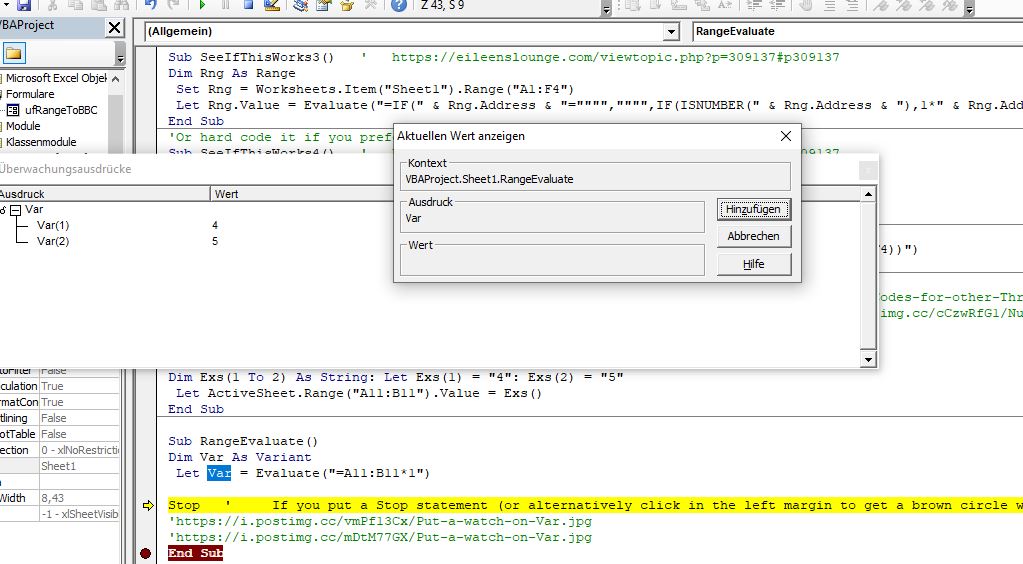
If you put a Stop statement (or alternatively click in the left margin to get a brown circle which works the same), then run the following full macro, then while it is paused, (or before you start) , highlight Var , hold key Shift and then hit key F9, to put a watch on that variable, then you can see the results.
https://i.postimg.cc/vmPf13Cx/Put-a-watch-on-Var.jpg
https://i.postimg.cc/mDtM77GX/Put-a-watch-on-Var.jpg
https://i.postimg.cc/9Mb931YQ/Put-a-watch-on-Var.jpgCode:Sub RangeEvaluate() Dim Var As Variant Let Var = Evaluate("=A11:B11*1") Stop ' If you put a Stop statement (or alternatively click in the left margin to get a brown circle which works the same), then run the following full macro, then while it is paused, (or before you start) , highlight Var , hold key Shift and then hit key F9, to put a watch on that variable, then you can see the results. 'https://i.postimg.cc/vmPf13Cx/Put-a-watch-on-Var.jpg 'https://i.postimg.cc/mDtM77GX/Put-a-watch-on-Var.jpg End Sub
So, we have our result, or a way to get it chucked at us , "returned" , by using an Excel spreadsheet formula from within VBA
So what do we do with it/ how do we get it in a cell, or more specifically in our example, how do we get it in cells
Simple application of Evaluate("=A11:B11*1")type solutions
( Put what is chucked at us, ("returned") into cells )
Conveniently, Excel VBA allows a “field” or array of values, in other words a “square” or grid full of values to be applied directly to a rectangular range, pseudo code examples:
Simple application of Evaluate("=A11:B11*1") type solutions
Conveniently, Excel VBA allows a “field” or array of values, in other words a “square” or grid full of values to be applied directly to a rectangular range, pseudo code examples:
Range(“A1:B2”) values = { a b
_________________--__________c d }
Range(“A1:C1”) values = { x y z }
Range(“D1:E1”) values = { 4, 5 }
The right hand side of that last equation could be the array or field of values which was returned by our example, Evaluate("=A11:B11*1") . An actual working syntax to do in VBA what we did via CSE techniques previously would be
Range("C11:D11").Value = Evaluate("=A11:B11*1")
VBA coding “ works backwards “ , doing the right hand side first, so if we wanted to replace the original range with the values without the Number stored as text thing, then this would work
Range("A11:B11").Value = Evaluate("=A11:B11*1")
At this point we note that this basic coding layout can be written in a few different forms. In particular, we have great flexibility on the right hand side by virtue of the fact that the Evaluate takes a string argument. We are free to build up strings in VBA as we choose. They can be built up from hard coded text, as we currently have, or we can also include VBA things which would be converted at run time to what they evaluate to. For example, Range("A11:B11").Address returns $A$11:$B$11 , which for our purposes, in spreadsheet syntax, as used in a spreadsheet cell, has the same effect as A11:B11. So that last code line could be written
Range("A11:B11").Value = Evaluate("=" & Range("A11:B11").Address & "*1")
The last two code lines are effectively replacing a range which might have the Number stored as text thing showing to a range without that showing. In other words, it removes the Number stored as text thing.
We are free to replace the range Range("A11:B11") with any range we choose.
_ It could be some variable defined as a range like this
Dim Rng As Range
Set Rng = Range("A11:B11")
Let Rng.Value = Evaluate("=" & Rng.Address & "*1")
_ Similarly, we could make some selection in the spreadsheet, and then run the macro on this range using
Let Selection.Value = Evaluate("=" & Selection.Address & "*1")
This last macro is often the most convenient, but bear in mind that it will replace the original range, and things done by VBA can’t be undone. Best would be to test first by pasting a copy in a spare range. For example, if you have data up to column F, then this would put the test range to the side of it.
Selection.Offset(0, 6).Value = Evaluate("=" & Selection.Address & "*1")
(As often in VBA, the Offset works on the top left, shifting the whole range with it. In the inner workings of Excel VBA, things are often anchored or referenced to the top left)
In a few posts time we some simple variations of the Evaluate range way to remove the Number stored as text thing issue, specifically we are making the last few coding version less susceptible to problems / more workable on different data types
But first we will recap and discuss a useful typical format / versions of our final coding for test and developments
https://www.youtube.com/channel/UCnxwq2aGJRbjOo_MO54oaHA
https://www.youtube.com/watch?v=jdPeMPT98QU
https://www.youtube.com/watch?v=QdwDnUz96W0&lc=Ugx3syV3Bw6bxddVyBx4AaABAg
https://www.youtube.com/watch?v=U76ZRIzBhOA&lc=UgxsozCmRd3RAmIPO5B4AaABAg.9fxrOrrvTln9g9wr8mv2 CS
https://www.youtube.com/watch?v=U76ZRIzBhOA&lc=Ugw6zxOMtNCfmdllKQl4AaABAg
https://www.youtube.com/watch?v=U76ZRIzBhOA&lc=UgyT1lo2YMUyZ50bLeR4AaABAg.9fz3_oaiUeK9g96yGbAX 4t
https://www.youtube.com/watch?v=U76ZRIzBhOA&lc=Ugx5d-LrmoMM_hsJK2N4AaABAg.9fyL20jCtOI9g7pczEpcTz
https://www.youtube.com/watch?v=U76ZRIzBhOA&lc=UgyT1lo2YMUyZ50bLeR4AaABAg.9fz3_oaiUeK9g7lhoX-ar5
https://www.youtube.com/watch?v=U76ZRIzBhOA&lc=Ugx5d-LrmoMM_hsJK2N4AaABAg.9fyL20jCtOI9gD0AA-sfpl
https://www.youtube.com/watch?v=U76ZRIzBhOA&lc=Ugx5d-LrmoMM_hsJK2N4AaABAg.9fyL20jCtOI9gECpsAVGbh
https://www.youtube.com/watch?v=U76ZRIzBhOA&lc=Ugw6zxOMtNCfmdllKQl4AaABAg.9g9wJCunNRa9gJGhDZ4R I2
https://www.youtube.com/channel/UCnxwq2aGJRbjOo_MO54oaHA

 Reply With Quote
Bookmarks