


Some extended notes to go with this Thread post answer
https://eileenslounge.com/viewtopic....313747#p313747
Hans set me straight with this nice concise bit https://eileenslounge.com/viewtopic....313743#p313743 , ( snb went off with a characteristic 80% Troll answer along the way, but I went along with it this time https://eileenslounge.com/viewtopic....313578#p313578
https://eileenslounge.com/viewtopic....313622#p313622
https://www.excelfox.com/forum/showt...ll=1#post23917 )
Finally another post from Hans, thereafter I had it clear ……..
Interesting.Originally Posted by HansV
I had a feeling there where multiple window possibilities around and it scared me a bit for a couple of reasons:
_ one being I figured it would be something that I would easily get in a muddle with;
_ the other reason being that how things can or do get displayed in multiple windows or multiple instances is a bit controversial I think
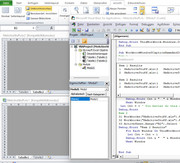
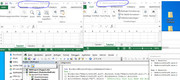
Nevertheless, I took the plunge, and did try for the first time in my life to get a multiple workbook window. It was quite easy, (I did it manually, - there are plenty of simple tutorials on the internet to show you how), for example, with my first sample file, MeActiveStuff.xls , I ended up with these 2 windows after a couple of clicks
MeActiveStuff.xls:1
and
MeActiveStuff.xls:2
( It demonstrates why I like to keep a few Excel versions, even some newer versions despite preferring older ones: In this case things will look a bit different for the multiple workbook window and that’s one of the controversial things some people get excited about, I believe. I am staying neutral on that one as I never needed multiple workbook windows, instanciated or not)
https://i.postimg.cc/qRfGpY00/XL-201...-2-windows.jpg https://i.postimg.cc/cHQBCm43/XL-201...ws-1-and-2.jpg
It is interesting though to help get this last bit of stuff a bit clearer in my mind, but at the same time, it's confirmed that it’s a bit confusing, at least for me: I think you have to be very very careful you don’t get mixed up……
At first I thought the
window item number and window caption name alternatives
might be a parallel idea to the
string tab name or item position number alternatives
for a worksheet. Whether it is or not perhaps depends on your view point, literally and mentally
This little demo macro might be useful for future reference: The main bits are 3 sets of 3 line sections. The first and third set of 3 lines are identical and the second is not much different.
If I have got it right, the 3 lines do the necessary to make the same two "ActiveCells" that my original Sub MesActiveCell() did. In that original attempt, I did not really make two ActiveCells , what really I did was set some memory of the last selection made on the two worksheets of the file MeActiveStuff.xlsCode:Sub WorkbookWindowSCaptionNameAndItems() ' https://eileenslounge.com/viewtopic.php?p=313747#p313747 Rem 1 ' 1a) Make a ActiveCell in B2 of the first worksheet 11 Workbooks("MeActiveStuff.xls").Windows.Item("MeActiveStuff.xls:1").Activate 12 Workbooks("MeActiveStuff.xls").Worksheets.Item(1).Activate 13 ActiveSheet.Range("B2").Select ' Effectively this will Make the ActiveCell in Workbooks("MeActiveStuff.xls"), Windows.Item("MeActiveStuff.xls:1") range B2 in the first worksheet ' 1b) Make a ActiveCell in A2 of the second worksheet 21 Workbooks("MeActiveStuff.xls").Windows.Item("MeActiveStuff.xls:2").Activate 22 Workbooks("MeActiveStuff.xls").Worksheets.Item(2).Activate 23 ActiveSheet.Range("A2").Select ' Effectively this will Make the ActiveCell in Workbooks("MeActiveStuff.xls"), Windows.Item("MeActiveStuff.xls:2") range A2 in the second worksheet Debug.Print "Rem 1 Results" Dim Windoe As Object, Cnt As Long For Each Windoe In ThisWorkbook.Windows Let Cnt = Cnt + 1 Debug.Print Cnt & " " & Windoe.Caption & " " & ThisWorkbook.Windows.Item(Cnt).Caption & " " & ThisWorkbook.Windows.Item(Cnt).ActiveCell.Address(, , , External:=True) Next Windoe Let Cnt = 0 ' You better do this or else in the next loop you will be trying to get at Item numbers above 2, and we aint got any Debug.Print Rem 2 repeat the first 3 lines - remake the first ActiveCell in B2 of the first worksheet 31 Workbooks("MeActiveStuff.xls").Windows.Item("MeActiveStuff.xls:1").Activate 32 Workbooks("MeActiveStuff.xls").Worksheets.Item(1).Activate 33 ActiveSheet.Range("B2").Select ' Effectively this will Make the ActiveCell in Workbooks("MeActiveStuff.xls"), Windows.Item("MeActiveStuff.xls:1") range B2 in the first worksheet Debug.Print "Rem 2 Results" For Each Windoe In ThisWorkbook.Windows Let Cnt = Cnt + 1 Debug.Print Cnt & " " & Windoe.Caption & " " & ThisWorkbook.Windows.Item(Cnt).Caption & " " & ThisWorkbook.Windows.Item(Cnt).ActiveCell.Address(, , , External:=True) Next Windoe End Sub
The third line set simply do exactly what the first did again. So there are really only two unique sets of 3 lines. Each unique set now actually makes a real ActiveCell from the same two selections I did before in my original Sub MesActiveCell()
There are two similar sets of output results, the first set is given out after making the two ActiveCells,
and the second results are given out after the first ActiveCell is made again. Obviously this last set of code lines is redundant, but it does something:
The important thing to note is that the window Item number is reflecting the order of a ActiveCell being made, - you can see the order has swapped around. That can perhaps be related vaguely to Item number order in worksheets: If you remade the first worksheet or swapped around physically the tabs, you see a similar change in the Item number.Code:Rem 1 Results 1 MeActiveStuff.xls:2 MeActiveStuff.xls:2 [MeActiveStuff.xls]Tabelle2!$A$2 2 MeActiveStuff.xls:1 MeActiveStuff.xls:1 [MeActiveStuff.xls]Tabelle1!$B$2 Rem 2 Results 1 MeActiveStuff.xls:1 MeActiveStuff.xls:1 [MeActiveStuff.xls]Tabelle1!$B$2 2 MeActiveStuff.xls:2 MeActiveStuff.xls:2 [MeActiveStuff.xls]Tabelle2!$A$2
In other words, the Window with the caption name and the ActiveCell is fixed, but the window item number can change: The item number is somehow related to the order of the things, the item number is not a number like a serial number/ string name using number characters
So finally I think it is a bit too confusing for me to want to dabble very often with more than one window on the workbook. But at the same time it has helped me to get the thing a bit clearer, and so I think I will then go for this
Somehow that does look a little better and rolls off my tongue that little bit subtly better than the last one and I think in my brain memory system will help me remember what it’s all about. Then I am happy I know about it enough not for it to annoy me quite so much. I gots a nice understanding now on this one,Code:Me.Activate: Dim MeActiveCell As Range: Set MeActiveCell = Workbooks(Me.Parent.Name).Windows.Item(1).ActiveCell ' https://eileenslounge.com/viewtopic.php?p=313747#p313747

 Reply With Quote
Bookmarks