


Process ManagerIntroduction:
So back to this “Process Manager”
( Process Manager - https://www.youtube.com/watch?v=GQSQ...EIiver&index=2
https://pastebin.com/b5VMrmz7
my version with expanded comments , Share ‘XS86Video2ProcessManager.ps1’ https://app.box.com/s/sig74y36c4tptmkumm62obznpef77iqz )
I am not intending a full walkthrough of that script, as this is just notes on some important parts for my later reference. This is an overview that may help the more detailed comment navigation of the script.
This first post will attempt to give an overview of the function to get the Processes complete with some detail, and then the nest post will look again in a bit more detail, and finally also cover the shorter function that stops the selected processes
Basic idea: What does the script do
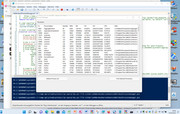
This brings up inside a GUI, a ListView of a computers Processes, from which we could then select and stop some.
ListView on a GUI##
The script lines for this are very similar for those for the GUI itself or for those for a Panel.
Basically it initially requires declaring a variable to a list view object, which then has its properties assigned in the usual OOP way.
These are the main first 3 lines,
$listview_Processes = New-Object System.Windows.Forms.ListView
$listview_Processes.Location = New-Object System.Drawing.Size(8, 40)
$listview_Processes.Size = New-Object System.Drawing.Size(800, 402)
, then there are a few self explanatory lines defining properties
, and then finally we have a controls .Add line
$Form_HelloWorld.Controls.Add($listview_Processes)
Functions to get the processes and to stop them
A couple of significant differences to VBA and PowerShell script in regards to functions
_ PowerShell script seems to not work as immediately as VBA.
_ The functions in PowerShell are within the main script itself
The result of this is that we need to put the functions at the top of the main script: They need to be passed through at least once. After that they are held in memory of the current open PowerShell shell/window session. (**It seems OK to use variables in the function which are not yet declared: Our variable for the Listview,
$listview_Processes = New-Object System.Windows.Forms.ListView
, is not declared until later down in the script )
Function GetProcesses{
}
Function GetProcesses{
We start with some clearing of the $Listview_Processes object variable , even though at the top of the script , that variable has not been declared or set to anything yet**
We use a variable, $Processes for a sub set of the things in computer’s processes , ( they might actually be all of them ). I think them that we obtain an array of all those processes.
In some way that is not completely clear to me, a script line like this,
$AProcessProperties = $Processes[0].psObject.Properties
, is returning me something that has, possibly amongst other things, the typical headings for the first Processes. ( I think using the first Process , item 0 , is arbitrary. Any process would do )
# Make “columns”
I think adding a “column” is based on a more abstract part of making the Listview.
The script line uses the word Column, which is a bit strange, as the corresponding word row does not exist. ( Neither does the word record. Instead we have Item later where we might have expected row or record)
This word Column might have been just as inappropriate as the word Field, so god knows why Column was used, other than perhaps no one really knows what’s going on, Lol
It seems that we use Way2b) of a ForEach loop to Add the “Columns”, and this is done by giving some text name which effectively becomes the column or field header, in other words what appears across the top.
So the loop is a ForEach applied to our first Process variable, $AProcessProperties
____$AProcessProperties | ForEach-Object ( {
_____ $listview_Processes.Columns.Add("$($_.Name)")
____} )
As ever we are flexible with the syntax, and the following is exactly the same
__$AProcessProperties | ForEach-Object ( {$listview_Processes.Columns.Add("$($_.Name)")} )
__The next part is the remaining main script to fill the list view.
It comprises of a main Outer ForNext loop ######## , and then an Inner loop, -------##. Based on my explanations in the last post, in particular for way2a) , the inner loop section could be considered as two loops, one after the other
Filling “rows” of data.
The filling of “rows” in the listview is a slightly vague concept, similar to that for adding the “columns”, but at first glance the two concepts seem a bit mismatched:
So far we have a seemingly equally important set of headings. But as we move on now, to fill the rows, it seems that the first column has some sort of higher significance.
It’s a bit weird:
The main outer loop is reasonably clear, the rest is a bit weird. The main outer loop is all the processes,
__ ForEach ($Process in $Processes){ ########
__ } _______________________________ ########
That makes sense: A row for a process
The column filling is a bit weird. It seems as if a “row” is considered an Item but that Item can be text or any unique number, like the left most column in an Excel spreadsheet, except that it does not have to be sequential numbers** and, this is the most peculiar, at the top of this first column is the first header value. That is weird. That is as if, for example our Excel spreadsheet looked like thisSo in the script that I am walking through, it looks like we try to make that first column look like a normal first column, then add the other column values. Weird!
header1
Just to confuse things a bit more, we can actually access later the “row” or Items by sequential number that starts at zero and goes down like, pseudo this strange situation
# Make a “row”s( Item )######################## MAIN Script LOOP
header1 0\345 1\232 2\36
So far, (what we have already done: it appears that the Column(headers) some how belong to the .Net Forms thing which were defined in the initial script lines## for the variable $listview_Processes
$listview_Processes = New-Object System.Windows.Forms.ListView
$listview_Processes.Location = New-Object System.Drawing.Size(8, 40)
$listview_Processes.Size = New-Object System.Drawing.Size(800, 402)
So that object thing has somehow “columns” as part of it.
But now as we move on, it appears that we must make a new object thing for each for each row , and add that to the ListView
Best recap that again: make a ListView
_ Make a ListView object, add that object to the form, add columns to the ListView object
_ __ For Each row you want ( {
_____ make a ListView”row”(Item) object, add that object to the ListView object } )
So its all a bit crazy and mental. Never mind. Onward
So the main outer loop ####### on the script is for all “rows”, and it starts with
___ ForEach ($Process in $Processes)
, and then the next line is the object thing that we need to make a “row” ( Item )
____ $ProcessListViewItem = New-Object System.Windows.Forms.ListViewItem(
This seems to need some identifier, and will be the “left margin” number so we choose it for convenience to be what we want in the first column. So this may be a fiddle to use that “left margin” identifying “Item” as a normal column ………….System.Windows.Forms.ListViewItem( $Process.Id)
At this point we effectively have an object thing which need to be added to in order to give it the entire “row”/ record data. The obscure way this is done is by adding to the Item , “sub items”.
## SubItems ##--
It would appear that what we perceive as the columns from the second column, are regarded in the obscure PowerShell syntax as SubItems
As this is all getting a bit crazy, and the main loop introduces a lot of even more crazy and obscure PowerShell object concepts so we had best start a new post for it.
This schematic attempts to summarise the situation, but we will go into this and the functions again in more detail in the next post
__
header1 header2 A Header Last Header <-- This bit with the created “column” is part of the main ListView object SubItem SubItem SubItem <-- This brown thing is a ListViewItem object. It has an Item number of 0,
and an Item identifier/name of 345Item 0 SubItem SubItem SubItem <-- This blue thing is a ListViewItem object. It has an Item number of 1,
and an Item identifier/name of 232Item 1 SubItem SubItem SubItem <-- This purple thing is a ListViewItem object. It has an Item number of 2
and an Item identifier/name of 36Item 2
In the above schematic we are showing 4 objects. The last three belong to the first one, ( after they have been ned to it ).
The values in the first column somehow belong to the main ListView object.
SubItems are Added to the ListViewItems

 Reply With Quote
Bookmarks