


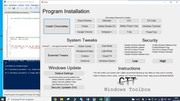
I would like to check what is going on in searches(The buttons for Cortana ( Search ) – only do Cortana )04.12.2020 The Best Windows 10 Toolbox
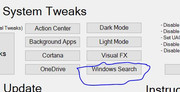
Windows Search button under System Tweaks
All the windows search, web search through .. to disable indexer.
In the next video, Cortana is mentioned in connection with searching, so just for reference, this is behind the : Cortana button under System TweaksCode:$windowssearch.Add_Click({ Write-Host "Disabling Bing Search in Start Menu..." Set-ItemProperty -Path "HKCU:\SOFTWARE\Microsoft\Windows\CurrentVersion\Search" -Name "BingSearchEnabled" -Type DWord -Value 0 Set-ItemProperty -Path "HKCU:\SOFTWARE\Microsoft\Windows\CurrentVersion\Search" -Name "CortanaConsent" -Type DWord -Value 0 If (!(Test-Path "HKLM:\SOFTWARE\Policies\Microsoft\Windows\Windows Search")) { New-Item -Path "HKLM:\SOFTWARE\Policies\Microsoft\Windows\Windows Search" -Force | Out-Null } Set-ItemProperty -Path "HKLM:\SOFTWARE\Policies\Microsoft\Windows\Windows Search" -Name "DisableWebSearch" -Type DWord -Value 1 Write-Host "Stopping and disabling Windows Search indexing service..." Stop-Service "WSearch" -WarningAction SilentlyContinue Set-Service "WSearch" -StartupType Disabled Write-Host "Hiding Taskbar Search icon / box..." Set-ItemProperty -Path "HKCU:\SOFTWARE\Microsoft\Windows\CurrentVersion\Search" -Name "SearchboxTaskbarMode" -Type DWord -Value 0 $wshell.Popup("Operation Completed",0,"Done",0x0) })
Code:$cortana.Add_Click({ Write-Host "Disabling Cortana..." If (!(Test-Path "HKCU:\SOFTWARE\Microsoft\Personalization\Settings")) { New-Item -Path "HKCU:\SOFTWARE\Microsoft\Personalization\Settings" -Force | Out-Null } Set-ItemProperty -Path "HKCU:\SOFTWARE\Microsoft\Personalization\Settings" -Name "AcceptedPrivacyPolicy" -Type DWord -Value 0 If (!(Test-Path "HKCU:\SOFTWARE\Microsoft\InputPersonalization")) { New-Item -Path "HKCU:\SOFTWARE\Microsoft\InputPersonalization" -Force | Out-Null } Set-ItemProperty -Path "HKCU:\SOFTWARE\Microsoft\InputPersonalization" -Name "RestrictImplicitTextCollection" -Type DWord -Value 1 Set-ItemProperty -Path "HKCU:\SOFTWARE\Microsoft\InputPersonalization" -Name "RestrictImplicitInkCollection" -Type DWord -Value 1 If (!(Test-Path "HKCU:\SOFTWARE\Microsoft\InputPersonalization\TrainedDataStore")) { New-Item -Path "HKCU:\SOFTWARE\Microsoft\InputPersonalization\TrainedDataStore" -Force | Out-Null } Set-ItemProperty -Path "HKCU:\SOFTWARE\Microsoft\InputPersonalization\TrainedDataStore" -Name "HarvestContacts" -Type DWord -Value 0 If (!(Test-Path "HKLM:\SOFTWARE\Policies\Microsoft\Windows\Windows Search")) { New-Item -Path "HKLM:\SOFTWARE\Policies\Microsoft\Windows\Windows Search" -Force | Out-Null } Set-ItemProperty -Path "HKLM:\SOFTWARE\Policies\Microsoft\Windows\Windows Search" -Name "AllowCortana" -Type DWord -Value 0 $wshell.Popup("Operation Completed",0,"Done",0x0) })
06.07.2021 The Best Windows Utility
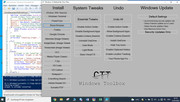
Chris says, Cortana and Windows search grouped together, as they are related and just doing one tends to mess up the other.
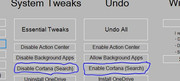
But take a look at those two buttons….
$Cortana is Disable Cortana (Search) button and $ECortana is Enable Cortana (Search) button
Code:$cortana.Add_Click({ Write-Host "Disabling Cortana..." If (!(Test-Path "HKCU:\SOFTWARE\Microsoft\Personalization\Settings")) { New-Item -Path "HKCU:\SOFTWARE\Microsoft\Personalization\Settings" -Force | Out-Null } Set-ItemProperty -Path "HKCU:\SOFTWARE\Microsoft\Personalization\Settings" -Name "AcceptedPrivacyPolicy" -Type DWord -Value 0 If (!(Test-Path "HKCU:\SOFTWARE\Microsoft\InputPersonalization")) { New-Item -Path "HKCU:\SOFTWARE\Microsoft\InputPersonalization" -Force | Out-Null } Set-ItemProperty -Path "HKCU:\SOFTWARE\Microsoft\InputPersonalization" -Name "RestrictImplicitTextCollection" -Type DWord -Value 1 Set-ItemProperty -Path "HKCU:\SOFTWARE\Microsoft\InputPersonalization" -Name "RestrictImplicitInkCollection" -Type DWord -Value 1 If (!(Test-Path "HKCU:\SOFTWARE\Microsoft\InputPersonalization\TrainedDataStore")) { New-Item -Path "HKCU:\SOFTWARE\Microsoft\InputPersonalization\TrainedDataStore" -Force | Out-Null } Set-ItemProperty -Path "HKCU:\SOFTWARE\Microsoft\InputPersonalization\TrainedDataStore" -Name "HarvestContacts" -Type DWord -Value 0 If (!(Test-Path "HKLM:\SOFTWARE\Policies\Microsoft\Windows\Windows Search")) { New-Item -Path "HKLM:\SOFTWARE\Policies\Microsoft\Windows\Windows Search" -Force | Out-Null } Set-ItemProperty -Path "HKLM:\SOFTWARE\Policies\Microsoft\Windows\Windows Search" -Name "AllowCortana" -Type DWord -Value 0 Write-Host "Disabled Cortana" })So it would appear that the windows search disable got forgotten about/ missed out, since the disable in this script is identical to the Cortana disable script from the previousCode:$ECortana.Add_Click({ Write-Host "Enabling Cortana..." Remove-ItemProperty -Path "HKCU:\SOFTWARE\Microsoft\Personalization\Settings" -Name "AcceptedPrivacyPolicy" -ErrorAction SilentlyContinue If (!(Test-Path "HKCU:\SOFTWARE\Microsoft\InputPersonalization\TrainedDataStore")) { New-Item -Path "HKCU:\SOFTWARE\Microsoft\InputPersonalization\TrainedDataStore" -Force | Out-Null } Set-ItemProperty -Path "HKCU:\SOFTWARE\Microsoft\InputPersonalization" -Name "RestrictImplicitTextCollection" -Type DWord -Value 0 Set-ItemProperty -Path "HKCU:\SOFTWARE\Microsoft\InputPersonalization" -Name "RestrictImplicitInkCollection" -Type DWord -Value 0 Remove-ItemProperty -Path "HKCU:\SOFTWARE\Microsoft\InputPersonalization\TrainedDataStore" -Name "HarvestContacts" -ErrorAction SilentlyContinue Remove-ItemProperty -Path "HKLM:\SOFTWARE\Policies\Microsoft\Windows\Windows Search" -Name "AllowCortana" -ErrorAction SilentlyContinue Write-Host "Restoring Windows Search..." Set-ItemProperty -Path "HKCU:\SOFTWARE\Microsoft\Windows\CurrentVersion\Search" -Name "BingSearchEnabled" -Type DWord -Value "1" Remove-ItemProperty -Path "HKCU:\SOFTWARE\Microsoft\Windows\CurrentVersion\Search" -Name "CortanaConsent" -ErrorAction SilentlyContinue Remove-ItemProperty -Path "HKLM:\SOFTWARE\Policies\Microsoft\Windows\Windows Search" -Name "DisableWebSearch" -ErrorAction SilentlyContinue Write-Host "Restore and Starting Windows Search Service..." Set-Service "WSearch" -StartupType Automatic Start-Service "WSearch" -WarningAction SilentlyContinue Write-Host "Restore Windows Search Icon..." Set-ItemProperty -Path "HKCU:\SOFTWARE\Microsoft\Windows\CurrentVersion\Search" -Name "SearchboxTaskbarMode" -Type DWord -Value 1 Write-Host "Done - Reverted to Stock Settings" })
Some YouTube notes https://www.youtube.com/watch?v=rPfz...BUU9la94AaABAg Thursday 24 March, 2022
I just compared your script from this time with that from your first GUI discussed in video
The Best Windows 10 Toolbox
In the previous video you had two separate buttons for tweaks to disable
Windows search
and
Cortana
In this video you say you combined them, but..
…but in fact the script behind Disable Cortana (Search) in this video looks identical to the script behind Cortana button in the previous video.
At first glanced it looks like you forgot
This might explain why some time later a Pull request ( which you accepted, but incidentally also messed up ) was to add some script to disable some aspects of windows search
You seem to have messed up the windows search script in later videos as well, which I will now go and check again.
I love you Chris, learnt tons from you, but you continue to be like Einstein, a bit of a messy chaotic genius, Lol.
Just as quick comparisom chech. This is from a mid March 2022 script, and is the $Cortana coding called by a the button “Disable Cortana (Search)”
It suggests that nothing changed in the meantime
Code:$cortana.Add_Click({ Write-Host "Disabling Cortana..." If (!(Test-Path "HKCU:\SOFTWARE\Microsoft\Personalization\Settings")) { New-Item -Path "HKCU:\SOFTWARE\Microsoft\Personalization\Settings" -Force | Out-Null } Set-ItemProperty -Path "HKCU:\SOFTWARE\Microsoft\Personalization\Settings" -Name "AcceptedPrivacyPolicy" -Type DWord -Value 0 If (!(Test-Path "HKCU:\SOFTWARE\Microsoft\InputPersonalization")) { New-Item -Path "HKCU:\SOFTWARE\Microsoft\InputPersonalization" -Force | Out-Null } Set-ItemProperty -Path "HKCU:\SOFTWARE\Microsoft\InputPersonalization" -Name "RestrictImplicitTextCollection" -Type DWord -Value 1 Set-ItemProperty -Path "HKCU:\SOFTWARE\Microsoft\InputPersonalization" -Name "RestrictImplicitInkCollection" -Type DWord -Value 1 If (!(Test-Path "HKCU:\SOFTWARE\Microsoft\InputPersonalization\TrainedDataStore")) { New-Item -Path "HKCU:\SOFTWARE\Microsoft\InputPersonalization\TrainedDataStore" -Force | Out-Null } Set-ItemProperty -Path "HKCU:\SOFTWARE\Microsoft\InputPersonalization\TrainedDataStore" -Name "HarvestContacts" -Type DWord -Value 0 If (!(Test-Path "HKLM:\SOFTWARE\Policies\Microsoft\Windows\Windows Search")) { New-Item -Path "HKLM:\SOFTWARE\Policies\Microsoft\Windows\Windows Search" -Force | Out-Null } Set-ItemProperty -Path "HKLM:\SOFTWARE\Policies\Microsoft\Windows\Windows Search" -Name "AllowCortana" -Type DWord -Value 0 Write-Host "Disabled Cortana" $ResultText.text = "`r`n" +"`r`n" + "Disabled Cortana" })
I will carry on the general progression in the next post, from about the point I left ( https://excelfox.com/forum/showthrea...ge51#post12782 ) around July 2021

 Reply With Quote
Bookmarks