


This is post #505
https://excelfox.com/forum/showthrea...ge51#post12780
https://excelfox.com/forum/showthread.php/2408-Windows-10-and-Office-Excel/page51#post12780
At last old scripts!! !
This is a year or so out of place, here, in my own personal notes. But no one anywhere answered my pleas for help in getting copies of the older scripts, which I had wanted to get so as to…
_ aid me getting back up to date ,
, and to,
_ aid me in my learning of this Debloat stuff as well as the related learning of PowerShell script
Specifically, I want to get scripts, where each script relates to the script at the time of, and relevant to, each of Chris’s Debloat related YouTube Videos
I came across a related issue by coincidence here, https://github.com/ChrisTitusTech/wi...ipt/issues/229
, where then brandonkal showed me how to do it https://github.com/ChrisTitusTech/wi...ent-1042610457
https://github.com/ChrisTitusTech/wi...ent-1042788256
( Edit. I solved this issue and quite a few others in a lot of posts at GitHub around February March, but my account was deleted and all posts removed. No big deal, I was never so keen on the place, it seems to slow down and mess up projects, at least any I helped in. Maybe that did not go down too well. Possibly the real reason of GitHub is to mess some peoples projects up? )
Solution to get old scripts
Here we go, just to remind me for future reference:
This solution seems very tolerant of even older Browsers and operating systems and there is no need to be logged in or have an account at GitHub.
It’s not at all obvious, as with most things at GitHub, but once you do know, it’s a piece of piss, no problem at all and quick:
Working example, for example Chris’s win10debloat stuff scripts..
_1) Go to Chris’s GitHub Windows 10 Debloat page, https://github.com/ChrisTitusTech/win10script . By default you should be at the Code page, but to be sure hit the code button top left https://i.postimg.cc/fbRJrHN8/Code-B...10-Git-Hub.jpg
https://i.postimg.cc/P5hLmXFs/Code-B...10-Git-Hub.jpg
_ 2) Hit the History Clock icon https://i.postimg.cc/HxjdQRgC/Histor...10-Git-Hub.jpg
https://i.postimg.cc/qRY0QwJ6/Histor...10-Git-Hub.jpg
What you should now see is a page with a track / progress like vertical line along the left margin with junction points on it. Going down is like going back in the History https://i.postimg.cc/NfR999Dk/Histor...at-Git-Hub.jpg
_2b) Furthermore, towards the bottom is an older button,
https://i.postimg.cc/Y2Gm7ymV/Older-...ds-in-time.jpg
, which takes you to the next page allowing you to go even further back in time.
As far as I can tell, you can go right back to the beginning.
_3) Where what when to look for
Under the various dated junction points are things listed as “commits”. I don’t fully understand yet all the workings and what things that are being referred to, but I think I am only interested in changes to the main script, which are those referred to by something like Update win10debloat.ps1 https://i.postimg.cc/s1CzC2ZV/Click-...ebloat-ps1.jpg
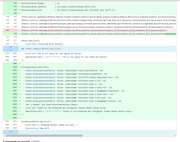
A clue to what was done at that time to the script may be obtained by other things around the same date, and/ or you may get a hint from clicking on that word, Update win10debloat.ps1 , https://i.postimg.cc/FzKjjjr6/Click-...ebloat-ps1.jpg , which then will give some indication in a red / green before after type pictorial view
https://i.postimg.cc/13H8BkLg/Click-...-type-view.jpg
As example, that last screen shot is looking around the February 15 2022 time. Clearly there is something going on with “Virtualisation” things
Relating a script to a Chris YouTube Debloat Video
Chris does not typically give a direct reference to the script relevant to his Debloat related Videos. But it’s a fairly good guess that an Update around the time of a video, possibly shortly before, will be the one.
Taking that last example, the from Feb 15, 2022, : If we look at Chris’s videos from about that time we find a couple of videos related to the theme of “Virtualisation” things:
9.31a Live - Improving Virtualization in Windows-fYhBE4B77S8_18 02 2022
https://www.youtube.com/watch?v=fYhBE4B77S8
https://drive.google.com/file/d/19SH...?usp=drive_web
9.31b How to Setup Hyper V on Windows-FCIA4YQHx9U_19 02 2022
https://www.youtube.com/watch?v=FCIA4YQHx9U
https://drive.google.com/file/d/1Gfo...?usp=drive_web
We can conclude fairly safely here that this script change mainly involved adding a button to enable some in built Windows “Virtual-V” feature. ( The script changes will be the changes I talked about in the second half of this post of mine,
https://excelfox.com/forum/showthrea...ge50#post12774
, which took my script, (which is approximately following Chris’s script), from my version Temp4.ps1 to Temp5.ps1 )
It is not always obvious that a video gives some indication of, or is related to a change.
Sometimes the change may not be related specifically to some new addition referred to in a video.
We might be able to relate it to something else, for examples…
_ We might sometimes be able to refer it to some issue if you take a look down the list ( https://github.com/ChrisTitusTech/win10script/issues https://i.postimg.cc/kGhWwBDg/Chris-...Hub-Issues.jpg )
_ Chris may refer to it either in passing or as it may be slightly related to a video. For example, the things that took my script from my version Temp5.ps1 to Temp6.ps1 ( https://excelfox.com/forum/showthrea...ge50#post12775 ) where some power related things which he mentioned briefly in these videos:
9.32 Live - Optimizing Windows for Gaming-z3DNobuvkL8_11 03 2022
https://www.youtube.com/watch?v=z3DNobuvkL8
https://drive.google.com/file/d/1WcT...?usp=drive_web
Optimize Windows for Gaming-KjHfCDPfLdI_12 03 2022
https://www.youtube.com/watch?v=KjHfCDPfLdI
https://drive.google.com/file/d/1O7h...?usp=drive_web
( See also some of my notes in this excelfox Thread post https://excelfox.com/forum/showthrea...ge43#post12702 )
Get the actual script code
So at this point we have identified the win10debloat.ps1 that we are interested in. Now to get the actual code….
Its generally regarded as best taking what is referred to as the Raw code. I think this is intended to be a very clean text, rather than one that my have some things like “invisible” characters or something to do with formatting that might get accidentally copied in any simple copying attempt
Get the Raw
_(i) If we are looking at the Red green before after…
First look for a View File option, https://i.postimg.cc/3JqkwF7b/View-F...fore-after.jpg . Click that, and you see a color formatted code. Look for the Raw option and click that, https://i.postimg.cc/15XgPjxq/Raw-option.jpg
This should get the raw code view, https://i.postimg.cc/RhsNKcth/Raw-code.jpg
_(ii) If we are looking at the History page.
Look for a _ < >_ button at the right, https://i.postimg.cc/9QqrwwQX/Pointy...ode-button.jpg and click that.
This should take us to what looks like the main code page where we started with.
https://i.postimg.cc/gjWrQQn6/Achaiv...previously.jpg
But actually it is something close to an archived copy of the main page at the previous chosen commit date. That page can be used in the same way you would use the current main page.
So for example,
_ click on the win10debloat.ps1 , https://i.postimg.cc/4d1KNCNz/Click-...ebloat-ps1.jpg
_ we can now click on the Raw option, https://i.postimg.cc/VsDSxchw/Raw-option.jpg , and once again we see the Raw code, https://i.postimg.cc/W4LtGpdG/Raw-code.jpg
Copy Raw _ Ctrl+a , Ctrl+c
The simplest way to copy the raw code is to click anywhere in it , then use the key combination of Ctrl+a , which should select/ highlight the entire code, followed by Ctrl+c
That should give you a clean text copy in the clipboard.
So that’s it. Do now with that code what you want, such as
_ paste it in a text editor such as Notepad or Notepad++ if , as me, you just want to look at it,
or
_ probably the most useful, paste it in an as Administrator launched ISE development window, and then you can do all - look at it, edit it, and run it conveniently as and when you choose
_._____________
The quick link
One last thing, just for completeness, but which I am not so keen on using, persinally.
Brandonkal also showed me how to get the quick link to run the script. But very important to note here is what brandonkal went on to say about …….. check the code for unversioned dependency links….. - He is warning of bad programming practice. For example, the code downloads "raw.githubusercontent.com/ChrisTitusTech/win10script/master/ooshutup10.cfg" which always points to the latest version. If you wish to have that file match what it was in an earlier version, you will have to update that reference in a fork.
The short link, or “one liner”, I am talking about is that often given by Chris at his site and in videos ,
iex ((New-Object System.Net.WebClient).DownloadString('https://git.io/JJ8R4'))
, which he often describes as something like, the “one commend to run ‘em all”. That is basically a single code line to paste in PowerShell that somehow goes off via the internet and gets the script and does anything else necessary to get the script up an running for you somehow and run it live somehow on your computer. I am less keen on using that as it has the disadvantage that you don’t actually get the script to look at and edit. But it can be a convenient way to run the coding.
Chris always gives the line for the current version, ( which can upset some people, example, https://github.com/ChrisTitusTech/wi...ent-1043477046 ) , but we can actually get the same one liner for the older script that we are interested in.
Example:
Take once again the example of, February 15, 2022 , and look at some numbers and URLs that have been seen in the screenshots
_ Example: The Raw URL: https://raw.githubusercontent.com/ChrisTitusTech/win10script/c349966ed313d5d7979aeb58e2c3a7ae3f494c6f/win10debloat.ps1 https://i.postimg.cc/DzLJHJ9p/Raw-URL.jpg
_ Example: A commit number that may have shown up in a few places, fc37c7d
We may replace the download string in Chris’s one liner, with a either of these based on those numbers
( I am not too sure yet of the validity always of the last one, so perhaps best to use the first).Code:iex ((New-Object System.Net.WebClient).DownloadString('https://raw.githubusercontent.com/ChrisTitusTech/win10script/c349966ed313d5d7979aeb58e2c3a7ae3f494c6f/win10debloat.ps1')) iex ((New-Object System.Net.WebClient).DownloadString('https://raw.githubusercontent.com/ChrisTitusTech/win10script/fc37c7d/win10debloat.ps1'))
Here just again for final clarity, first the typical one liner used currently to get the new GUI up and running,
and after the second one is for the script from 15 Feb 2022_.______Code:iex ((New-Object System.Net.WebClient).DownloadString('https://git.io/JJ8R4')) iex ((New-Object System.Net.WebClient).DownloadString('https://raw.githubusercontent.com/ChrisTitusTech/win10script/c349966ed313d5d7979aeb58e2c3a7ae3f494c6f/win10debloat.ps1'))
So that’s it all.
In the next post I apply this knowledge to get specific Chris scripts, concentrating mostly on those most asked for, which usually are those talked about on his normal size videos specifically on the script and script updates.
I may also take the opportunity for some extra notes a second time around, as well as look at some script versions that introduced things ( problems more often, lol, ) but which were not particularly discussed in any video.


 Reply With Quote
Bookmarks