Page 1 of 2 12 LastLast
Results 1 to 10 of 13

Thread: [Article & AddIn] How to paste into a filtered range

  1. #1
    Junior Member Andreas Killer's Avatar
    Join Date
    Aug 2025
    Posts
    17
    Rep Power
    0

    [Article & AddIn] How to paste into a filtered range

    Hello everyone, welcome to my first article in ExcelFox.

    The question in the subject is a FAQ for decades, we all struggled about this problem at some time.
    And there are different ways to overcome this, most ways I've seen in the past used workarounds.

    I would like to show you a way that does not require any detours and to make it very easy to use I have written an AddIn for it, which you can download here:
    https://www.dropbox.com/scl/fi/134rl...vib2qfyzz&dl=1

    The actual purpose of this AddIn is to allow you to paste data into a filtered range so that only the visible cells are overwritten. This is not possible with Excel itself.

    I came here because there was another very similar question: How to paste into empty cells? This thread is here:
    https://www.excelfox.com/forum/showt...pty-cells-only

    With a slight modification, the data can now also be merged.

    The AddIn takes the data from the clipboard and 2 data structures are supported:
    • XML Spreadsheet
      This structure is located in the clipboard when cells have been copied.
    • HTML Table
      This structure is located in the clipboard when a table (or parts of it) has been copied from a web page.


    An installation is not necessary, simply unzip all files into a directory that Excel considers as trusted location and then open the file Paste into AutoFilter.xlam with Excel.

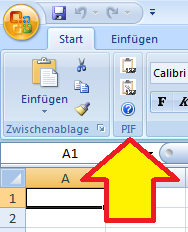
    In Excel 2007, a PIF group is created in the ribbon in the Home tab directly next to the Clipboard group, this was intentionally kept as small as possible.


    After copying, Excel 2007 users must select another cell so that the paste buttons can be selected.

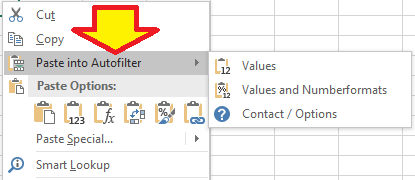
    In Excel 2010 and above, you can find this in the context menu when you right-click on a cell.


    The default behavior of the AddIn is to overwrite cells, if you want to merge cells you have to choose the appropriate option. Please read the PDF file for the details.

    Okay, I think that's enough to get you started if you found this article by chance and you are just looking for a solution.
    Yes, the AddIn is free and I do not give any guarantee for anything. If you like it, I would appreciate a tip.

    In the next few days I will explain how the code works in the following posts. If you want, you can take a look at the code; the AddIn is not protected.

    I've been using the code myself for a long time, but every programmer knows that other users have different ideas. If you encounter any problems, please contact me directly.

    Please do not upload the AddIn to any other place, the link above is permanent and gives you the latest version.

    Until then, have fun,
    Andreas.

  2. #2
    Junior Member Andreas Killer's Avatar
    Join Date
    Aug 2025
    Posts
    17
    Rep Power
    0

    Post Overview

    If you have looked at the code in the AddIn, you will probably notice that it is more extensive than expected.
    Unfortunately it is not that easy in Excel to solve this task.

    And I have to be fair to say that I don't really do a Paste as it is possible in Excel, because that would also have to include formulas, colors, fonts, borders and more. I limit exclusively to values and, if necessary, number formats, even if more would be possible.

    So why all this effort? Couldn't it be easier?

    Well, a big advantage of this AddIn is that it works not only with cells, but also with other sources, for example a website (if it defines a table). This was my starting point in the past, I often had to copy data from websites / PDF files. For me it was worth the effort.

    And easier... if you accept detours and peculiarities... perhaps. Many programmers have attempted this task... judge for yourself. And by the way, this code wasn't like this from the beginning, I also learned a lot over the years.

    Let me first point out the problems we have to deal with, and then let's look at the details of the solution.

    The first problem is where do we get the data that we want to write to the target cells, there are 2 possibilities: If cells have been copied, then the source cells themselves or, if they are not accessible, the clipboard.

    When you start with Excel, everything seems to work very simply and logically at the beginning. But after a time, you come across curiosities that you can't explain.
    Above all, it's a date that suddenly and unexpectedly appears on the screen, even though you didn't want it to be.

    Try it out for yourself, open Excel and write 1-2-3 in a cell. To us as humans, this looks like a bulleted list, but in Excel, it becomes a date.
    Why is that? This brings us to the problem of data conversion and the automatisms in Excel.

    Inside the clipboard are 2 structures that we use for our purpose the HTML Format and XML Spreadsheet.

    After that, we have to deal with how to recognize the visible cells in the filtered range and how to write the data only to them.
    If you now consider that the range to be copied and the target range can be different in size, you know it’s not easy. Let's add ranges of different sizes to our list.

    These are the big topics on our list, and each topic has some details that we need to discuss if we want to understand what happens in Excel resp. how Excel works.

    I divide the topics into separate posts, then it will be easier for you later when you want to read again.

    Take a big cup of tee or coffee and let's get started.
    Last edited by Andreas Killer; 09-07-2025 at 03:06 PM.

  3. #3
    Junior Member Andreas Killer's Avatar
    Join Date
    Aug 2025
    Posts
    17
    Rep Power
    0

    Arrow Clipboard

    First of all, it should be clear that we need the data from the source if we want to output it separately somewhere else. When we copy cells, there is no way to determine where these cells are located within Excel.

    A first simple thought is to simply paste the data into a blank sheet and then write that data into the target range...
    Yes, that's true, this would solve many problems, but it has a significant disadvantage:

    To do this, we need to run either Worksheet.Paste or Range.PasteSpecial and both methods require the sheet to be visible.
    This restriction will only be lifted with Excel 2021. So if we want to support older versions, then we have to put in a little more effort. So how do we get the clipboard data?

    The first thought is to use the DataObject from the MSForms DLL, but unfortunately it is getting old. The DataObject only works reliably on older computers or up to Windows 7. Starting with Windows 8, the routines in the operating system were changed, but Microsoft never updated the MSForms DLL, resulting in incompatibility.

    You can reproduce this with the following code:

    Code:
    Sub Test()
      Dim S As String
      With CreateObject("New:{1C3B4210-F441-11CE-B9EA-00AA006B1A69}")
        S = "Andreas Killer"
        .SetText S
        .PutInClipboard
        MsgBox "Just a break"
        .GetFromClipboard
        Debug.Print .GetText()
      End With
    End Sub
    If there are no windows open except Excel and VBA, the Immediate window will show "Andreas Killer", so everything is fine.
    Now, open Windows Explorer and run the same code again. The output is "??".

    If you experiment with the test code, you will find that it works again with a few modifications, but in real life it will happen to you that under certain conditions you only have 2 ?? from the clipboard, no matter what your code looks like. I had to experience this painfully myself.

    The solution to this problem is to use the Windows API to open and read the clipboard using Windows routines.
    The code in the modClipboard module can do that and a few more things that we need. The code in the AddIn works with 32-bit and 64-bit Excel.

    Let's take a short look at the next topic, Data Conversion, to understand what we need from the clipboard.

    As I showed at the beginning, we can't just write a text like 1-2-3 in a cell, Excel turns it into a date. And a date in Excel is a number, only through the number format, we see a date on screen. We can format each date as we wish, display it in other languages or just display the day and month name.

    Even if the DataObject were error-free, it would only give us the text from the clipboard, and since a date is a number, we have to convert the text, which is impossible with a date that consists only of a day and month. Therefore, parsing the text is ruled out from the outset.

    So, what else is on the clipboard?

    It's best to use a clipboard viewer like Free Clipboard Viewer and check it out for yourself, because there's a lot to see!
    Even if you copy only a simple text from Notepad, 7 different data structures are created on the clipboard. When copying a cell, up to 30!

    Which of these could be interesting for us?

    One of them is called Link and in it you will find something like
    Excel [ASCII 0] Z:\[MyFile.xlsx]Sheet1 [ASCII 0] R11C4:R14C5

    This looks very promising, we can see that the data is from Excel, which file it is and in which sheet and also the cells in R1C1 notation! Why don't we take that?
    Well, the problem is that we can run multiple instances of Excel on our machine, and in order to access the data in another instance, you need more of other code, which is also not that easy, but it would be possible. In addition, an instance could also run within a browser (Excel-Online) and from that point on you can forget about the idea, no way to access that instance.

    What else is in there?

    The really interesting structures all start with BIFF, which are data streams from Excel and they contain everything. Unfortunately, reading out the streams is not easy...

    Fortunately, if we do not want to deal with formulas, there are 2 structures we can use:

    XML Spreadsheet and HTML Format
    Last edited by Andreas Killer; 09-07-2025 at 05:39 PM.

  4. #4
    Junior Member Andreas Killer's Avatar
    Join Date
    Aug 2025
    Posts
    17
    Rep Power
    0

    Angry HTML Format

    Let's start with the HTML format and, so that you don't make any false assumptions when following the steps yourself, we'll open a file in Excel Online and copy the data from there.

    Click on this link:
    https://1drv.ms/x/c/ace6b54b529a29c1...87gaw?e=sObS6v

    When you open the file, you will see this:


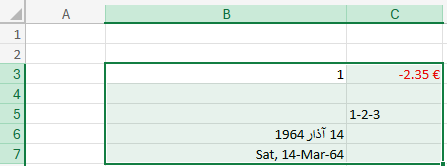
    B3 contains an integer, C3 contains a currency, B4:B5,C4 is intentionally empty, C5 contains text. Whether you see a period or a comma as a decimal separator in C3 depends on your region settings. B6 contains a date in an Arabic format and B7 contains the formula =B6, but the date is displayed in customized English.

    Let's copy this range in Excel-Online and look at what is contained in the clipboard. Depending on which browser you use, you will find a different amount of data structures, but there is one that is always there, the HTML format.

    If you look at the HTML format as a normal mortal person, you will only see a big mess at first. The upper part is the head, in this there is only one piece of information that is interesting for us and it is always the same... to be honest, I haven't come across any other so far.

    content="text/html; charset=utf-8"

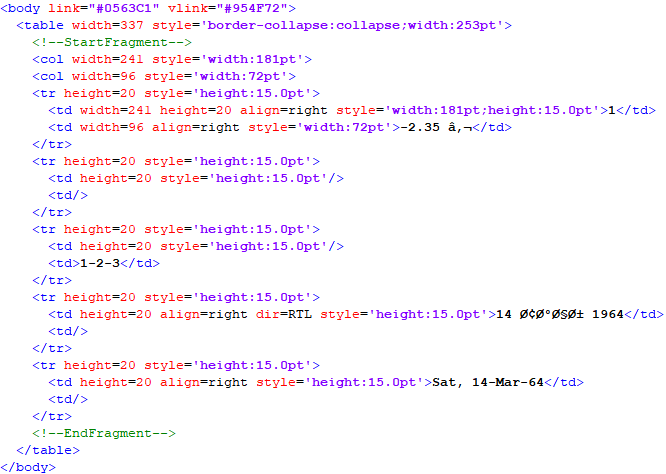
    This tells us that the text is encoded in the HTML code UTF-8, what that means we will see in a moment. The exciting part with the data follows under the head and I prepare it a bit with Notepad++ so that we can read it better as a human:


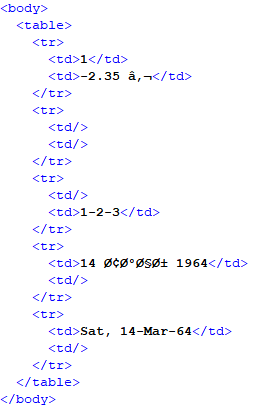
    Everything that is shown here in red are attributes in HTML, followed by a = and then the corresponding value. Unfortunately, there is no information about the data included. I'll remove this ballast and then the structure becomes clear:


    We have a "table" structure, which means that the data is in a two-dimensional array. "tr" means row and "td" is the cell in the row.
    However, the values do not look as expected, this is because they are in the UTF-8 encoding, but the default in VBA/Windows is ANSI.

    So we need a routine that converts UTF-8 to ANSI, there is also a Windows API for this, you can see the code for it in modCodePage.
    The head of this function is probably not as you expect, the text needs to be passed as a ByteArray. Why is that?

  5. #5
    Junior Member Andreas Killer's Avatar
    Join Date
    Aug 2025
    Posts
    17
    Rep Power
    0

    Lightbulb Data conversation

    A string in VBA is a double-byte string, let's take the string "AB".

    Everyone knows that it in there are the 2 ASCII characters 65 and 66, but in VBA any string is a double-byte, in memory there are actually 4 bytes:
    65 00 66 00

    Code:
    Sub TestByteArrayA()
      Dim S As String
      Dim B() As Byte
      Dim i As Integer
      S = "AB"
      B = S
      For i = LBound(B) To UBound(B)
        Debug.Print i; B(i)
      Next
    End Sub
    To use the Windows API, we only need 2 bytes: 65 66 and we do that with StrConv.

    Code:
    Sub TestByteArrayB()
      Dim S As String
      Dim B() As Byte
      Dim i As Integer
      S = "AB"
      B = StrConv(S, vbFromUnicode)
      For i = LBound(B) To UBound(B)
        Debug.Print i; B(i)
      Next
    End Sub
    The function ConvertFrom in modCodePage returns a double-byte string and thus we have the text from this structure.
    And the Function GetHtmlTables in modClipboard put in into a 2D array, more or less.

    Phew, take a deep breath and get a second cup of tea or coffee, unfortunately we are not quite done with the problems.
    But it gets better and perfect in the end, trust me.

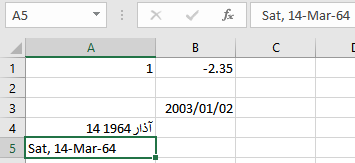
    So, let's open our local Excel and insert the content with the AddIn and for comparison simply again with Excel itself.


    Comparted to Excel we only see a difference in the currency, when Excel inserts the data, it is red, but not with the AddIn. If you have looked more closely into the head of the HTML format, you have seen styles, in which these formatting’s are included. However, it is not worth evaluating this data, because the crux of the matter is the date.

    As an experienced Excel user, we immediately see that this is only a text, if we take a closer look at the currency, then we find the value 2.345 in Excel-Online but we only get the rounded one. Also, the text 1-2-3 becomes a date. And we need to talk about why that is.

    Most users think you can enter a date in Excel, but the truth is that you can't even enter a number!

    If you write anything in a cell, as long as you write, it is a text! ALWAYS! At the moment when you finish typing, Excel converts the text, if it looks like it COULD be converted! This conversion also happens even when we write something into a cell with VBA. There are only two exceptions: a) the cell is formatted as text, or b) the content begins with an apostrophe. Only in these two cases the content remains as it is and is transferred to the cell as a text.

    What rules does Excel use to do the conversion?

    Excel looks into the region settings of the operating system, or into your account in online systems, and then it makes guesses about what you want to enter in Excel. Did you ever heard about WYSIWYG? This is the principle of how inputs work. And if Excel thinks that 1-2-3 looks like a date, then it converts the text to a number, writes that number in the cell and adds a number format from your region settings to make the number look like a date.

    BTW, it is not possible to influence this conversion in any way, even if you set the format of the cell beforehand. Excel completely ignores these formats.

    So, if we got data from a HTML source, the text is converted if we write it into the cells. The conversion only works correctly if the source data matches the region settings of our system AND Excel also does this conversion.

    It is possible and conceivable to do this conversion yourself, I have intentionally omitted it, because it is not simple and extensive and would distract from the actual topic. Maybe I'll add these routines later... we'll see.
    Last edited by Andreas Killer; 09-01-2025 at 08:54 PM.

  6. #6
    Junior Member Andreas Killer's Avatar
    Join Date
    Aug 2025
    Posts
    17
    Rep Power
    0

    Exclamation XML Spreadsheet

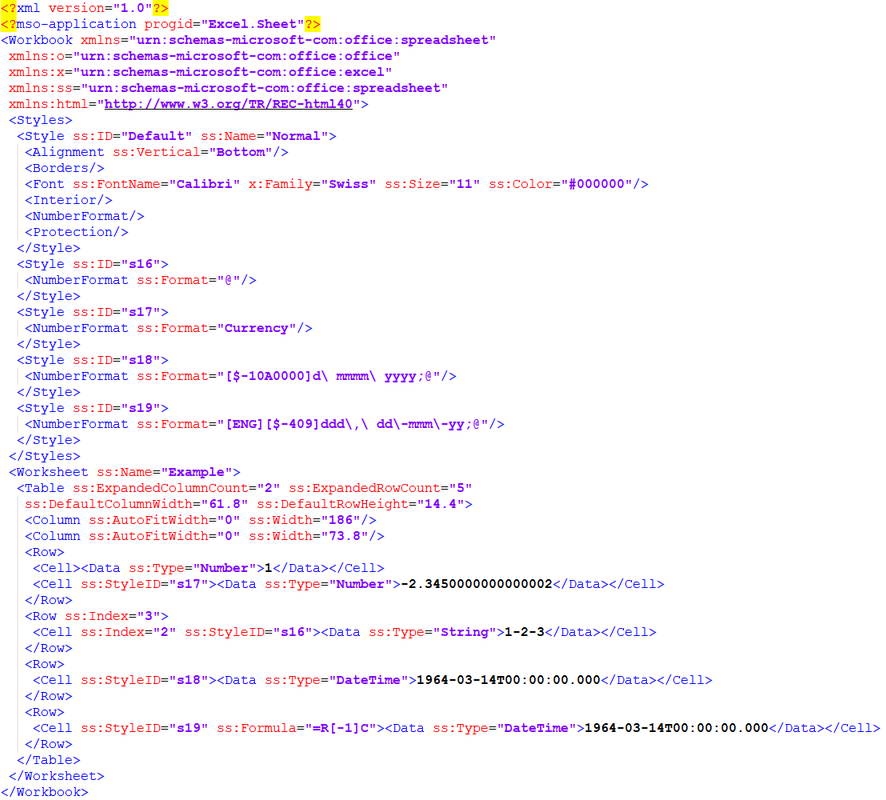
    It is now clear to us that no matter what we do, we have to find a source that gives us information about the type of data. And we find this information in the XML Spreadsheet structure.

    Let's download the sample file from Excel-Online, open it locally and copy the range and look what's inside.


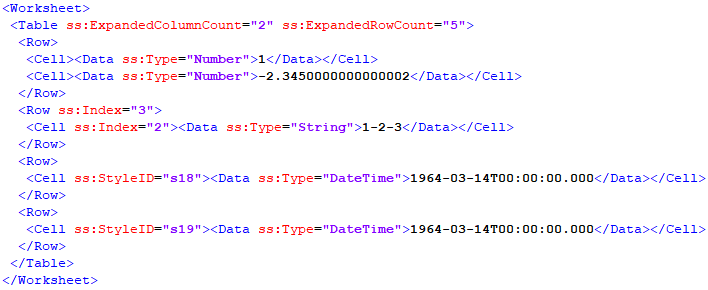
    This looks confusing at first, but it looks similar to the HTML format. So, let me remove some of the attributes and get your eyes down to the important part.


    There is also a "Table" and we can get the size of the two-dimensional array from the attributes in there. Row and column have the same name as we are used to in Excel.

    In each cell there is a "Data" and with the attribute ss:Type we know the data type and there are only 3 of them:
    • Number
    • String
    • DateTime


    If we look at the value of the currency, then we also see the actual value -2.345000000000000002 contained in the cell. Why does this value have 16 decimal places? They always say that Excel can only have 15 decimal places? One of the many myths that have been haunting the Internet about Excel for ages.

    Well, the details are terribly complicated and need their own article. The IEEE 754 standard defines the standard representations for binary and decimal floating-point numbers in computers and specifies precise procedures for performing mathematical operations, especially for rounding. If you want to deal with the details of floating-point arithmetic, this calculator is recommended.

    It is only important to know that we also get a text from the XML structure, but can see from the attribute Number that it is a number and have to use VBA.Val to convert it into a number.
    BTW, why VAL and not CDbl? CDbl respects the system's region settings, so it could be that your system uses the comma as a decimal separator, but a number in XML always has a dot as a decimal separator.

    We can recognize a text by the String attribute, i.e. if we insert values and number formats, then we must first format the cell as text to suppress the automatic conversion of Excel. In addition, texts are also encoded in UTF-8, which we must convert to ANSI as already discussed.

    A date (and also time) is always present as DateTime, but when converting it we have to consider a bug in Excel that VBA does not have, the 29 February 1900 which does not exist. This day is an intentional error in Excel that dates back to the early days of Excel. At that time there was still such serious competition: Lotus 1-2-3 and this software also had this error. If you're interested, check out the Function CDateTime in modClipboard.

    Before we get to the formats, a small difference to the HTML format: There we also had an entry for empty cells, but here they are missing. To recognize them, the index attribute tells us the position of the next row or column. The position then continues to apply to all subsequent rows and columns.

    Now let's look at the number formats.
    Last edited by Andreas Killer; 09-01-2025 at 08:41 PM.

  7. #7
    Junior Member Andreas Killer's Avatar
    Join Date
    Aug 2025
    Posts
    17
    Rep Power
    0

    XML Spreadsheet Number Formats

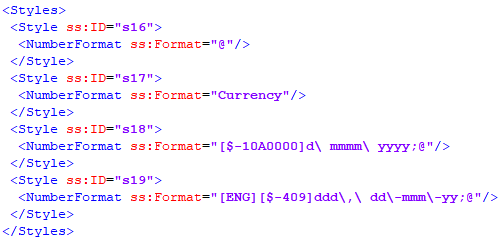
    If we look at the cell with a date, we don't find a number format in it, but a style.


    Why does Excel do this? If every cell really contained a number format with all the details, then Excel would be quite a memory hog. So it separates the number formats into their own area. I also reduce this so that we can see the important things.


    The style "s18" is a date format, as is "s19"; as experienced VBA programmers, we recognize "s16" as the text format, but "s17" is strange.
    Why doesn't this format include something like "0.00" and the currency sign?

    Well, there are some named formats in Excel, which are provided differently by Excel depending on the region setting. This way, for example, all users worldwide will see a General Date adjusted to their respective region settings, without having to adjust the format of the cell! These named formats are listed in the Microsoft article for VBA.Format.

    Unfortunately, the Range.Numberformat property does not accept these format names. VBA.Format doesn't help us either, we don't want to format the number, but set the number format of the cell. And I don't know of any way to read these number formats within Excel. And there are some strange ones like On/Off that can't even be formatted in Excel itself with the dialog box. That's why I use a trick.

    With the AddIn I deliver another file PredefiniedFormatNames.xml, in this one is an XML structure that corresponds to a spreadsheet in Excel and the cells are formatted with one of the named formats. If you have followed my explanations so far, open this file with Notepad and look at it, then open the file with Excel, you will find it interesting.

    My trick is to open this file when loading the AddIn, briefly read the number formats that Excel has used and close the file immediately.

    So that the following code in the AddIn does not become unnecessarily complicated, the GetXMLSpreadsheetTables function delivers the data as a 2D array and the formats in the same size, which is, more or less, everything.

    So how do we get this into the target cells?
    Last edited by Andreas Killer; 09-01-2025 at 08:57 PM.

  8. #8
    Junior Member Andreas Killer's Avatar
    Join Date
    Aug 2025
    Posts
    17
    Rep Power
    0

    Question Arrays - Part One

    If you are only interested in the universal array routines, take a look at the modLowLevel module, which contains everything you need and read only the last part of this topic.

    However, it will be worthwhile for you to follow my explanations, because the basics of arrays are also worth knowing. Here is the example file:
    https://www.dropbox.com/scl/fi/q80in...2d1m55ecb&dl=1

    Over the years I have seen a lot of code and there are many ways to write something in cells. At the beginning, you usually start with Cells(y,x) = Value and specify the absolute positions. Then you learn that there is a Range object, you can put it somewhere and the top left place is always y1,x1. Few programmers then come to Offset and Resize to adjust the areas and only much later, when you process large amounts of data, you notice that the code is slow and many complain in a forum. Here you learn that it is up to 700% faster to write data to a sheet with a two-dimensional array.

    What luck for us that our previous routines all provide such an array.

    If you look at the main routines PasteHTMLIntoAutofilter and PasteXMLIntoAutofilter in modMain, they probably look strange to you. Therefore, I would like to give you a little more understanding of this methodology, because it doesn't get any faster than that; don't be fooled by the amount of code, a long code is not necessarily slower than a short one!

    Let's make a new file and start a few simple routines to see what happens in reality. So that you don't have to copy each routine individually, I provide you with the file here.
    If you want to see the results of my remarks, just run the corresponding macro. You can also do this multiple times; each macro creates the scenario from scratch.

    First, let's create some data.

    Code:
    
    
    Sub ScenarioA() Dim Dest As Range 'Clear all cells Cells.Clear 'Refer to some cells Set Dest = Range("A1:E10") With Dest 'Write a formula into to get the address of the cell .Formula = "=ADDRESS(ROW(),COLUMN(),4)" 'Convert the formulas to values (using a 2D-array "on the fly") .Value = .Value End With End Sub
    Now let's read some of the data and write it to another place... you may have done it before. But what actually happens when the target area is smaller?

    Code:
    
    
    Sub SmallerDestination() Dim Source As Range, Dest As Range Dim Data 'Create the scenario ScenarioA 'Refer to some cells Set Source = Range("A4:C7") 'Read all values into a 2D-array Data = Source.Value 'Refer to the destination cells Set Dest = Range("G3:H5") 'Write the array into the sheet Dest.Value = Data 'Just to show you what was copied Source.Select End Sub
    As we can see, data is missing, the Range object writes only as much of the array as possible, there is no error message. And what about in the other case, if the target area is larger?

    Code:
    
    
    Sub LargerDestination() Dim Source As Range, Dest As Range Dim Data 'Create the scenario ScenarioA 'Refer to some cells Set Source = Range("A4:C7") 'Read all values into a 2D-array Data = Source.Value 'Refer to the destination cells Set Dest = Range("G3:J8") 'Write the array into the sheet Dest.Value = Data 'Just to show you what was copied Source.Select End Sub
    Surprisingly, Excel fills the additional cells with an error and does not leave them empty, or even keeps any existing content... That's why you see code like this everywhere, the areas have to be exactly the same size.

    Code:
    
    
    Sub ExactDestination() Dim Source As Range, Dest As Range Dim Data 'Create the scenario ScenarioA 'Refer to some cells Set Source = Range("A4:C7") 'Read all values into a 2D-array Data = Source.Value 'Refer to the top left destination cell Set Dest = Range("G3") 'Resize the refered range to the same size as the array Set Dest = Dest.Resize(UBound(Data), UBound(Data, 2)) 'Write the array into the sheet Dest.Value = Data 'Just to show you what was copied Source.Select End Sub
    Last edited by Andreas Killer; 09-09-2025 at 06:36 PM.

  9. #9
    Junior Member Andreas Killer's Avatar
    Join Date
    Aug 2025
    Posts
    17
    Rep Power
    0

    Question Arrays - Part Two

    However, our areas are usually not the same size and we have to be prepared to cover every possible scenario. This also means that we may only have to handle individual cells, which does not work with our code so far.

    Code:
    
    
    Sub SingleSourceCell_DontWork() Dim Source As Range, Dest As Range Dim Data 'Create the scenario ScenarioA 'Refer to one cell Set Source = Range("A4") 'Read the value Data = Source.Value 'Refer to the top left destination cell Set Dest = Range("G3") 'Resize the refered range to the same size as the array Set Dest = Dest.Resize(UBound(Data), UBound(Data, 2)) 'Write the array into the sheet Dest.Value = Data 'Just to show you what was copied Source.Select End Sub
    Many programmers make a special solution in the code for these cases, I generally do it differently, which has the advantage that nothing changes in the basic principle.

    Code:
    
    
    Sub SingleSourceCell_Works() Dim Source As Range, Dest As Range Dim Data 'Create the scenario ScenarioA 'Refer to one cell Set Source = Range("A4") 'Read the value Data = Source.Value 'Do we have an array? If Not IsArray(Data) Then 'No, create one ReDim Data(1 To 1, 1 To 1) 'Write the value into Data(1, 1) = Source.Value End If 'Refer to the top left destination cell Set Dest = Range("G3") 'Resize the refered range to the same size as the array Set Dest = Dest.Resize(UBound(Data), UBound(Data, 2)) 'Write the array into the sheet Dest.Value = Data 'Just to show you what was copied Source.Select End Sub
    That was easy. Now let's look at it with multiple areas in the source. I'm doing this intentionally unnaturally and not in the way we would expect. If you assume properties of a data source, then sooner or later the case always comes where this property is missing or slightly different, and then there are nasty mistakes.

    Code:
    
    
    Sub MultipleSourceCells_DontWork() Dim Source As Range, Dest As Range Dim Data 'Create the scenario ScenarioA 'Refer to some cells Set Source = Range("A4:C7,D2:E6,B9") 'Read all values into a 2D-array Data = Source.Value 'Refer to the top left destination cell Set Dest = Range("G3") 'Resize the refered range to the same size as the array Set Dest = Dest.Resize(UBound(Data), UBound(Data, 2)) 'Write the array into the sheet Dest.Value = Data 'Just to show you what was copied Source.Select End Sub
    Last edited by Andreas Killer; 09-07-2025 at 05:33 PM.

  10. #10
    Junior Member Andreas Killer's Avatar
    Join Date
    Aug 2025
    Posts
    17
    Rep Power
    0

    Question Arrays - Part Three

    The Range object simply gives us only the first range from a multiple area and everything else does not... this is strange at first, but if you think about how you want the different areas in a 2D array, you come up with at least 2 solutions:

    Vertically on top of each other or horizontally next to each other. The newer versions of Excel now also have formulas for this: VSTACK and HSTACK, in VBA we have to do this ourselves. If you're looking for the code of StackedArrays, please download the AddIn and look into the module modLowLevel.

    Code:
    
    
    Sub MultipleSourceCells_VerticalStack() Dim Source As Range, Dest As Range Dim Data 'Create the scenario ScenarioA 'Refer to some cells Set Source = Range("A4:C7,D2:E6,B9") 'Read all values into a 2D-array Data = StackedArrays(Source) 'Refer to the top left destination cell Set Dest = Range("G3") 'Resize the refered range to the same size as the array Set Dest = Dest.Resize(UBound(Data), UBound(Data, 2)) 'Write the array into the sheet Dest.Value = Data 'Just to show you what was copied Source.Select End Sub Sub MultipleSourceCells_HorizontalStack() Dim Source As Range, Dest As Range Dim Data 'Create the scenario ScenarioA 'Refer to some cells Set Source = Range("A4:C7,D2:E6,B9") 'Read all values into a 2D-array Data = StackedArrays(Source, True) 'Refer to the top left destination cell Set Dest = Range("G3") 'Resize the refered range to the same size as the array Set Dest = Dest.Resize(UBound(Data), UBound(Data, 2)) 'Write the array into the sheet Dest.Value = Data 'Just to show you what was copied Source.Select End Sub
    This brings us to the end of the first part, let's now look at how we deal with multiple areas in the finish.
    Last edited by Andreas Killer; 09-07-2025 at 05:38 PM.

Similar Threads

  1. Replies: 1
    Last Post: 07-27-2020, 12:09 AM
  2. Replies: 0
    Last Post: 09-26-2018, 02:37 PM
  3. populate control from named range stored in addin
    By MrBlackd in forum Excel Help
    Replies: 8
    Last Post: 05-11-2016, 04:46 PM
  4. Replies: 5
    Last Post: 03-25-2016, 04:28 AM
  5. Unique Count on a Filtered Range
    By Admin in forum Excel and VBA Tips and Tricks
    Replies: 0
    Last Post: 08-14-2011, 04:29 AM

Posting Permissions

  • You may not post new threads
  • You may not post replies
  • You may not post attachments
  • You may not edit your posts
  •