


This is post
https://www.excelfox.com/forum/showt...ll=1#post23924
https://www.excelfox.com/forum/showt...ge18#post23924
Some notes in support of these Thread Posts
https://www.eileenslounge.com/viewto...313622#p313622
https://www.excelfox.com/forum/showt...age2#post23769
Here’s the thing.
The Windows Shell object, (WSO), folder item way is a nice way to get at an extensive list of folder and file properties for the files and folders , (items), in a Folder.( https://www.youtube.com/watch?v=jTmVtPHtiTg ). But it’s a bit broken in places and/ or is not so precise in some size properties. But for now I want to do the main looping with the WSO.
The main purpose of this small test macro snippet is part of investigating a combination of the Windows Shell object folder item way and the Microsoft Scripting Runtime, (FSO), way to get some properties of the files ( and sub folders and their contents ) in a programmes folder of a software. This is for the purpose of comparing different versions of the same software, ( or to help determine if something masquerading as a software is a fake or has some unexpected additions or alterations ).
Code:' To test, run this macro in any workbook that is in any folder, but that folder must also include this sample Folder, MMPropertyTest https://app.box.com/s/27u7dyjee3rez44pdjq52uu2e7tgzu8v Sub TestWindowsShellObjectFolderItemWithFSOway() ' https://www.excelfox.com/forum/showthread.php/2056-Appendix-Thread-2-(-Codes-for-other-Threads-HTML-Tables-etc-)?p=23924&viewfull=1#post23924 https://www.eileenslounge.com/viewtopic.php?p=313622#p313622 https://www.excelfox.com/forum/showthread.php/2936-YouTube-Video-making-and-editing-etc-coupled-to-excelfox-(-windows-Movie-Maker-)/page2#post23769 ' Early Binding Microsoft Scripting Runtime 'Dim objFSO As Scripting.FileSystemObject: Set objFSO = New Scripting.FileSystemObject ' https://i.postimg.cc/d1GHPGxJ/Microsoft-Scripting-Runtime-Library.jpg ' Late Binding Dim objFSO As Object: Set objFSO = CreateObject("Scripting.FileSystemObject") ' Early Binding for windows shell object Microsoft Shell Controls And Automation 'Dim objWSO As Shell32.Shell: Set objWSO = New Shell32.Shell ' https://i.postimg.cc/Fz9zrnNm/Tools-Referrences-Microsoft-Shell-Controls-And-Automation.jpg https://i.postimg.cc/sDC9S54h/Tools-Referrences-Microsoft-Shell-Controls-And-Automation.jpg ' Late Binding Dim objWSO As Object: Set objWSO = CreateObject("shell.application") 'Dim objWSOFolder As Shell32.Folder Dim objWSOFolder As Object ' ------- This section may not be needed by most people. I dabble in both English and German systems so I can't easilly hard code the item type name given for a folder by the WSO ( In German operating systems it is Dateiordner ) Set objWSOFolder = objWSO.Namespace(ThisWorkbook.Path) 'Dim FldItm As Shell32.FolderItem Dim FldItm As Object For Each FldItm In objWSOFolder.Items Dim NmeOfAFldr As String If objWSOFolder.GetDetailsOf(FldItm, 0) = "MMPropertyTest" Then Let NmeOfAFldr = objWSOFolder.GetDetailsOf(FldItm, 2): Debug.Print NmeOfAFldr ' In German OS this is Dateiordner Exit For ' I got what I want so don't meed to loop anymore Else End If Next FldItm ' ------- ' Now move on to getting some property detains of all items in the WSO folder object, objWSOFolder Set objWSOFolder = objWSO.Namespace(ThisWorkbook.Path & "\MMPropertyTest") 'Dim FldItm As Shell32.FolderItem For Each FldItm In objWSOFolder.Items Dim Clm As Long: Let Clm = Clm + 1 ' For convenience each items properties will be put in the next column Dim Rw As Long: Let Rw = 1 ' The row of the property ' Property Name of file or folder Let ActiveCell.Offset(Rw, Clm) = objWSOFolder.GetDetailsOf(FldItm, 0) ' Name of folder or file using the WSO way ' Property File or folder size. I use the FSO for this to get a better precision and also because it seems to be broken for a folder item in WSO If objWSOFolder.GetDetailsOf(FldItm, 2) = NmeOfAFldr Then ' GetDetailsOf(FldItm, 2) tells me the type of the WSO item 'Dim objFSOFolder As Scripting.Folder: Set objFSOFolder = objFSO.GetFolder(ThisWorkbook.Path & "\MMPropertyTest\" & objWSOFolder.GetDetailsOf(FldItm, 0)) Dim objFSOFolder As Object: Set objFSOFolder = objFSO.GetFolder(ThisWorkbook.Path & "\MMPropertyTest\" & objWSOFolder.GetDetailsOf(FldItm, 0)) Let ActiveCell.Offset(Rw + 1, Clm) = objFSOFolder.Size Else ' If the item is not a folder, then I assume it will be a file? 'Dim ObjFSOFile As Scripting.File: Set ObjFSOFile = objFSO.GetFile(ThisWorkbook.Path & "\MMPropertyTest\" & objWSOFolder.GetDetailsOf(FldItm, 0)) Dim ObjFSOFile As Object: Set ObjFSOFile = objFSO.GetFile(ThisWorkbook.Path & "\MMPropertyTest\" & objWSOFolder.GetDetailsOf(FldItm, 0)) Let ActiveCell.Offset(Rw + 1, Clm) = ObjFSOFile.Size End If ' Property Date Last Modified Änderungsdatum Let ActiveCell.Offset(Rw + 2, Clm) = Format(objWSOFolder.GetDetailsOf(FldItm, 3), "dd,mmm,yy") ' Property Date Created Erstelldatum Let ActiveCell.Offset(Rw + 3, Clm) = Format(objWSOFolder.GetDetailsOf(FldItm, 4), "dd,mmm,yy") ' Property Version Let ActiveCell.Offset(Rw + 4, Clm) = objWSOFolder.GetDetailsOf(FldItm, 166) Next FldItm End Sub
To test this coding, put this test folder,
MMPropertyTest https://app.box.com/s/27u7dyjee3rez44pdjq52uu2e7tgzu8v
, in any folder. Run the macro from any Excel file that is in the same folder that you put the folder MMPropertyTest in.
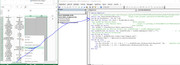
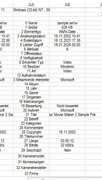
The results should be of this sort of form:
https://i.postimg.cc/k4FLjVpG/WSOwith-FSO-Test.jpg
MMPropertyTest https://app.box.com/s/27u7dyjee3rez44pdjq52uu2e7tgzu8v


 Reply With Quote
 Originally Posted by HansV



Bookmarks