Get the copied data from the clipboard, Loop the destination range adding the data to empty cells
( In this, and all the initial solutions the user interaction in the final usage is simply:
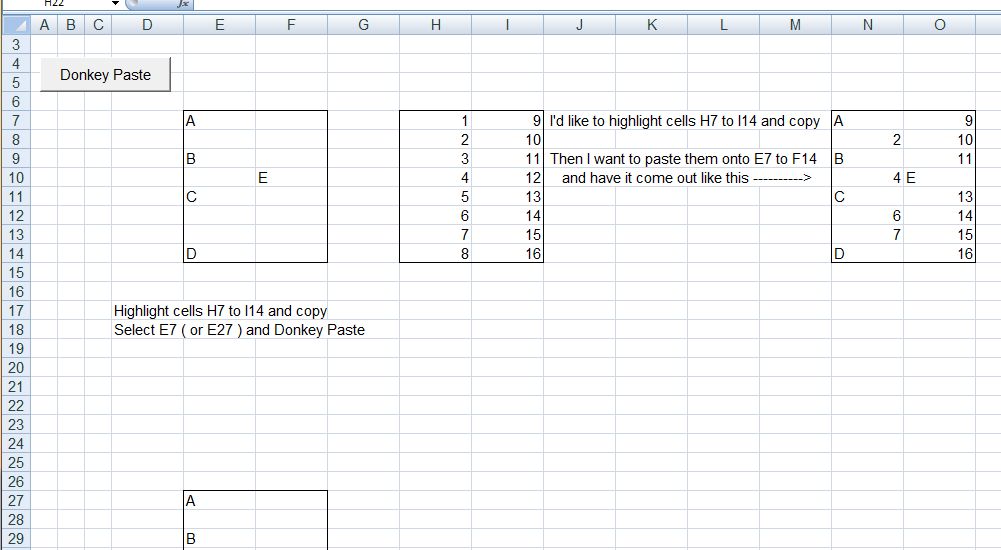
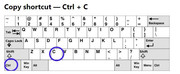
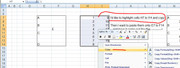
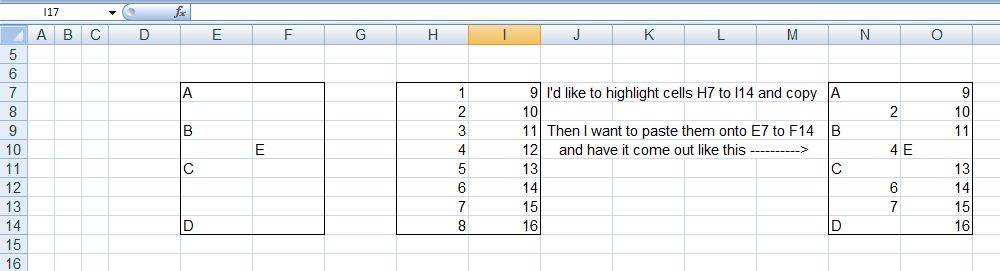
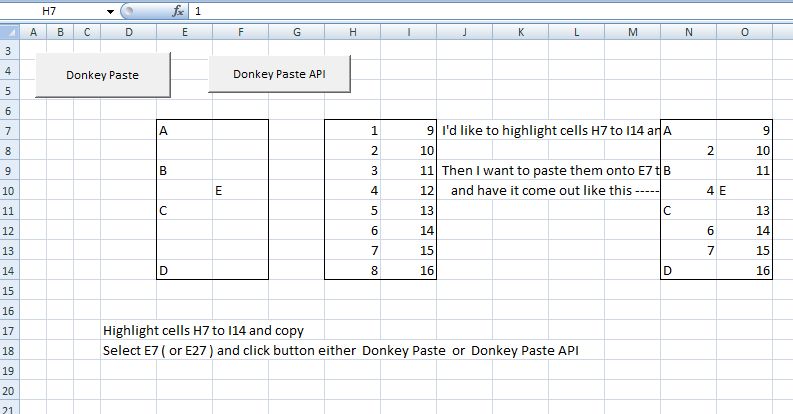
_ You highlight the cells ( those you want to Paste Only on Empty Cells ), and copy
_ Select the range, ( or top left thereof), you want to past onto, and hit the small button )
General Coding description
Sub DonkeyPlops1()
Sub DonkeyPlops2()
Both are the same basic coding, the first has a bit more detail for learning and debugging/ developing. The description below walks through the fuller version, Sub DonkeyPlops1()
Rem 1
This coding section gets us the data that the user copied. This is how that works: When the user does a Copy, there is, (amongst all the other very many known and unknown mysteries of the clipboard), the possibility to get it back, to use in coding, in a fairly simple text form:
Simple example: If I have a 2 row 3 column spreadsheet range like this,
vbCr & vbLf & a b c
vbCr & vbLf & f g w
,and I copy it, then I can get a single string out of the clipboard that has those values and a few so called "invisible“ characters: something of this sort of form:
a & vbTab & b & vbTab & c & vbCr & vbLf & f & vbTab & g & vbTab & w & vbCr & vbLf
That is a simple continuous text string, but just for our convenience here, I can show that in a way that helps us to relate that to the original spreadsheet range
vbCr & vbLf & a & vbTab & b & vbTab & c
vbCr & vbLf & f & vbTab & g & vbtab & w
vbCr & vbLf
Coding section Rem 1 gets us that text string, and does some simple manipulation on it to
_ get the number or rows and columns;
_ get the data values for convenience into a 1 dimensional array
Rem 2
This gets the range information of the selection made by the user (the one for pasting into empty cells). It is convenient to use the windows property of ActiveCell, since this returns the top left of a selection regardless of whether a single cell or a multiple cell selection is made ( **Provided the user starts the selection from Top Left – important to note that. ** ). Knowing the top left, the full range is determined as we got the number of rows and columns from the last section
** If the user prefers to make the entire selection, and may start from other than top left, then it might be better to use the Selection here
Rem 3 Loop the destination range and add data to empty cells
Full Coding version
Code:
Option Explicit
Sub DonkeyPlops1() '  https://www.excelfox.com/forum/showthread.php/3012-Pasting-into-Empty-cells-only?p=25115&viewfull=1#post25115
Rem 0
Dim Ws1 As Worksheet
 Set Ws1 = ThisWorkbook.Worksheets("Sheet1")
Rem 1 Get back from Clipboard
'Dim objCliCodeCopied As DataObject   '**Early Binding.   This is for an Object from the class MS Forms. This will be a Data Object of what we "send" to the Clipboard.  But it is a DataObject. It has the Methods I need to send text to the Clipboard
' Set objCliCodeCopied = New DataObject '**Must enable Forms Library: In VB Editor do this:  Tools -- References - scroll down to Microsoft Forms 2.0 Object Library -- put checkmark in.  Note if you cannot find it try   OR IF NOT THERE..you can add that manually: VBA Editor -- Tools -- References -- Browse -- and find FM20.DLL file under C:\WINDOWS\system32 and select it --> Open --> OK.     https://web.archive.org/web/20140610055224/http://excelmatters.com/2013/10/04/late-bound-msforms-dataobject/
' ( or instead of those two lines  Dim obj As New DataObject ).    or  next two lines are.....Late Binding equivalent'
Dim objCli As Object '  Late Binding equivalent'   If you declare a variable as Object, you are late binding it.  https://web.archive.org/web/20141119223828/http://excelmatters.com/2013/09/23/vba-references-and-early-binding-vs-late-binding/
 Set objCli = GetObject("New:{1C3B4210-F441-11CE-B9EA-00AA006B1A69}") ' https://web.archive.org/web/20140610055224/http://excelmatters.com/2013/10/04/late-bound-msforms-dataobject/
 objCli.GetFromClipboard 'All that is in the Clipboard goes in this Data Object instance of the Class
Dim ShitIn As String ' String varable to take what was coplied to clipboard. This can be very long,                                                                                            like my cock
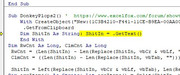
 Let ShitIn = objCli.GetText() 'retrieve the text shat in the clipboard by a   Copy
'1b) Some range info from the shit in the clipboard
Dim RwCnt As Long, ClmCnt As Long
 Let RwCnt = (Len(ShitIn) - Len(Replace(ShitIn, vbCr & vbLf, "", 1, -1, vbBinaryCompare))) / 2 ' Note  Copy  gives a last trailing  vbCr & vbLf  in the clipboard, so we have a  vbCr & vbLf  for each line      https://www.eileenslounge.com/viewtopic.php?p=303007#p303007
 Let ClmCnt = ((Len(ShitIn) - Len(Replace(ShitIn, vbTab, "", 1, -1, vbBinaryCompare))) / RwCnt) + 1        '       Copy does not give trailing  vbTab s  so the  vbTab  count per row will be 1 less than the number of columns
'1c) By changing the value seperating "invisible" characters so that they are all the same, gives us the chance to conveniently split by that to get an array of the range elements
Dim strItems As String
 Let strItems = Replace(ShitIn, vbCr & vbLf, vbTab, 1, -1, vbBinaryCompare)
 Let strItems = Left(strItems, Len(strItems) - 1) ' Take off last unwanted vbTab
Dim arrItems() As String: Let arrItems() = Split(strItems, vbTab, -1, vbBinaryCompare)
Rem 2 The selection to be pasted into, assuming user has highlighted the range or selected the top left
Dim Dst As Range
 Set Dst = Windows(ThisWorkbook.Name).ActiveCell.Resize(RwCnt, ClmCnt)
Rem 3 Loop the destination range and add data to empty cells
Dim Rw As Long, Clm As Long
    For Rw = 1 To RwCnt
        For Clm = 1 To ClmCnt
            If Dst.Cells.Item(Rw, Clm) = "" Then
            Dim ItmIndx As Long: Let ItmIndx = Clm + (ClmCnt * (Rw - 1))  '               Item way of thinking as alternative to conventional row column looping   https://www.excelfox.com/forum/showthread.php/2789-Item-way-of-thinking-as-alternative-to-conventional-row-column-looping
             Let Dst.Cells.Item(Rw, Clm) = arrItems(ItmIndx - 1) ' The  -1  is because a 1 D array in VBA got fropm  Split  typically starts at index of 0, rather than 1
            Else
            End If
        Next
    Next Rw
End Sub
Shortened coding version
Code:
Sub DonkeyPlops2() '  https://www.excelfox.com/forum/showthread.php/3012-Pasting-into-Empty-cells-only?p=25115&viewfull=1#post25115
    With CreateObject("New:{1C3B4210-F441-11CE-B9EA-00AA006B1A69}")
     .GetFromClipboard
    Dim ShitIn As String: ShitIn = .GetText()
    End With
Dim RwCnt As Long, ClmCnt As Long
 RwCnt = (Len(ShitIn) - Len(Replace(ShitIn, vbCr & vbLf, ""))) / 2
 ClmCnt = ((Len(ShitIn) - Len(Replace(ShitIn, vbTab, ""))) / RwCnt) + 1

 ShitIn = Left(Replace(ShitIn, vbCr & vbLf, vbTab), Len(Replace(ShitIn, vbCr & vbLf, vbTab)) - 1)
Dim arrItems() As String: Let arrItems() = Split(ShitIn, vbTab)
Dim Dst As Range: Set Dst = ActiveCell.Resize(RwCnt, ClmCnt)

Dim Rw As Long, Clm As Long
    For Rw = 1 To RwCnt
        For Clm = 1 To ClmCnt
            If Dst.Cells(Rw, Clm) = "" Then
             Let Dst.Cells(Rw, Clm) = arrItems(Clm + (ClmCnt * (Rw - 1)) - 1)
            End If
        Next
    Next Rw
End Sub
Button
Depending on your Office version and what settings you have, there is usually a way to put a button on a spreadsheet which will run a macro when you click it
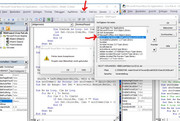
This example screenshot set is done on Excel 2007
https://i.postimg.cc/3rGjvhL0/Develo...m-Controls.jpg
https://i.postimg.cc/FRMjBCKK/Click-...e-and-drag.jpg
https://i.postimg.cc/4d76wRsM/Click-...-change-it.jpg https://i.postimg.cc/d0SR8VPr/Click-...-change-it.jpg
https://i.postimg.cc/nrqvbKsG/Assign-a-macro.jpg
https://i.postimg.cc/sgKLmRB2/Donkey-Paste.jpg




 Reply With Quote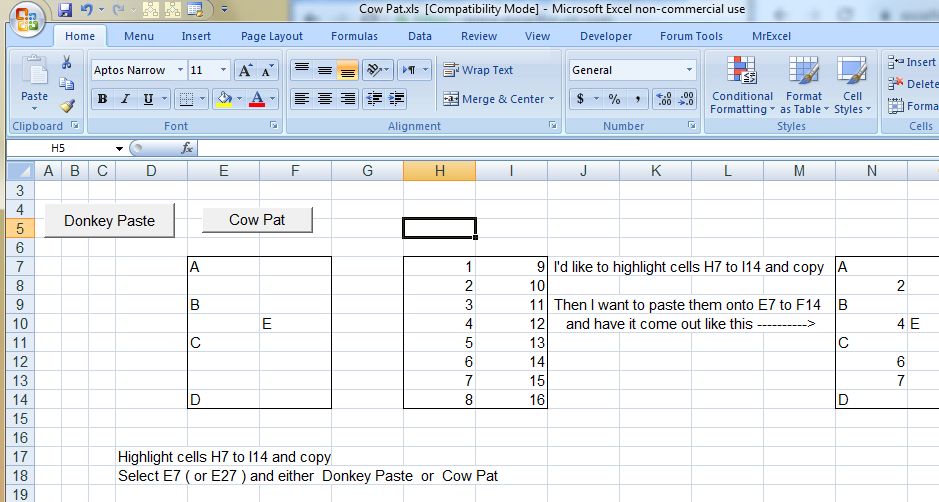


 Originally Posted by Andreas Killer


Bookmarks