Page 6 of 7 FirstFirst ... 4567 LastLast
Results 51 to 60 of 70

Thread: A Semi automated way to note the IP addresses of things viewing us

Hybrid View

Previous Post Previous Post   Next Post Next Post
  1. #1
    Fuhrer, Vierte Reich DocAElstein's Avatar
    Join Date
    Aug 2014
    Posts
    10,456
    Rep Power
    10
    Stripping/ Splitting up Parts of IP addresses
    Background

    IP Address
    Each network running TCP/IP must have a unique network number, and every machine on it must have a unique IP address. It is important to understand how IP addresses are constructed before you register your network and obtain its network number.
    The IP address is a 32-bit number that uniquely identifies a network interface on a machine. An IP address is typically written in decimal digits, formatted as four 8-bit fields separated by periods. Each 8-bit field represents a byte of the IP address. This form of representing the bytes of an IP address is often referred to as the dotted-decimal format.
    (
    https://docs.oracle.com/cd/E19504-01...471/index.html )
    That means in simple English that we have something somewhere actually like in this sketch below, which is 4 lots of similar 8 digit bits, and each bit, (called a Bit, in computing), can be in either of two states, 0 or 1. ( 8 Bits is often regarded as a fundamental unit in computing and is given the name Byte )
    As is typical in computing it is organised in a so called "binary" way , meaning that we can make bigger numbers than 1 or 0.
    How that is done, demonstrating with emphasis on our IP address explanations, can be best seen with a simple example.

    For example in the below example I am representing an IP address of 255.32.65.2 (I am trying to do it in a way that somehow gives an insight into the deep down 4 Byte 32 Bit representation form of a computer or it's software stuff We may not directly need to know that, but it can be useful indirectly as time goes on as we may get necessarily more into the subject )
    Code:
    '      128 64 32 16 8 4 2 0  |   128 64 32 16 8 4 2 0  |  128 64 32 16 8 4 2 0  |  128 64 32 16 8 4 2 0
    '       1   1  1  1 1 1 1 1       0  0   1  0 0 0 0 0      0   1  0  0 0 0 0 1      0   0  0  0 0 0 1 0
    '    128+64+32+16+8+4+2+1=255    0+0+32+0+0+0+0+0=32      0+64+0++0+0+0+0+1=65        0+0+0+0+0+0+2+0=2
    '              255                      32                        65                          2
    '
    '                     255.32.65.2
    The series of 0s and 1s above is somewhere close to what is actually going on somewhere deep down in the computer innards
    , and the 255.32.65.2 is how we as Humans choose to speak about it in an easy way….


    IP Address Parts
    I prefer to keep it easy in Laymen terms, especially as these things tend to change a bit and we are not always told accurately how. My explanation tries to give the general idea or facts that may likely not change too much or come closest to the truth.
    In the simplest terms:
    _ Numbers towards the right may identify a specific device such as a computer, or individual;
    _ The numbers towards the left are likely to somehow reveal the larger entity, such as an organisation, or some big thing that is trying to get at you.

    For our purposes here we are wanting to get at the bigger entity, or at last to identify it. ( The final physical individual can easily change, be replaced, or subject to a lot of actual physical violence, possibly by me. I prefer to deal with that personally, usually physically as much as possible, in a more Human and if possible Humane way. )


    So

    I am wanting to develop some coding to help me get at the lefter parts of the IP address. Initially that is to see if it helps me get any useful information quickly.
    Using the above example, getting something like
    255.32.65
    , or
    255.32
    , in an efficient way might be useful.


    I will take a look at doing that in the next post
    Last edited by DocAElstein; 02-02-2026 at 06:12 PM.

  2. #2
    Fuhrer, Vierte Reich DocAElstein's Avatar
    Join Date
    Aug 2014
    Posts
    10,456
    Rep Power
    10
    Stripping/ Splitting up Parts of IP addresses
    Coding
    Evaluate(Range) solution
    Because I am currently still wanting to have some easily see-able spreadsheet lists, then this could be something that may be a nice neat use of what I Call Evaluate(Range) solutions. These basically work on an existing spreadsheet List, but from within VBA, and can give results knocking the socks off of what is still considered more normal most efficient professional ways. Me and a few others have perfected them in recent years. (They works best on older more stable and reliable Office versions also, - as with most things Microsoft, they have been slowly messing things up over the last 10-20 years)

    The idea is to develop a formula in a spreadsheet, preferably a fairly simple one, and then we use it in VBA to very efficiently work on the spreadsheet to paste in all the final results, only results – No formulas will appear in the spreadsheet.

    The uploaded file shows development of one possible solution, and the following explanations discuss that development and final answer. There are probably lots of possible solutions, maybe some better. But this one will probably do for now


    The formula development
    A good start point is the Excel SUBSTITUTE function in this in the following sort of form, which is a form using all the arguments, including the last, which is optional.
    =SUBSTITUTE("43.134.41.39",".","_",2)
    The SUBSTITUTE function is one of a few Excel functions doing some helpful things that do not have a direct equivalent in native VBA. The feature I find very useful with the SUBSTITUTE function is the ability to replace a particular occurrence of a character or character set. (A close equivalent in VBA, the Replace function almost does the same – it has the option to replace just a certain number of occurrences so could be fiddled to do effectively the same)

    So, in the way I am using the SUBSTITUTE function above, it effectively puts a _ where the second . was,
    , the idea after that being to FIND the poison of that single _ , after which we can take just the LEFT up to the _
    This is a good start point in our case, since the 2 in the SUBSTITUTE has put the _ at the place of the second . , so I can FIND it , then take the LEFT up to it to get 43.134 , but thereafter, in any final formula, if I want to do similar to get, for example 43.134.41, then I simply need to change the 2 to a 3 so as to be dealing with the third .


    In the uploaded file I go through a typical formula development. I tend to start with a typical data in the first cell then develop formula in the columns to the right.

    https://postimg.cc/T5J1zVbs

    Code:
                   =SUBSTITUTE(A2;".";"_";2)  =FIND("_";B2)  =LEFT(A2;C2-1)   =LEFT(A2;FIND("_";B2)-1)  =LEFT(A2;FIND("_";SUBSTITUTE(A2;".";"_";2))-1)
    In simple wording what I do is: get the information, or make the changes I need to, using a formula in a cell in the columns, and then when I am finally at a working formula, (which will be at this point typically using the cells in the columns), I work backwards as it were, substituting into the column cell range the actual formula in that referenced column cell, the final goal being to have a formula only needing the original data.

    It is difficult to easily explain that in words, or if it is, then it is probably quicker to take a look at, and fiddle a bit with, the cells, and you then should quickly see what is going on.
    But here is a quick explanation anyway, taking the first data in cell A2,
    43.134.41.39
    In B2 I change the second . to a _
    In C2 I find position along of that _
    I now have the information I need to use the LEFT function to take just the left part of the data that I want. So at this point I have the working formula, but it has cell references in it. I don't want that, or rather I do, but only the original data reference, in this case A2
    From then on I replace cell references in the formula with the actual formula in the referenced cell. I keep doing this until I finally only am referencing the actual data cell, A2, in this case

    The VBA coding, ( for Evaluate(Range) solution )
    This is usually straight forward, only occasionally requiring some tweaking.
    In principal, in the simplest application of the Evaluate(Range) idea, the idea is the basic idea or way that The VBA Evaluate(" ") works:
    If we put a formula/function that is working in a cell into a code line here, like this
    ___________ = Evaluate("here")
    , then the result returned in the coding is the same result that would usually be returned to the cell(s).
    I say cell(S), because for stable older Office versions, Excel was a well thought out, potentially very efficient tabulation calculation software: Typical computer innards workings have some efficient synchronisation to the screen interface us humans see and use. Using just a single cell puts something of a restriction on this process. However, as a good compromise, the original clever Excel developers came up with a system that allows minimum disturbance, a sort of block of vision across all but the used cell, which can however be removed easily. This is related to the so called CSE "array" formulas.
    How this effects things in the Evaluate(" ") was not so clearly looked at. Possibly it was not envisaged that people like Rick Rothstein and me would take an interest and come up with some rather novel solutions.
    The bottom line is that we can usually get the Evaluate(" ") to return us an array of results for workings over a rectangular range, rather than a single cell, in a similar way to that which the CSE keyboard related actions can.

    Before we go any further with this explanation, it might help us keep a clear head by
    making a start on the final solution….

    This might be the typical development once I have a working solution in the Spreadsheet……

    _ Here is a working formula, as developed in the uploaded file and discussed above
    =LEFT(A2,FIND("_",SUBSTITUTE(A2,".","_",2))-1)
    That formula takes in A2, the value 43.134.41.39, and gives us 43.134

    _ We can almost simply put that inside the Evaluate("here")
    But this will error, Evaluate("LEFT(A2,FIND("_",SUBSTITUTE(A2,". ","_",2))-1)")
    The snag is that the two outermost quotes, Evaluate(" _____ ") , are acting as an enclosing quote pair in VBA to tell VBA that a literal string is there rather than some coding. So if we simply put the working formula in, then we will get some messy errors as VBA will get a bit confused with all those extra quotes in different places.
    We find that in general doubling the quotes, or rather a pair of quotes with no space between them, in a VBA string, seems to make VBA "see" just a single quote in the final string, which is what we want. This is not documented in detail. My guess, or rather a simple Layman way of thinking about it that helps me "get it", is to think that VBA in a code line is seeing something like this
    _________ " "" "
    , resulting in what is syntaxly OK - two lots of enclosing quotes somehow intimately entwined, and looking from/ in either of them, it sees simultaneously at the same position a quote. – The Purple quote enclosed in the Blue quotes appears at the end of that string, and by virtue of the merged/intertwining, the blue quote which is at the start of the enclosing purple quotes is "seen" at the same place by VBA. The word "seen" in this respect could be though of where VBA holds or places or references the character as the code is executed. Whatever it is doing, it is doing it twice, when once would have done, but the end effect is the same – like writing a character twice in the same place – finally we just have one character.

    So, in simple terms, if you want a quote, somewhere in a string in VBA, then put two quotes there


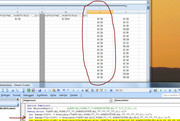
    A very nice and easy way to check you have arranged that VBA sees the formula you want is to get VBA to tell you what it sees.
    The Immediate window can be useful for this, as it is for so much in VBA development. This code line will tell you what is seen by VBA:
    Debug.Print "LEFT(A2,FIND(""_"",SUBSTITUTE(A2,""."",""_"",2))-1)"
    That would give us printed in the Immediate Window
    LEFT(A2,FIND("_",SUBSTITUTE(A2,".","_",2))-1)


    https://i.postimg.cc/Yqkd7nDj/Debug-...ate(Range).jpg


    So all looks OK, and indeed, if as example we had in cell A2
    43.134.41.39
    , and then this code line was executed,
    Let Range("I2") = Evaluate("LEFT(A2,FIND(""_"",SUBSTITUTE(A2,""."",""_"",2))-1)")
    , we would get in cell I2
    43.134

    Similarly, this
    Let Range("I2") = Evaluate("LEFT(A2,FIND(""_"",SUBSTITUTE(A2,""."",""_"",3))-1)")
    , we would get in cell I2
    43.134.41


    So we can use a working spreadsheet formula in VBA to get the result in a spreadsheet, without having the formula itself in the spreadsheet.


    We will deal with getting a range of results in on go into a spreadsheet in the next post
    Attached Files Attached Files
    Last edited by DocAElstein; 02-05-2026 at 04:57 PM.

  3. #3
    Fuhrer, Vierte Reich DocAElstein's Avatar
    Join Date
    Aug 2014
    Posts
    10,456
    Rep Power
    10
    Formula in Evaluate(Range) extended to give array of results.
    Similarity to spreadsheet "CSE" array formulas

    There is no documentation or definite knowledge on a lot of the following explanations. But it seems that we can make Evaluate(Range) things, in other words formulas in Evaluate(" Formula involving ranges here ") , work very similar to the CSE formulas in a spreadsheet

    Part of the so called CSE "array" formula experience often involves selecting the rectangular contiguous cell area over which the results should go. This also seems to somehow go some way to ensure that multi cell calculations are done. My guess is that the original Excel makers of, had a good reason for organising that.
    ( But that is debateable. It is often left to opinion or viewpoint based on personal motives and loyalties at the time, and other quirky Human things like fear of speaking the truth. You can touch a nerve or two if you discuss it too much ).
    I would further suggest that as a result of not having such an action of selecting cells in a spreadsheet, a certain loss of connection to a spreadsheet means that the Evaluate(Range) is working in some situations a bit differently, and therefore may require some tweaking. This particular tweaking has often over the years gone under the wording of coercing, or coercing to return an array of results.

    "CSE" array formula entry
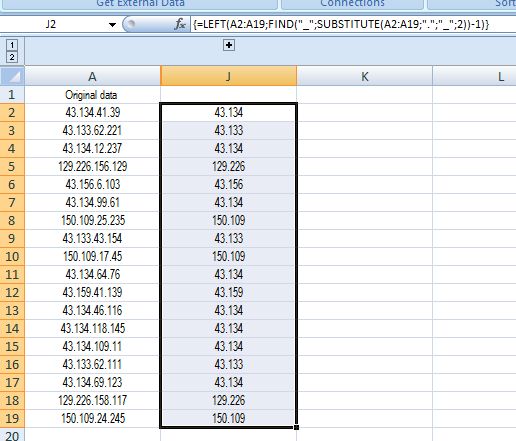
    Coming back to the spreadsheet, in the example in the uploaded file I have a set of data in the range A2:A19.
    If I were to
    _ select the range J2:J19
    _ type in this formula =LEFT(A2:A19,FIND("_",SUBSTITUTE(A2:A19,".","_",2))-1)
    _ Hold down the Ctrl and Shift Key Whilst hitting the Enter key,
    , then I should get a full set of results.

    https://postimg.cc/rz0Qd45k


    What we have done there is the classic CSE ( type 2 ) Excel "array formula" , which allows us to get multiple results from a single formula.


    In VBA coding we no longer have this manually made connection to the spreadsheet, but never the less, it is often enough to put such a formula into the Evaluate(" "), and the correct array of results is returned.

    In our example, the VBA code line would be
    Let Range("I2:I19") = Evaluate("LEFT(A2:A19,FIND(""_"",SUBSTITUTE(A2:A19,""."",""_"",2))-1)")

    But we find that we have one of the occasions when this does not work for us. As is often in these cases, we find that we just get the first result given across the entire output range, , - what is happening is that Evaluate(" ") has returned us an array of results, but they are all the results of the first calculation, LEFT(A2,FIND(""_"",SUBSTITUTE(A2,""."",""_"",2))-1)
    It is not known for sure what is going on here, but my suggestion is that the original Excel makers of, had some efficient route for calculations, such that in some cases the default route were doing the restriction to a single cell result, and as we do not have the connection to spreadsheet this restriction has not been removed. My guess is that in such cases as these, changing the route, (or some "redirection" as it is sometimes referred to), may help.

    A well used solution to such cases looks like this idea
    IF(ROW(A2:A19), ___The formula giving us the same result across the range___ )
    , which for our case would look like this
    IF(ROW(A2:A19), LEFT(A2:A19,FIND(""_"",SUBSTITUTE(A2:A19,""."",""_"",2))-1) )
    , the full code line then being
    Let Range("I2:I19") = Evaluate("IF(ROW(A2:A19),LEFT(A2:A19,FIND(""_"",SUBSTITUTE(A2:A19,""."",""_"",2))-1))")

    This usually works to get us te full correct results, and seems reasonable and intuitive. We seem to be taking a route likely to "coerce" multi cell calculations. Another advantage is that manipulation of the range within ROW(A2:A19), can give extra possibilities due to the way it restricts the output range.
    It is not clear when and who first this came up with this idea.

    Some time from** about 2016 some changes seemed to be made, ( ** not all at once, but gradually from that time on ), to the workings of Excel, finally resulting in some spewing up idea , who’s main effect was removing the need to do the CSE stuff in order to get array results, but which had the side effect of making this tweaking often unnecessary.
    Personally I would tend to think this was a bad idea, for a couple of reasons.
    _ (i) I am pessimistic as to whether the people doing this really knew what they were doing, and might have mistakenly though they were fixing something, that in fact, was not broken. - I tend to think Excel makers of, had a good reason for organising the CSE way. The "new" spewing up idea, seems more the obvious way to do it, so further thoughts may have resulted in a good reason for not doing it.
    _ (ii) Backward compatibility is compromised. It is very debateable what motives could be involved there.

    I can get over the problems by only using stable older Excel versions, which is generally a good idea I subscribe to, but I do not like to completely ignore new versions, and as much as possible would like to encourage solutions that work equally in new and old versions.

    One solution would be to always use the full range in the ROW(_____) , but I found by chance and experimenting something simpler that has no allowance or consideration for the range, and simply causes the full results to be returned, ( the range/array size simply determined by the ranges used in the simple formula )

    It is this sort of idea
    IF({1}, ____ The formula giving us the same result across the range ___ )
    Since I started using this I have seen it more often being used. (But I claim not to have invented or discovered it. I expect in parallel since or before others may have found it independently, as is the nature of these things, there being no central documentation or similar governing patent office for Excel coding, especially these sort of more novel uses. )

    The full final code line would then be something like this
    Let Range("I2:I19") = Evaluate("IF({1},LEFT(A2:A19,FIND(""_"",SUBSTITUTE(A2:A19,""."",""_"",2))-1))")

    ( the number 2 will result in us getting to the second . , but we can change that to 3 to get to the third . )

    In the next posts we will use this basic idea in codings to apply to existing lists of IP addresses


    Code:
    Sub NetworkPart()  '      =LEFT(A1;FIND("_";SUBSTITUTE(A1;".";"_";2))-1)
    Debug.Print "LEFT(A2,FIND(""_"",SUBSTITUTE(A2,""."",""_"",2))-1)"
     Let Range("I2") = Evaluate("LEFT(A2,FIND(""_"",SUBSTITUTE(A2,""."",""_"",2))-1)")
     Let Range("I2:I19") = Evaluate("LEFT(A2:A19,FIND(""_"",SUBSTITUTE(A2:A19,""."",""_"",2))-1)")
     Let Range("I2:I19") = Evaluate("IF(ROW(A2:A19),LEFT(A2:A19,FIND(""_"",SUBSTITUTE(A2:A19,""."",""_"",2))-1))")
     Let Range("I2:I19") = Evaluate("IF({1},LEFT(A2:A19,FIND(""_"",SUBSTITUTE(A2:A19,""."",""_"",2))-1))")
    End Sub
    
    Attached Files Attached Files
    Last edited by DocAElstein; 02-05-2026 at 05:10 PM.

  4. #4
    Fuhrer, Vierte Reich DocAElstein's Avatar
    Join Date
    Aug 2014
    Posts
    10,456
    Rep Power
    10
    Monitoring similar IP addresses
    Notes on coding in next post

    So, I am trying here to automate to getting list of the most common left bits of the IP addresses viewing.
    Initially I will start looking at up to the 2nd and third .

    In other words, the list of most common full IP addresses I already have IP addresses like this example
    43.134.49.155
    I will strip these down to make two new lists where the addresses will look like
    43.134 ______ 43.134.49
    , on a new worksheet.
    Te similar part IP addresses will be consolidated and ordered in order of most used in a similar way to how t full IP address list is.
    This new worksheet, coding, and results will go initially in the "Alls" summary files, such as
    SummaryRequestsIPsAllsJuly2025.xlsm
    , as I am trying where possible to group similar activity in merged lists, ( partly to try to reduce the stuff to look at and analyse ).


    The consolidation I will do with a dictionary from the start, as I am anticipating some very long lists.
    I have lists made from the previous dictionary coding, Sub SingleIPListDic() , so there is no need for trimming off spaces or "invisible" characters, but apart from that, the basic coding is similar to that coding, ( https://www.excelfox.com/forum/showt...ll=1#post27700 ). ( It was done once there, - but I do it twice here for each of the two column lists, ( the ones like 43.134 ____ 43.134.49 )

    So…

    Rem 1
    The current full part list, ( 2 columns, full IP address and the number of times used ) is copied twice to the new worksheet

    Rem 2
    The two lists have the IP address trimmed to the form of like 43.134 ____ 43.134.49

    Rem 3
    The consolidation with two dictionaries is done

    Rem 4 and Rem 5
    Organising the two new list output

    Rem 6 and Rem 7 and ……. Maybe later
    Sorting in order and other useful statistical info


    Coding in next post


    Edit 9 Feb, 2026
    I had some problems later with Excel doing things with strings having dots in, like for example we had, 43.130.141.85 , then the stripped value would be 43.13 , so the results up until I noticed this problem I have retired to the files below:

    Share ‘SummaryRequestsIPsAllsAugust2025BolloxExcelDot. xlsm’ https://app.box.com/s/6pg20jgym6oev3k7y6emzjqs8xvspchu
    Share ‘IPsBolloxExcelDot.xls’ https://app.box.com/s/48nvaghke0g0mo4zlbphjvejlavv44t0


    I will start again a few posts down
    https://www.excelfox.com/forum/showt...ll=1#post27710
    Last edited by DocAElstein; 02-09-2026 at 09:50 PM.

  5. #5
    Fuhrer, Vierte Reich DocAElstein's Avatar
    Join Date
    Aug 2014
    Posts
    10,456
    Rep Power
    10
    Coding discussed in last post


    Code:
    Option Explicit
    Sub PartsIP() '         *****   Select Top left of range to be used in worksheet  AllIPs
    Rem 0 Worksheets and data range info
    Dim wsAllIPs As Worksheet, WsSts As Worksheet
     Set wsAllIPs = ThisWorkbook.Worksheets("AllIPs"): Set WsSts = Me  '  ThisWorkbook.Worksheets("StatsIP")
    Dim TLa As Range, Lra As Long, TLs As Range, Lcs As Long, Lrs As Long
     Set TLa = Selection '  *****   Select Top left of range to be used in worksheet  AllIPs
     Let Lra = wsAllIPs.Cells.Item(wsAllIPs.Rows.Count, Selection.Column).End(xlUp).Row
     Let Lcs = WsSts.Cells.Item(1, WsSts.Columns.Count).End(xlToLeft).Column
    Dim NxtClm As Long: Let NxtClm = Lcs + 2 ' Top left of where the new column pair will go
    
    Rem 1 Copy data to  Stats  worksheet, ( twice )
    wsAllIPs.Cells.Item(1, TLa.Column).Resize(Lra, 2).Copy
    Application.Wait (Now() + TimeValue("00:00:01"))
    WsSts.Select
    WsSts.Paste Destination:=WsSts.Cells(1, NxtClm)
     Let WsSts.Cells(1, NxtClm) = Left(WsSts.Cells(1, NxtClm).Value, 32)
    Dim rngC1 As Range: Set rngC1 = WsSts.Cells(4, NxtClm).Resize(Lra - 3, 1) '  : rngC1.Copy ' quick check
    WsSts.Paste Destination:=WsSts.Cells(1, NxtClm + 2)
     Let WsSts.Cells(1, NxtClm + 2) = Left(WsSts.Cells(1, NxtClm).Value, 32)
    Dim rngC3 As Range: Set rngC3 = WsSts.Cells(4, NxtClm + 2).Resize(Lra - 3, 1)
    Application.Wait (Now() + TimeValue("00:00:01"))
    Rem 2 Trim IPs columns from the right   https://www.excelfox.com/forum/showthread.php/3007-A-Semi-automated-way-to-note-the-IP-addresses-of-things-viewing-us?p=27704&viewfull=1#post27704    https://www.excelfox.com/forum/showthread.php/3007-A-Semi-automated-way-to-note-the-IP-addresses-of-things-viewing-us?p=27705&viewfull=1#post27705
     Let rngC1 = Evaluate("IF({1},LEFT(" & rngC1.Address & ",FIND(""_"",SUBSTITUTE(" & rngC1.Address & ",""."",""_"",2))-1))")
     Let rngC3 = Evaluate("IF({1},LEFT(" & rngC3.Address & ",FIND(""_"",SUBSTITUTE(" & rngC3.Address & ",""."",""_"",3))-1))")
    Application.Wait (Now() + TimeValue("00:00:01"))
    Rem 3 Consolidated lists in Dictionary
    '3a) make Dics
    Dim DicIP2 As Object, DicIP3 As Object
     Set DicIP2 = CreateObject("Scripting.Dictionary"): Set DicIP3 = CreateObject("Scripting.Dictionary")
    '3b) fill them
    Dim rngC1234 As Range: Set rngC1234 = WsSts.Cells(1, NxtClm).Resize(Lra, 4) ' The full 4 column data range, (including title/ comment lines at the top)
    Dim arrIn() As Variant: Let arrIn() = rngC1234.Value2
    Dim Cnt As Long
        For Cnt = 4 To Lra
        '3b)(i) The one with first two number groups ( Network Part )
            If Not DicIP2.Exists("_" & arrIn(Cnt, 1) & "_") Then '
            ' Here the  Key/Item s   pair are made for the first time if this  Key  dos not exist
             DicIP2.Add Key:="_" & arrIn(Cnt, 1) & "_", Item:=arrIn(Cnt, 2) ' The  Key  is the IP address (part of),  the Item is the times it was used
            Else '  Else  here we Add the infomation of times used   if the  Key    already exists.
             '  referring to the Item with this key value           change its value to what it was     added    to the value in this next row
             Let DicIP2("_" & arrIn(Cnt, 1) & "_") = DicIP2("_" & arrIn(Cnt, 1) & "_") + arrIn(Cnt, 2)
            End If
        '3b)(ii) The one with first three number groups
            If Not DicIP3.Exists("_" & arrIn(Cnt, 3) & "_") Then '
            ' Here the  Key/Item s   pair are made for the first time if this  Key  dos not exist
             DicIP3.Add Key:="_" & arrIn(Cnt, 3) & "_", Item:=arrIn(Cnt, 4) ' The  Key  is the IP address (part of),  the Item is the times it was used
            Else '  Else  here we Add the infomation of times used   if the  Key    already exists.
             '  referring to the Item with this key value           change its value to what it was     added    to the value in this next row
             Let DicIP3("_" & arrIn(Cnt, 3) & "_") = DicIP3("_" & arrIn(Cnt, 3) & "_") + arrIn(Cnt, 4)
            End If
        
        Next Cnt
    Application.Wait (Now() + TimeValue("00:00:01"))
    Rem 4 Output arrays
    '4a Output array
    '4a(i) The one with first two number groups ( Network Part )
    Dim Keys2() As Variant, Itms2() As Variant
     Let Keys2() = DicIP2.keys(): Itms2() = DicIP2.items()
    Dim arrOut2() As Variant: ReDim arrOut2(0 To UBound(Keys2()), 1 To 2)
        For Cnt = 0 To UBound(Keys2())
         Let arrOut2(Cnt, 1) = Keys2(Cnt): arrOut2(Cnt, 2) = Itms2(Cnt)
        Next Cnt
    Application.Wait (Now() + TimeValue("00:00:01"))
    '4a(ii) The one with first three number groups
    Dim Keys3() As Variant, Itms3() As Variant
     Let Keys3() = DicIP3.keys(): Itms3() = DicIP3.items()
    Dim arrOut3() As Variant: ReDim arrOut3(0 To UBound(Keys3()), 1 To 2)
        For Cnt = 0 To UBound(Keys3())
         Let arrOut3(Cnt, 1) = Keys3(Cnt): arrOut3(Cnt, 2) = Itms3(Cnt)
        Next Cnt
    Application.Wait (Now() + TimeValue("00:00:01"))
    Rem 5 Outputs
    '5a Output ranges
    '5a(i) The one with first two number groups ( Network Part )
    Dim rngOut12 As Range: Set rngOut12 = WsSts.Cells.Item(4, NxtClm).Resize(UBound(Keys2()) + 1, 2)
    '5a(ii) The one with first three number groups
    Dim rngOut34 As Range: Set rngOut34 = WsSts.Cells.Item(4, NxtClm + 2).Resize(UBound(Keys3()) + 1, 2)
    
    '5b 0utputs
    rngC1234.Offset(3, 0).Resize(Lra - 3, 4).ClearContents
     Let rngOut12 = arrOut2()
     Let rngOut34 = arrOut3()
    Application.Wait (Now() + TimeValue("00:00:01"))
    Rem 6 Sort of
    rngOut12.Sort Key1:=rngOut12.Columns(2), order1:=xlDescending
    rngOut34.Sort Key1:=rngOut34.Columns(2), order1:=xlDescending
    Application.Wait (Now() + TimeValue("00:00:01"))
    Rem 7 Some stats
    Dim Sum2 As Long: Let Sum2 = Application.WorksheetFunction.Sum(rngOut12.Columns(2))
     Let rngOut12.Offset(rngOut12.Rows.Count, 1).Resize(1, 1) = Sum2
     Let arrOut2() = rngOut12.Value2
        For Cnt = 1 To UBound(arrOut2(), 1)
         Let arrOut2(Cnt, 2) = arrOut2(Cnt, 2) & "  " & Application.WorksheetFunction.Round((arrOut2(Cnt, 2) / Sum2) * 100, 1) & "%"
        Next Cnt
     Let rngOut12 = arrOut2()
    Application.Wait (Now() + TimeValue("00:00:01"))
    Dim Sum3 As Long: Let Sum3 = Application.WorksheetFunction.Sum(rngOut34.Columns(2))
     Let rngOut34.Offset(rngOut34.Rows.Count, 1).Resize(1, 1) = Sum3
     Let arrOut3() = rngOut34.Value2
        For Cnt = 1 To UBound(arrOut3(), 1)
         Let arrOut3(Cnt, 2) = arrOut3(Cnt, 2) & "  " & Application.WorksheetFunction.Round((arrOut3(Cnt, 2) / Sum3) * 100, 1) & "%"
        Next Cnt
     Let rngOut34 = arrOut3()
    
    'Application.Wait (Now() + TimeValue("00:00:01"))
    
    
    End Sub


    Share ‘SummaryRequestsIPsAllsJuly2025.xlsm’ https://app.box.com/s/y1vhxvzyk3yofqasxhfrfs9xva2oxdhp

    Edit 9 Feb, 2026
    I had some problems later with Excel doing things with strings having dots in, like for example we had, 43.130.141.85 , then the stripped value would be 43.13 , so the results up until I noticed this problem I have retired to the files below:

    Share ‘SummaryRequestsIPsAllsAugust2025BolloxExcelDot. xlsm’ https://app.box.com/s/6pg20jgym6oev3k7y6emzjqs8xvspchu
    Share ‘IPsBolloxExcelDot.xls’ https://app.box.com/s/48nvaghke0g0mo4zlbphjvejlavv44t0


    I will start again in the next post…..
    Last edited by DocAElstein; 02-09-2026 at 09:45 PM.

  6. #6
    Fuhrer, Vierte Reich DocAElstein's Avatar
    Join Date
    Aug 2014
    Posts
    10,456
    Rep Power
    10
    Later Beer2

  7. #7
    Fuhrer, Vierte Reich DocAElstein's Avatar
    Join Date
    Aug 2014
    Posts
    10,456
    Rep Power
    10
    Bollox, Excel going Dotty in a cell fucked me up again
    aka. Improved IP address manipulating and analysing in Excel, avoiding dotty problems


    I had some problems with Excel changing some IP addresses as a result of the combination of numbers and dots. Such things are common and was not unexpected, but I mistakenly thought I had got over them, or not seen them in the particular coding and data I was using. But I was wrong. For example, if I had this, 43.130.141.85 , then the stripped value would be 43.13 rather than 43.130


    So, what I am doing here is to go back a bit to limit the damage, but I note that some of the ideas here, in particular getting away from dots from the start, may be a sensible thing to do if I eventually re write many of the first original codings that deal with any IP addresses.

    At the outset I will change all the dots,
    .
    to a pipe,
    |

    In all lists and analysis I will keep to this convention, or go over to it as it is convenient by updating or writing new codings and only convert back to dots if I have a specific need to.
    Last edited by DocAElstein; 02-10-2026 at 02:42 AM.

  8. #8
    Fuhrer, Vierte Reich DocAElstein's Avatar
    Join Date
    Aug 2014
    Posts
    10,456
    Rep Power
    10
    Checking out the IP addresses looking at a particular Thread or thing
    Hello, :-)
    Around mid August 2025, (when there was still plenty of SchlappenBier about, so I was too drunk to notice), there were sometimes insane number of views on a particular Thread. (Something similar to a lesser extent may have happened before).
    The current coding keeps a record of the IP addresses viewing a particular Thread. It is all a bit dodged and cobbled together before I can get at the back end, but for now I can look at that information and get a detailed list not just of the IP addresses but also the left parts
    So a quick coding for that I can knock off quite quickly


    Format of the IP addresses in third column of data in worksheet AllRequests
    ( in workbook SummaryRequestsIPsAllsAugust2025.xlsm )

    It should be known what the format is like, since I put it in using any of the daily made files, IPAddressesWatchingExcelFox_Refresh____________.xls , with code lines like these following in Sub GetRefreshesIPAddressWatchingThingsAtExcelFox() in worksheet Requests code module.
    For the UnknownLocations worksheet
    Code:
                                Let rngReqErrIn.Offset(0, 1) = IPAddress
                               Else
                                Let rngReqErrIn = Request
                                Let rngReqErrIn.Offset(0, -1) = rngReqErrIn.Offset(0, -1).Value + 1
                                Let  rngReqErrIn.Offset(0, 1) = rngReqErrIn.Offset(0, 1).Value & vbCr & vbLf & " " & IPAddress
                               End If
                            End If ' Finished with problem requests here
                        Else '
    For the Requests worksheet
    Code:
                                Let rngReqIn.Offset(0, 1) = IPAddress
                               Else
                                Let rngReqIn = Request
                                Let rngReqIn.Offset(0, -1) = rngReqIn.Offset(0, -1).Value + 1
                                Let rngReqIn.Offset(0, 1) = rngReqIn.Offset(0, 1).Value & vbCr & vbLf & " " & IPAddress
                               End If
                            End If
    So either the first IP address of something viewing something goes in, or after that any further IP addresses viewing that same thing are tacked on via a space and a vbCr & vbLf pair.


    Just to check, I took a look at a cell at random…. , , in more detail using some coding , ( my Sub WtchaGot_Unic_NotMuchIfYaChoppedItOff( ) ) , to see exactly what was there
    , …………and it was a good idea I did as it gave me
    Code:
     "114.119.136.175" & vbTab & vbCr & vbLf & " 114.119.142.197" & vbCr & vbLf & " 114.119.136.175" & vbTab & vbCr & vbLf & " 114.119.151.81" & vbTab
    I have the space as expected, but sometimes an IP address is followed by a vbTab, something I noticed sometimes.


    So one solution would be to use the vbCr & vbLf for a split, and then do
    _ a Trim to remove a space
    , and
    _ a Replace a vbTab with "" to remove any vbTabs


    The basic ideal coding would perhaps be to take a consolidated list, select the cell with all the IP addresses in then get all the info out easily in the Immediate window
    There is a snag, in that a cell can have only 32767 characters which in the practice seems to limit me to approx 1900 IP addresses, and the immediate window also has size limits.
    To help get over these and other similar problems, it may be better to have a spare worksheet to put initially results in so that when possible the consolidated list would be used, but we could also if necessary build up a list from the individual list in SummaryRequestsIPsDailys.xlsm

    Then there will be a similar process of consolidation, trimming parts of the right of the IP addresses, re-consolidating, re ordering etc.
    For now it continues to be a bit cobbled together, but there you go, that's life


    Coding development in next post. ( The coding I will put in the new worksheet code module. The new worksheet I will call HVT for High View Things or High View Threads )
    Last edited by DocAElstein; 02-09-2026 at 04:52 PM.

  9. #9
    Fuhrer, Vierte Reich DocAElstein's Avatar
    Join Date
    Aug 2014
    Posts
    10,456
    Rep Power
    10
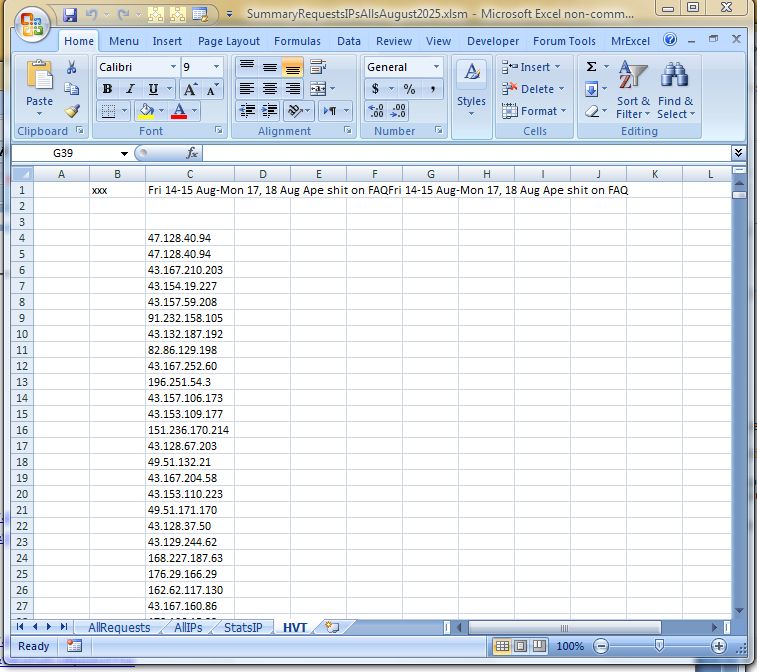
    These next couple of codings will get us as far as the IP addresses listed in the new worksheet, HVT ( for High View Things or High View Threads ) , in
    SummaryRequestsIPsAllsAugust2025.xlsm

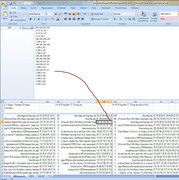
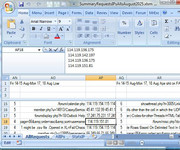
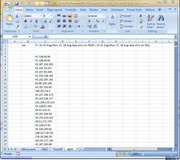
    https://postimg.cc/q6GPrm92 , https://i.postimg.cc/G90dkVKg/New-Worksheet-HVT.jpg


    You will be expected to select the cell that has a lot of IP addresses in it, then run either of two codings.

    The first alone is preferable as the only to run, using the data from a single cell in the consolidated file, SummaryRequestsIPsAllsAugust2025.xlsm ,

    For the problem case scenario of the cell string text length exceeding 32767 characters, it will be necessary again to select the first cell of interest cell that has a lot of IP addresses in it, but in the Daily’s file, SummaryRequestsIPsDailys__.xlsm , then run first the first coding, then , thereafter, when selecting further cells, the second coding is used to tack on the other IPs


    Code:
    Option Explicit
    ' Use this macro for IPs from consolodatd list or for first of a few from the  Dailys file
    Sub HighViewThreadIPsConsolodated() '   Select the cell ( in third column ) with lots of IP addresses in  AllRequests  worksheet
    Dim CellIPs As Range: Set CellIPs = Selection
    Dim StrCel As String: Let StrCel = CellIPs.Value2
        If Len(StrCel) = 32767 Then MsgBox Prompt:="Cell string length is  32767!  , so likely there were more IPs"
    Dim arrIPsH() As String: Let arrIPsH() = Split(StrCel, vbCr & vbLf, -1, vbBinaryCompare)
    Dim arrIPsV() As Variant: ReDim arrIPsV(1 To UBound(arrIPsH()) + 1, 1 To 1)
    Dim Cnt As Long
        For Cnt = 0 To UBound(arrIPsH())
         Let arrIPsV(Cnt + 1, 1) = Trim(Replace(arrIPsH(Cnt), vbTab, "", 1, -1, vbBinaryCompare))
        Next Cnt
    
    Dim WsHVT As Worksheet, Nc As Long
     Set WsHVT = ThisWorkbook.Worksheets("HVT"): Let Nc = WsHVT.Cells.Item(1, WsHVT.Columns.Count).End(xlToLeft).Column + 1
    WsHVT.Activate
     
    Dim Rws As Long: Let Rws = UBound(arrIPsV(), 1)
     Let WsHVT.Cells.Item(4, Nc).Resize(Rws, 1) = arrIPsV()
     WsHVT.Columns(Nc).AutoFit
     
     Let WsHVT.Cells.Item(1, Nc) = CellIPs.Offset(-(CellIPs.Row - 1), -2).Value2 ' Putting a title in at the end, as I do not want it part of autofit     -(CellIPs.Row - 1)  is necersary as the first data row , is different, either because I am using different files,  or I may be looking st a second or third etc. down  HVT if more than one thing has a lot of views
    End Sub
    ' Use this to tack on more IPs to the last list
    Sub HighViewThreadIPs() '   Select the cell ( in third column ) with lots of IP addresses in  AllRequests  worksheet
    Dim CellIPs As Range: Set CellIPs = Selection
    Dim StrCel As String: Let StrCel = CellIPs.Value2
        If Len(StrCel) = 32767 Then MsgBox Prompt:="Cell string length is  32767!  , so likely there were more IPs"
    Dim arrIPsH() As String: Let arrIPsH() = Split(StrCel, vbCr & vbLf, -1, vbBinaryCompare)
    Dim arrIPsV() As Variant: ReDim arrIPsV(1 To UBound(arrIPsH()) + 1, 1 To 1)
    Dim Cnt As Long
        For Cnt = 0 To UBound(arrIPsH())
         Let arrIPsV(Cnt + 1, 1) = Trim(Replace(arrIPsH(Cnt), vbTab, "", 1, -1, vbBinaryCompare))
        Next Cnt
    
    Dim WsHVT As Worksheet, Lc As Long
     Set WsHVT = ThisWorkbook.Worksheets("HVT"): Let Lc = WsHVT.Cells.Item(1, WsHVT.Columns.Count).End(xlToLeft).Column
    Dim Lr As Long: Let Lr = WsHVT.Cells.Item(WsHVT.Rows.Count, Lc).End(xlUp).Row
    WsHVT.Activate
     
     Let WsHVT.Cells.Item(Lr + 1, Lc).Resize(UBound(arrIPsV(), 1), 1) = arrIPsV()
     'WsHVT.Columns(Nc).AutoFit
     Let WsHVT.Cells.Item(1, Lc) = WsHVT.Cells.Item(1, Lc) & " " & vbCr & vbLf & CellIPs.Offset(-(CellIPs.Row - 1), -2).Value2 '
     Let WsHVT.Cells.Item(1, Lc).WrapText = False
    End Sub


    So we have the IPs.
    Next posts add columns and manipulate
    Last edited by DocAElstein; 02-09-2026 at 07:23 PM.

  10. #10
    Fuhrer, Vierte Reich DocAElstein's Avatar
    Join Date
    Aug 2014
    Posts
    10,456
    Rep Power
    10
    Edit, bollox, I fucked up… I will start again next page
    https://www.excelfox.com/forum/showt...ewing-us/page7
    Last edited by DocAElstein; 02-10-2026 at 02:48 AM.

Similar Threads

  1. Replies: 2
    Last Post: 08-10-2016, 04:59 PM
  2. Replies: 1
    Last Post: 01-19-2015, 05:31 AM
  3. Changing Slideshow viewing mode to kiosk using vba
    By Times in forum Powerpoint Help
    Replies: 1
    Last Post: 05-10-2013, 12:37 AM
  4. IE Automated Login/Table Pull
    By mrmmickle1 in forum Hire A Developer
    Replies: 7
    Last Post: 04-04-2013, 04:58 PM
  5. How to create automated planning sheet.
    By Rajesh Kr Joshi in forum Excel Help
    Replies: 1
    Last Post: 03-21-2013, 01:01 PM

Posting Permissions

  • You may not post new threads
  • You may not post replies
  • You may not post attachments
  • You may not edit your posts
  •