Page 1 of 2 12 LastLast
Results 1 to 10 of 13

Thread: Pasting into Empty cells only

Hybrid View

Previous Post Previous Post   Next Post Next Post
  1. #1
    Fuhrer, Vierte Reich DocAElstein's Avatar
    Join Date
    Aug 2014
    Posts
    10,456
    Rep Power
    10

    Pasting into Empty cells only

    Pasting into Empty cells only

    Question from the web
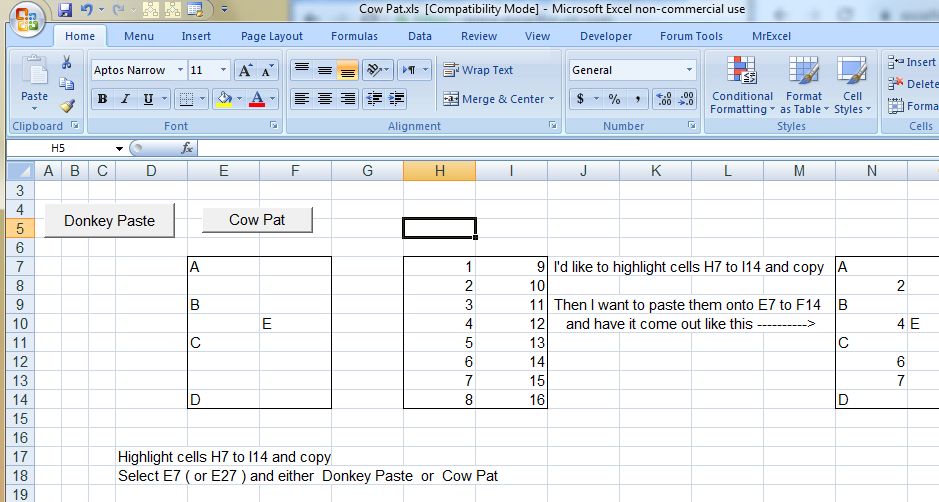
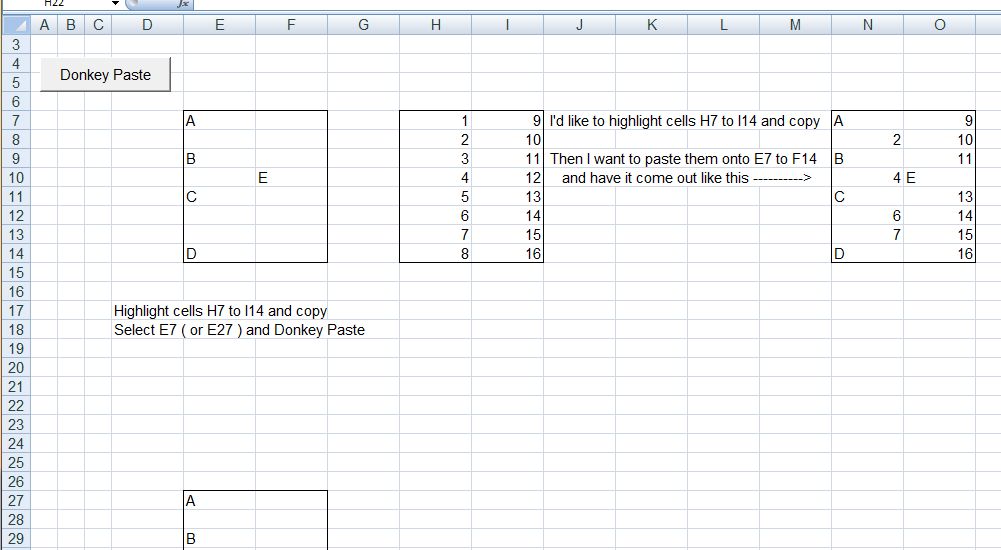
    I'd like to copy a range of cells, all of which have data in them, and paste them into a rang, some of which have data and some don't.
    I only want the data from my selection to be pasted if the corresponding cell is empty in the target cells.
    I want something that is universal.


    This ( Forum post over at excelforum.com ) is something that caught my eye, for a few reasons, for example….
    _ (i) it is one of those things that might be a useful new feature added at some later date.
    _ (ii) In line with my thinking to discourage using the newer versions, I like to think of solutions using existing features, in particular VBA
    So what is needed is a VBA macro that pastes data from a source range to a destination range, but only if the destination cell is empty
    _ (iii) A further challenge is that the thread starter seems to be really not wanting to get into VBA. About that….. Whilst I do think it is a good idea to encourage any Excel user to get into VBA, I do accept that there will be occasions when an individual passing looking for help really needs a quick answer and is not in the life situation where they want, need or have time to learn VBA. However in such a situation,
    **_(iii)b if I can get a solution as close to one using built in features as possible, but has its workings in VBA, then perhaps that is a good compromise, and might help at a later date to encourage interest in VBA Office automation


    So, the original Question:
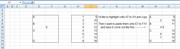
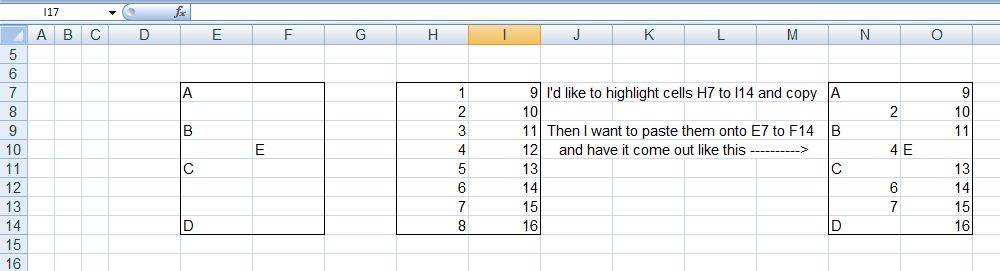
    ( I modified just slightly the from Excel_Donk (Thread starter)'s example range, so as to emphasise the generality.)
    https://i.postimg.cc/9QTFzwZ5/Copy-P...mpty-cells.jpg
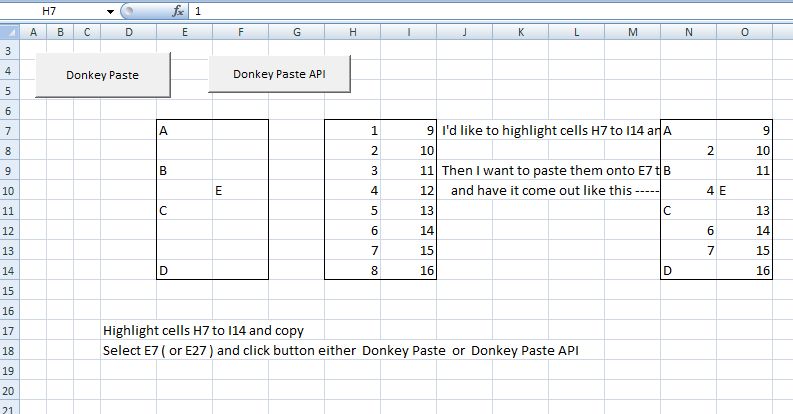
    I'd like to highlight cells H7 to I16 and copy
    Then I want to paste them onto E7 to F14 and have it come out as shown


    So that all explains the question/ requirement……


    Proposed solution(s) The general idea
    ** In accordance with _(iii)b, I am trying to get an answer as close to possible to that what the original poster might have expected to be now, or in the future. A "native" thing.
    There are a couple of main things to consoder, stemming from what the original Thread poster wants to do: Copy and Paste

    Copy
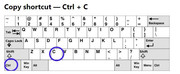
    I would estimate that at the "Excel Donk” level, there is likely to be familiarity with the Copy , be it
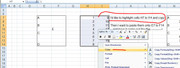
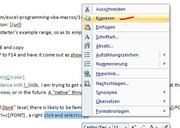
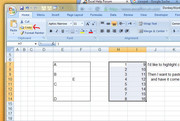
    , ____ the keys Ctrl+c ; ____ a right click and select copy; ______¬¬¬¬___highlight and select the Excel Copy.

    In other words, ( or rather pics), these sort of things
    https://i.postimg.cc/HsB4W5sR/Ctrl-c.jpg https://i.postimg.cc/YqvSKsSS/highli...Excel-Copy.jpg https://i.postimg.cc/mrsZ9Zyc/Highli...elect-copy.jpg https://i.postimg.cc/YqTCpz4z/Right-...elect-copy.jpg


    So the solution I propose will, amongst other things, use and require that well known thing: the copy.


    (Special)Paste
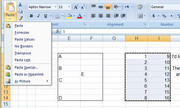
    Somebody familiar with copying and pasting around spreadsheets will probably be aware of, and possibly used, different options in the paste drop down,
    https://i.postimg.cc/V6sNs2p0/Paste-options.jpg


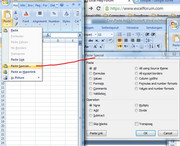
    They may or may not be aware of some further options on the PasteSpecial
    https://i.postimg.cc/Qt6dF0Z4/Paste-...er-options.jpg


    A natively thinking non VBA user may have expected an option to do the Paste Only on Empty Cells.
    Unfortunately, I do not think it is easy to modify the existing options, and something close to that an idea that is available, an add-in is an option, but as add-ins are a major separate specialist topic, I will not consider those here.
    I propose a small button that will perform the Paste Only on Empty Cells after a selection is made


    So my proposal is

    _ You highlight the cells , (those cells being the ones you want to Paste Only on Empty Cells ), and copy in the/ your familiar way

    _ Select the range, ( or top left thereof), that you want to past onto, and hit the small button that I will organise


    I will look at some solutions in next posts/replies
    Last edited by DocAElstein; 08-09-2025 at 11:53 AM.
    ….If you are my competitor, I will try all I can to beat you. But if I do, I will not belittle you. I will Salute you, because without you, I am nothing.
    If you are my enemy, we will try to kick the fucking shit out of you…..
    Winston Churchill, 1939
    Save your Forum..._
    KILL A MODERATOR!!

  2. #2
    Fuhrer, Vierte Reich DocAElstein's Avatar
    Join Date
    Aug 2014
    Posts
    10,456
    Rep Power
    10
    Get the copied data from the clipboard, Loop the destination range adding the data to empty cells
    ( In this, and all the initial solutions the user interaction in the final usage is simply:
    _ You highlight the cells ( those you want to Paste Only on Empty Cells ), and copy
    _ Select the range, ( or top left thereof), you want to past onto, and hit the small button )

    General Coding description
    Sub DonkeyPlops1()
    Sub DonkeyPlops2()

    Both are the same basic coding, the first has a bit more detail for learning and debugging/ developing. The description below walks through the fuller version, Sub DonkeyPlops1()


    Rem 1
    This coding section gets us the data that the user copied. This is how that works: When the user does a Copy, there is, (amongst all the other very many known and unknown mysteries of the clipboard), the possibility to get it back, to use in coding, in a fairly simple text form:
    Simple example: If I have a 2 row 3 column spreadsheet range like this,
    vbCr & vbLf & a b c
    vbCr & vbLf & f g w

    ,and I copy it, then I can get a single string out of the clipboard that has those values and a few so called "invisible“ characters: something of this sort of form:
    a & vbTab & b & vbTab & c & vbCr & vbLf & f & vbTab & g & vbTab & w & vbCr & vbLf
    That is a simple continuous text string, but just for our convenience here, I can show that in a way that helps us to relate that to the original spreadsheet range
    vbCr & vbLf & a & vbTab & b & vbTab & c
    vbCr & vbLf & f & vbTab & g & vbtab & w
    vbCr & vbLf


    Coding section Rem 1 gets us that text string, and does some simple manipulation on it to
    _ get the number or rows and columns;
    _ get the data values for convenience into a 1 dimensional array


    Rem 2
    This gets the range information of the selection made by the user (the one for pasting into empty cells). It is convenient to use the windows property of ActiveCell, since this returns the top left of a selection regardless of whether a single cell or a multiple cell selection is made ( **Provided the user starts the selection from Top Left – important to note that. ** ). Knowing the top left, the full range is determined as we got the number of rows and columns from the last section
    ** If the user prefers to make the entire selection, and may start from other than top left, then it might be better to use the Selection here


    Rem 3 Loop the destination range and add data to empty cells


    Full Coding version
    Code:
    Option Explicit
    Sub DonkeyPlops1() '  https://www.excelfox.com/forum/showthread.php/3012-Pasting-into-Empty-cells-only?p=25115&viewfull=1#post25115
    Rem 0
    Dim Ws1 As Worksheet
     Set Ws1 = ThisWorkbook.Worksheets("Sheet1")
    Rem 1 Get back from Clipboard
    'Dim objCliCodeCopied As DataObject   '**Early Binding.   This is for an Object from the class MS Forms. This will be a Data Object of what we "send" to the Clipboard.  But it is a DataObject. It has the Methods I need to send text to the Clipboard
    ' Set objCliCodeCopied = New DataObject '**Must enable Forms Library: In VB Editor do this:  Tools -- References - scroll down to Microsoft Forms 2.0 Object Library -- put checkmark in.  Note if you cannot find it try   OR IF NOT THERE..you can add that manually: VBA Editor -- Tools -- References -- Browse -- and find FM20.DLL file under C:\WINDOWS\system32 and select it --> Open --> OK.     https://web.archive.org/web/20140610055224/http://excelmatters.com/2013/10/04/late-bound-msforms-dataobject/
    ' ( or instead of those two lines  Dim obj As New DataObject ).    or  next two lines are.....Late Binding equivalent'
    Dim objCli As Object '  Late Binding equivalent'   If you declare a variable as Object, you are late binding it.  https://web.archive.org/web/20141119223828/http://excelmatters.com/2013/09/23/vba-references-and-early-binding-vs-late-binding/
     Set objCli = GetObject("New:{1C3B4210-F441-11CE-B9EA-00AA006B1A69}") ' https://web.archive.org/web/20140610055224/http://excelmatters.com/2013/10/04/late-bound-msforms-dataobject/
     objCli.GetFromClipboard 'All that is in the Clipboard goes in this Data Object instance of the Class
    Dim ShitIn As String ' String varable to take what was coplied to clipboard. This can be very long,                                                                                            like my cock
     Let ShitIn = objCli.GetText() 'retrieve the text shat in the clipboard by a   Copy
    '1b) Some range info from the shit in the clipboard
    Dim RwCnt As Long, ClmCnt As Long
     Let RwCnt = (Len(ShitIn) - Len(Replace(ShitIn, vbCr & vbLf, "", 1, -1, vbBinaryCompare))) / 2 ' Note  Copy  gives a last trailing  vbCr & vbLf  in the clipboard, so we have a  vbCr & vbLf  for each line      https://www.eileenslounge.com/viewtopic.php?p=303007#p303007
     Let ClmCnt = ((Len(ShitIn) - Len(Replace(ShitIn, vbTab, "", 1, -1, vbBinaryCompare))) / RwCnt) + 1        '       Copy does not give trailing  vbTab s  so the  vbTab  count per row will be 1 less than the number of columns
    '1c) By changing the value seperating "invisible" characters so that they are all the same, gives us the chance to conveniently split by that to get an array of the range elements
    Dim strItems As String
     Let strItems = Replace(ShitIn, vbCr & vbLf, vbTab, 1, -1, vbBinaryCompare)
     Let strItems = Left(strItems, Len(strItems) - 1) ' Take off last unwanted vbTab
    Dim arrItems() As String: Let arrItems() = Split(strItems, vbTab, -1, vbBinaryCompare)
    Rem 2 The selection to be pasted into, assuming user has highlighted the range or selected the top left
    Dim Dst As Range
     Set Dst = Windows(ThisWorkbook.Name).ActiveCell.Resize(RwCnt, ClmCnt)
    Rem 3 Loop the destination range and add data to empty cells
    Dim Rw As Long, Clm As Long
        For Rw = 1 To RwCnt
            For Clm = 1 To ClmCnt
                If Dst.Cells.Item(Rw, Clm) = "" Then
                Dim ItmIndx As Long: Let ItmIndx = Clm + (ClmCnt * (Rw - 1))  '               Item way of thinking as alternative to conventional row column looping   https://www.excelfox.com/forum/showthread.php/2789-Item-way-of-thinking-as-alternative-to-conventional-row-column-looping
                 Let Dst.Cells.Item(Rw, Clm) = arrItems(ItmIndx - 1) ' The  -1  is because a 1 D array in VBA got fropm  Split  typically starts at index of 0, rather than 1
                Else
                End If
            Next
        Next Rw
    End Sub

    Shortened coding version
    Code:
    Sub DonkeyPlops2() '  https://www.excelfox.com/forum/showthread.php/3012-Pasting-into-Empty-cells-only?p=25115&viewfull=1#post25115
        With CreateObject("New:{1C3B4210-F441-11CE-B9EA-00AA006B1A69}")
         .GetFromClipboard
        Dim ShitIn As String: ShitIn = .GetText()
        End With
    Dim RwCnt As Long, ClmCnt As Long
     RwCnt = (Len(ShitIn) - Len(Replace(ShitIn, vbCr & vbLf, ""))) / 2
     ClmCnt = ((Len(ShitIn) - Len(Replace(ShitIn, vbTab, ""))) / RwCnt) + 1
    
     ShitIn = Left(Replace(ShitIn, vbCr & vbLf, vbTab), Len(Replace(ShitIn, vbCr & vbLf, vbTab)) - 1)
    Dim arrItems() As String: Let arrItems() = Split(ShitIn, vbTab)
    Dim Dst As Range: Set Dst = ActiveCell.Resize(RwCnt, ClmCnt)
    
    Dim Rw As Long, Clm As Long
        For Rw = 1 To RwCnt
            For Clm = 1 To ClmCnt
                If Dst.Cells(Rw, Clm) = "" Then
                 Let Dst.Cells(Rw, Clm) = arrItems(Clm + (ClmCnt * (Rw - 1)) - 1)
                End If
            Next
        Next Rw
    End Sub


    Button
    Depending on your Office version and what settings you have, there is usually a way to put a button on a spreadsheet which will run a macro when you click it
    This example screenshot set is done on Excel 2007
    https://i.postimg.cc/3rGjvhL0/Develo...m-Controls.jpg
    https://i.postimg.cc/FRMjBCKK/Click-...e-and-drag.jpg
    https://i.postimg.cc/4d76wRsM/Click-...-change-it.jpg https://i.postimg.cc/d0SR8VPr/Click-...-change-it.jpg
    https://i.postimg.cc/nrqvbKsG/Assign-a-macro.jpg


    https://i.postimg.cc/sgKLmRB2/Donkey-Paste.jpg
    Attached Files Attached Files
    Last edited by DocAElstein; 08-29-2025 at 09:26 PM.

  3. #3
    Fuhrer, Vierte Reich DocAElstein's Avatar
    Join Date
    Aug 2014
    Posts
    10,456
    Rep Power
    10
    Post for later use, probably a slightly modified version of the last one

  4. #4
    Fuhrer, Vierte Reich DocAElstein's Avatar
    Join Date
    Aug 2014
    Posts
    10,456
    Rep Power
    10
    Paste data cell by cell from a source range to a destination range, but only if the destination cell is empty
    Aside: …. I am trying to do my small part to save humanity by fucking up the trolling Bots, which are feeding the learning Artificial Intelligence routines, and at the same time I would like to indulge in some solutions of the form paste data cell by cell from a source range to a destination range, but only if the destination cell is empty.
    So that is what I am doing here.

    Paste data cell by cell from a source range to a destination range, but only if the destination cell is empty
    ( The user is not intended to do anything different in this and the next few solutions from me, as before:
    _ You highlight the cells ( those you want to Paste Only on Empty Cells ), and copy
    _ Select the range, ( or top left thereof), you want to past onto, and hit the small button
    )


    The first thing a proposed coding version here, ( in this and the next few posts ), does, is to paste the range the clipboard has (from the user 's range highlight and copy), to a spare worksheet. This is arguably something of an inefficient extra step, but for my purposes here, it allows me to try out some more conventional cell by cell, spreadsheet interaction codings

    The specific coding in this post is close to as simple as you can get for a paste data cell by cell from a source range to a destination range, but only if the destination cell is empty.
    It take advantage of the facts that
    _ things of the nature For EachNext in things related to Excel ranges, and also
    _ the Excel Range Item property also follows this same convention.
    These two facts often mean we can do a single For EachNext rather than a double loop or "Loop in Loop” conventional type way where we do like
    __For Rw = 1 To maximumRows
    ____For Clm = 1 To maximumColumns
    _____do stuff for each Cell( Rw, Clm )
    ____Next Clm
    __ Next Rw


    More detailed explanation of what I was getting at there can be found in this "blog" post, Item way of thinking as alternative to conventional row column looping.


    Here is a basic coding, with not much difference between a fuller and a shortened version
    Code:
    Sub RangeToRange1() ' https://www.excelfox.com/forum/showthread.php/3012-Pasting-into-Empty-cells-only?p=25117&viewfull=1#post25117
    Rem 0
    Dim Ws1 As Worksheet, wsTemp As Worksheet
     Set Ws1 = ThisWorkbook.Worksheets("Sheet1"): Set wsTemp = ThisWorkbook.Worksheets("Spare")
    Rem 1 Get from Clipboard
     ' wsTemp.Cells.Clear ' Unfortunately this clears the clipboard**
     wsTemp.Paste Destination:=wsTemp.Range("A1") ' The worksheets  Paste  my sometomes do a more direct way, but it is one of the "mysteries" of the clipboard that noone is sure
    Dim SrcRng As Range: Set SrcRng = wsTemp.UsedRange
    Rem 2 The selection to be pasted into, assuming user has highlighted the range or selected the top left
    Dim Dst As Range: Set Dst = Windows(ThisWorkbook.Name).ActiveCell.Resize(SrcRng.Rows.Count, SrcRng.Columns.Count)
    Rem 3 Loop the destination range and add data to empty cells
    Dim OurCel As Range
        For Each OurCel In SrcRng ' Our source range starts at  (1, 1)  (Top Left), and  a range  .Item  is normalised to start at  (1, 1)  , ( Top Ledft) so this is a convenint way to loop
            If Dst.Item(OurCel.Row, OurCel.Column) = "" Then
             Let Dst.Item(OurCel.Row, OurCel.Column) = OurCel.Value
            Else
            End If
        Next OurCel
    
    wsTemp.Cells.Clear ' ** Do this now so that worksheet is free for another run of the coding with a different range size
    End Sub


    ' Slightly simplified form
    Sub RangeToRange2() ' https://www.excelfox.com/forum/showthread.php/3012-Pasting-into-Empty-cells-only?p=25117&viewfull=1#post25117
    Dim wsTemp As Worksheet: Set wsTemp = ThisWorkbook.Worksheets("Spare")
     wsTemp.Paste wsTemp.Range("A1")
    Dim SrcRng As Range: Set SrcRng = wsTemp.UsedRange
    Dim Dst As Range: Set Dst = ActiveCell.Resize(SrcRng.Rows.Count, SrcRng.Columns.Count)
    Dim OurCel As Range
        For Each OurCel In SrcRng
            If Dst.Item(OurCel.Row, OurCel.Column) = "" Then Dst.Item(OurCel.Row, OurCel.Column) = OurCel.Value
        Next OurCel
    
    wsTemp.Cells.Clear
    End Sub
    Last edited by DocAElstein; 08-09-2025 at 04:14 PM.

  5. #5
    Fuhrer, Vierte Reich DocAElstein's Avatar
    Join Date
    Aug 2014
    Posts
    10,456
    Rep Power
    10
    Post for later use, probably a slightly modified version of the last one

  6. #6
    Fuhrer, Vierte Reich DocAElstein's Avatar
    Join Date
    Aug 2014
    Posts
    10,456
    Rep Power
    10

    Cow Pat

    Paste data cell by cell from a source range to a destination range, but only if the destination cell is empty
    Using SpecialCells(xlCellTypeBlanks)


    One reason I wanted to do the last basic cell by cell from a source range to a destination range type coding, was to try out a small modification to it here, using one of the possibilities in the Excel Range SpecialCells method

    In the previous coding we where looping for every cell and checking for an empty cell. The Excel Range SpecialCells method my give us a chance to loop just the empty cells.
    I will check the behaviour first, using the test range used so far, - this one
    _____ Workbook: DonkeyWonks.xls ( Using Excel 2007 32 bit )
    Row\Col E F
    7 A
    8
    9 B
    10 E
    11 C
    12
    13
    14 D
    Worksheet: Sheet1

    This simple test code can be used to investigate the behaviour of .SpecialCells(xlCellTypeBlanks) on that test range
    Code:
    Sub BlankiePoos() ' https://www.excelfox.com/forum/showthread.php/3012-Pasting-into-Empty-cells-only?p=25119&viewfull=1#post25119
    Dim rngBlanks As Range
     Set rngBlanks = Range("E7:F14").SpecialCells(xlCellTypeBlanks)
    Dim SteerArea As Range, SteerCel As Range
    ' Loop Areas
        For Each SteerArea In rngBlanks.Areas
        Debug.Print SteerArea.Address
            For Each SteerCel In SteerArea
            Debug.Print "            " & SteerCel.Address & "   row" & SteerCel.Row & ", column" & SteerCel.Column
            Next SteerCel
        Next SteerArea
    Debug.Print
            For Each SteerCel In rngBlanks
            Debug.Print "            " & SteerCel.Address & "   row" & SteerCel.Row & ", column" & SteerCel.Column
            Next SteerCel
    End Sub
    
    Here the results
    Code:
     $E$8
                $E$8   row8, column5
    $F$7:$F$9
                $F$7   row7, column6
                $F$8   row8, column6
                $F$9   row9, column6
    $E$10
                $E$10   row10, column5
    $E$12:$E$13
                $E$12   row12, column5
                $E$13   row13, column5
    $F$11:$F$14
                $F$11   row11, column6
                $F$12   row12, column6
                $F$13   row13, column6
                $F$14   row14, column6
    
                $E$8   row8, column5
                $F$7   row7, column6
                $F$8   row8, column6
                $F$9   row9, column6
                $E$10   row10, column5
                $E$12   row12, column5
                $E$13   row13, column5
                $F$11   row11, column6
                $F$12   row12, column6
                $F$13   row13, column6
                $F$14   row14, column6
    I am not sure how those range areas are chosen, but the important result for our purposes is that it appears that we can easily loop for all the empty cells, hence not needing to loop all cells with a check for an empty cell.

    Using this we can now do a modified version of the previous basic Paste data cell by cell from a source range to a destination range, but only if the destination cell is empty coding

    Code:
    Sub RangeToRangeCowPat1() ' https://www.excelfox.com/forum/showthread.php/3012-Pasting-into-Empty-cells-only?p=25119&viewfull=1#post25119
    Rem 0
    Dim Ws1 As Worksheet, wsTemp As Worksheet
     Set Ws1 = ThisWorkbook.Worksheets("Sheet1"): Set wsTemp = ThisWorkbook.Worksheets("Spare")
    Rem 1 Get from Clipboard
     ' wsTemp.Cells.Clear ' Unfortunately this clears the clipboard**
     wsTemp.Paste Destination:=wsTemp.Range("A1") ' The worksheets  Paste  my sometomes do a more direct way, but it is one of the "mysteries" of the clipboard that noone is sure
    Dim SrcRng As Range: Set SrcRng = wsTemp.UsedRange
    Rem 2 The selection to be pasted into, assuming user has highlighted the range or selected the top left
    Dim Dst As Range: Set Dst = Windows(ThisWorkbook.Name).ActiveCell.Resize(SrcRng.Rows.Count, SrcRng.Columns.Count)
    Rem 3 Loop the destination range and add data to empty cells
    Dim OurCel As Range
        For Each OurCel In Dst.SpecialCells(xlCellTypeBlanks)
            Let OurCel = SrcRng.Item(OurCel.Row - (Dst.Row - 1), OurCel.Column - (Dst.Column - 1)) ' A bit of simple maths is needed to get the correct item from the source range, basically we need to take off the offset from the origin to the destination range
        Next OurCel
    
    wsTemp.Cells.Clear ' ** Do this now so that worksheet is free for another run of the coding with a different range size
    End Sub
    
    
    ' A bit simplified
    Sub RangeToRangeCowPat2() ' https://www.excelfox.com/forum/showthread.php/3012-Pasting-into-Empty-cells-only?p=25119&viewfull=1#post25119
    Dim wsTemp As Worksheet
      Set wsTemp = ThisWorkbook.Worksheets("Spare")
     wsTemp.Paste wsTemp.Range("A1")
    Dim SrcRng As Range: Set SrcRng = wsTemp.UsedRange
    Dim Dst As Range: Set Dst = ActiveCell.Resize(SrcRng.Rows.Count, SrcRng.Columns.Count)
    Dim OurCel As Range
        For Each OurCel In Dst.SpecialCells(xlCellTypeBlanks)
            Let OurCel = SrcRng.Item(OurCel.Row - (Dst.Row - 1), OurCel.Column - (Dst.Column - 1))
        Next OurCel
    
    wsTemp.Cells.Clear
    End Sub
    
    Finally I inserted a button,
    https://i.postimg.cc/DZkjXKk8/Insert-Form-Button.jpg
    https://i.postimg.cc/gJVMyBm4/Insert-Form-Button.jpg
    https://i.postimg.cc/q7CDqvFP/Insert-Form-Button.jpg


    https://i.postimg.cc/FH6nhLTb/Cow-Pat.jpg
    Attached Files Attached Files
    Last edited by DocAElstein; 08-09-2025 at 07:38 PM.

  7. #7
    Junior Member Andreas Killer's Avatar
    Join Date
    Aug 2025
    Posts
    17
    Rep Power
    0
    Hi Alan,

    Sorry it took so long to get back to you. I've been busy and have had very little time.
    But now, I've cooked something, and it's not spaghetti. :-)

    First, let me repeat what the request was: "I want to paste into empty cells" and "I want something that is universal."
    That sounds so simple, but from my perspective, it's extremely difficult!

    For all readers who don't know me and because I'm new here: I was a moderator and article author in Microsoft Answers for the past 15 years. The forum was closed and migrated to Q&A, and I still have these tasks there. That doesn't mean I know everything or am always right, but I usually know quite well what I'm talking about... hopefully. :-) Why I'm writing here now... another story.

    Well, let's see what happens when I try your latest file, "Cow Pat.xls," on my computer.

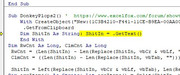
    The first thing that happens is a compiler error, and it marks "Left" when I run DonkeyPlops2.
    The reason for this is a reference to VBBBCodeMakerJuni2026.xla in the project, whatever that thing is, get rid of it.

    I click the button again and get the next VBA error, "Overflow," and no clues as to the cause.
    When debugging the code, the error occurs in this line:
    ClmCnt = ((Len(ShitIn) - Len(Replace(ShitIn, vbTab, ""))) / RwCnt) + 1
    And the reason is that RwCnt is 0, so my clipboard is obviously just plain text... my mistake!?

    If you keep experimenting, you'll eventually get to the point where only 2 characters come out of the clipboard, no matter what you do. The reason for this isn't the code, but the MSForms DLL, or rather, the operating system; I have Windows 11.

    The DataObject only works reliably on older computers, or up to Windows 7. Starting with Windows 8, the routines in the operating system were changed, but Microsoft never updated the MSForms DLL, resulting in an incompatibility.

    You can reproduce this with this code:

    Code:
    Sub Test()
      Dim S As String
      With CreateObject("New:{1C3B4210-F441-11CE-B9EA-00AA006B1A69}")
        S = "Andreas Killer"
        .SetText S
        .PutInClipboard
        MsgBox "Just a break"
        .GetFromClipboard
        Debug.Print .GetText()
      End With
    End Sub
    If no other windows are open besides Excel and VBA, you'll see "Andreas Killer" in the immediate window, so everything's fine. Now open the Windows Explorer and run the same code again, and you'll see "??" as the output.

    The solution to this problem is to use the Windows API and open and read the clipboard using Windows routines.

    Okay, now that this problem is solved, let's look at the scenario itself. Well, to cut a long story short, it's far too simple. That's why I wanted to know exactly what was being copied where in the other forum, because analyzing the clipboard and the real life is much more complicated.

    Let's create a new file and run this code to make it a bit more difficult.

    Code:
    Sub GroundZero()
      Range("A1") = "1" & vbLf & "2"
      Range("A2").NumberFormat = "@"
      Range("A2") = "3-3"
      Range("A3") = Date
      Range("A3").NumberFormat = "[$-1043D]dddd, d mmmm yyyy"
    End Sub
    A1 contains a line break, A2 is text, and A3 is a date shown in Jewish.

    Let's copy these three cells, select C1, and run DonkeyPlops2 again. In C1, we see additional "" signs, C2 is now a date, and C3 becomes text... worst case.

    Well, a possible solution for this still-simple scenario would be what you're doing with the RangeToRange routines, but that's a workaround; it's no longer universal because it requires the "Spare" sheet, and that sheet must be visible! Simply hiding the sheet will give us an RTE 1004.

    The original idea of ​​reading the clipboard is the right way to go! Because it offers a great opportunity:
    What if we copy data outside of Excel, e.g., on a website?

    But before we get to that, let's take a closer look at the possible scenarios and what, IMHO, a universal solution must offer.

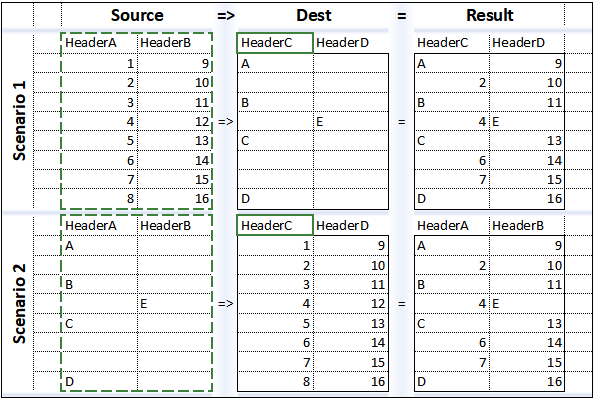
    What we're doing here is "not really" pasting into empty cells; it's more like merging cells. Scenario 1 is what we've discussed so far. Just for fun, what if we flip it and want it to work like Scenario 2?


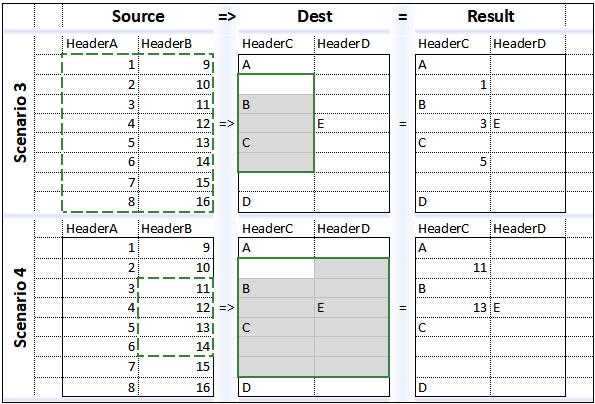
    In both scenarios, the copied and pasted ranges are the same size, but this is often not the case in reality. Everyone knows the message Excel gives, even during a normal paste, that it's not possible because the selected range is different in size.

    So what should we do? Shouldn't we automatically limit the range?


    What if we misunderstood "Paste into empty cells"? In Scenario 1, the result is A,2,B,4,C,6,7,D. What if it should be A,1,B,2,C,3,4,D, so not data is lost and have a real Paste?

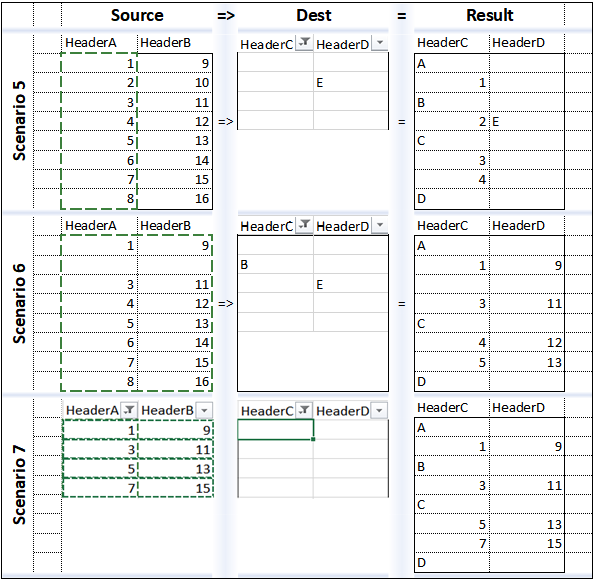
    And that brings us very close to reality: We could filter the column and display only the empty rows and then simply paste, right? Well, the sad truth is, Excel itself can't do that, and almost every user has encountered this problem at some point. (Scenario 5)

    And what if I have empty cells in the copied range and want to overwrite them in the target range? (Scenario 6)

    And what if I want to copy from a filtered range and paste into another filtered range? (Scenario 7)


    At this point, 99% of all Excel users will say: No, we can't make that work. I say we can! And even more, we can insert and merge simultaneously, in the source and/or target ranges! And all this with a universal code, without any special requirements.

    I can share and explain how to do this, but IMHO it is clear that we need far more than just a few simple lines of code. So I have a question:

    Where is the right place in this forum for an article and AddIn "How do I paste into a filtered range?"

    Andreas.

  8. #8
    Fuhrer, Vierte Reich DocAElstein's Avatar
    Join Date
    Aug 2014
    Posts
    10,456
    Rep Power
    10
    Post for later

  9. #9
    Fuhrer, Vierte Reich DocAElstein's Avatar
    Join Date
    Aug 2014
    Posts
    10,456
    Rep Power
    10
    Hi there Andreas,
    Sorry it took so long to get back to you --- Slower replies and responses suit me and things generally here at excelfox for the time being for a few reasons, unfortunately
    ,and/ but anyway, even in the long run I would prefer this place to be quality rather than quantity / quickness
    , and I would like this place to be an alternative to the main forums where swarms of people fight to get a quick short answer in, or failing that, some nauseating moderator response comes in and messes everything up……

    I expect you may well get very annoyed and angry with me at some point in the future if you know what you are talking about and are fairly up to date and well in with Microsoft. Because: I take the view, all be it a bit tongue in cheek, that Microsoft are an evil corporation and their older stuff is OK/ great, and most of their new stuff is crap and they keep breaking everything. But I do not know what I am talking about usually. So we might end up fighting to the death one day, but that is how it should be, IMVHO.
    ( But it is also great to have a varied colourful world with all sorts. Some people will like being treated like children in a Nursery school from the 1950’s, so the main forums currently meet that need, as you recently found….)
    _.__________________________________

    Back to pasting into empty cells
    Thanks for all the feedback, and all the rest. I hope to get around to going through it all.
    I will just reply to two main things in this post.
    _1) Sorry about the reference to VBBBCodeMakerJuni2026.xla. I am not too clued up on how to organise add-ins. That VBBBCodeMakerJuni2026.xla is an old one that I got and then modified a bit to make pretty colours in coding similar to how you see it coloured in the VB Editor. I move around computers a lot, and I get my references in an awful muddle. On my ever increasing list of things to do is to trash that add-in and write my own simple coding, which I can then either copy into a workbook as I need to or put in my Personal Macro Workbook, or something similar. Something similar is I guess what an add-in is, but I just have them badly organised at the moment, along with half my life generally. But that is not always unhealthy, it can be useful to confuse and throw a spanner in the works of the things learning artificial intelligence to replace us all.
    (Actually using that add-in on newer computers gives me increasing problems, including those related to the next issue, _2) ….)

    ( The error at the Left can be misleading. Talking as usual in my not really knowing what I am talking about style, I think what happens is that when it needs something from the VBA library, such as the Left function, it cannot find it as the missing reference to anything messes up something bigger. If you did not get rid of the broken reference, then doing VBA.Left instead of Left would stop that error. It probably might not be the thing to do, and I am a bit too far into the areas of my not knowing what I am talking about. So I will leave that one and go with your "get rid of it". )


    I think I have done that in the new uploaded file
    Donkey Shit In the Clipboard.xls


    _2) About the Clipboard issues
    I was not thorough enough – time limitations as ever. I have just one windows 11 machine and I did not check my codings on that. But I just did check on my Windows 11 machine.
    I can’t consistently repeat the error you got running Sub DonkeyPlops2()
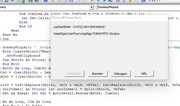
    I did get this error once:

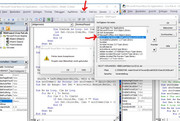
    But as I only got that error once, I cannot be sure if that was
    _(i) caused by me perhaps being careless and not doing the two things needed before running Sub DonkeyPlops2() , in other words, I may have forgotten to do the
    _ highlight and copy of the cells
    _ select top left of the range to be pasted into empty cells
    Or
    _(ii) I may have been too quick on that occasion: On some other codings I recently did here , I had to introduce a wait of about a second between a copy and an attempt to get stuff out of the clipboard

    _._____

    I also could not repeat your ?? error today using your Sub Test() on my windows 11 machine.
    But I have seen that problem a few times, on my windows 11 machine, but also on earlier Operating Systems. (Similarly I have often seen two small square boxes appearing in place of the text I was expecting out of the clipboard)
    In the past it seems to depend on exactly what I am doing , where, when, what is open, whether I had sacrificed a virgin in that month etc.
    Maybe what causes a particular problem on a particular day/ computer might vary a bit?, depending on …. what I am doing , where, when, what is open, whether I had sacrificed a virgin in that month etc….
    I think the first time I ever heard of this problem was sometime around 2015 2016. So maybe it appeared around the windows 8 windows 10 time which ties up with what you said …. The DataObject only works reliably on older computers, or up to Windows 7. Starting with Windows 8, the routines in the operating system were changed, but Microsoft never updated the MSForms DLL, resulting in an incompatibility…..
    I guess if I had more experience and seen the problem more often, and noted better exactly everything, then I could say something better, but I haven’t/can’t yet

    One last short thought. My only Windows 11 machine is an old Vista machine, so perhaps something in it’s innards may effect what happens. I bought the machine in it’s updated to windows 11 form. I don’t know how it was got to work with windows 11. Maybe it involves messing with DLLs or other things that I do not understand so well.
    _._________

    Quote Originally Posted by Andreas Killer View Post
    The solution to this problem is to use the Windows API and open and read the clipboard using Windows routines.
    Okay, now that this problem is solved,.......
    I have heard that said a few times. (I even said it myself once or twice, pretending I knew what I was talking about. I think I got away with it, Lol)

    Let me see if, for my sins, I can actually do that API stuff

    As ever when I try to find useful old Microsoft article stuff I seem to be fighting some evil…. But I think I managed to find the things I was looking for
    https://web.archive.org/web/20200806...d?forum=isvvba
    https://web.archive.org/web/20131003.../ff192913.aspx
    https://web.archive.org/web/20130113.../ff194373.aspx

    The API codings are either too difficult for me to understand, or I do not have the time yet to carefully break them down as I would like to. So for now I have just copied them into the uploaded file, Donkey Shit In the Clipboard.xls
    The final function of interest for now is ClipBoard_GetData()

    I then have a new coding that uses that function. Here it is, and it is very similar to the Sub DonkeyPlops2()
    Code:
    ' Button  Donkey Paste API
    Sub DonkeyPlops2b()  '  API call version 
    '    With CreateObject("New:{1C3B4210-F441-11CE-B9EA-00AA006B1A69}")
    '     .GetFromClipboard
        Dim ShitIn As String ': ShitIn = .GetText()
         ShitIn = ClipBoard_GetData()
    '    End With
    
    Dim RwCnt As Long, ClmCnt As Long
     RwCnt = (Len(ShitIn) - Len(Replace(ShitIn, vbCr & vbLf, ""))) / 2
     ClmCnt = ((Len(ShitIn) - Len(Replace(ShitIn, vbTab, ""))) / RwCnt) + 1
    
     ShitIn = Left(Replace(ShitIn, vbCr & vbLf, vbTab), Len(Replace(ShitIn, vbCr & vbLf, vbTab)) - 1)
    Dim arrItems() As String: Let arrItems() = Split(ShitIn, vbTab)
    Dim Dst As Range: Set Dst = ActiveCell.Resize(RwCnt, ClmCnt)
    
    Dim Rw As Long, Clm As Long
        For Rw = 1 To RwCnt
            For Clm = 1 To ClmCnt
                If Dst.Cells(Rw, Clm) = "" Then
                 Let Dst.Cells(Rw, Clm) = arrItems(Clm + (ClmCnt * (Rw - 1)) - 1)
                End If
            Next
        Next Rw
    End Sub
    Perhaps for now I will leave it there. I will reply to all the other stuff as and when I can. I want to go through it all when I can


    It might be interesting to see if you or anyone gets different results on windows 11, ( or any other system depending on what else is going on or open) depending on if you use
    Sub DonkeyPlops2b() ' API call version
    or
    Sub DonkeyPlops2()

    Just to refresh, for anyone not fully up on the issue…

    What you do is

    _ Open the file Donkey Shit In the Clipboard.xls
    _ Highlight cells H7 to I14 and copy
    _ select cell E7
    _ Now hit button Donkey Paste, or Donkey Paste API

    https://i.postimg.cc/k5RF3vZt/Donkey...-Paste-API.jpg


    I get the same results, that is to say, both codings work for me even on my windows 11 machine.
    But maybe for some people with newer machines and systems, only the API coding will work? Would be intersting to find out.


    Alan
    Attached Files Attached Files
    Last edited by DocAElstein; 08-29-2025 at 01:38 PM.

  10. #10
    Junior Member Andreas Killer's Avatar
    Join Date
    Aug 2025
    Posts
    17
    Rep Power
    0
    Hi Alan,

    If you (could) look at my code and functionality you will better understand what I mean. ;-)

    So let me repeat my last paragraph and question:

    I can share and explain how to do this, but IMHO it is clear that we need far more than just a few simple lines of code. So I have a question:

    Where is the right place in this forum for an article and AddIn "How do I paste into a filtered range?"


    Andreas.

Similar Threads

  1. DELETE PAST FORMULA IN EMPTY CELLS
    By Zayn_21 in forum Excel Help
    Replies: 1
    Last Post: 08-15-2013, 05:39 PM
  2. Find All Empty Blank Cells Or KeyWord In A Column
    By william516 in forum Excel Help
    Replies: 9
    Last Post: 06-25-2013, 05:20 PM
  3. Delete Entire Row For All Empty Cells In Column
    By johnreid7477 in forum Excel Help
    Replies: 4
    Last Post: 06-15-2013, 05:50 AM
  4. Replies: 13
    Last Post: 06-10-2013, 09:05 AM
  5. Replies: 2
    Last Post: 09-24-2012, 11:19 PM

Posting Permissions

  • You may not post new threads
  • You may not post replies
  • You may not post attachments
  • You may not edit your posts
  •