Code:
Option Explicit
Dim Clm As Long, Reocopy As Long ' variable for column number to put file or folder details in, number representin the copy of the second macro


Sub PassFolderForReocursing2()
'Sub SchellFolderDetails2() '  Jan 2024  https://www.excelfox.com/forum/showthread.php/2936-YouTube-Video-making-and-editing-etc-coupled-to-excelfox-(-windows-Movie-Maker-)/page2#post23775
Rem 0
 Let Clm = 0: Reocopy = -1
Rem 1
Dim Ws As Worksheet: Set Ws = Me   '   G:\YouTubeVideos&Anaslysis&HackingTricks\VideoRecordingEditing\Windows (Live) Movie Maker\Movie Maker Versions.xls
' 1b
Dim Parf As String
' Let Parf = ThisWorkbook.Path & "\Versions  Downloads Exes\Verson 2, 2 1 2 5 Downloads 2,1\50 Euro Keks"
' Let Parf = ThisWorkbook.Path & "\50 Euro Keks"
 Let Parf = ThisWorkbook.Path
' 1c
    If Len(Parf) - Len(Replace(Parf, "\", "", 1, -1, vbBinaryCompare)) >= 2 Then
     Let ActiveCell = Mid(Parf, InStrRev(Parf, "\", InStrRev(Parf, "\", -1, vbBinaryCompare) - 1, vbBinaryCompare))
    Else
     Let ActiveCell = Parf
    End If
Rem 2  Windows Shell object
Dim objShell As Shell32.Shell: Set objShell = New Shell32.Shell            '    https://i.postimg.cc/Fz9zrnNm/Tools-Referrences-Microsoft-Shell-Controls-And-Automation.jpg     https://i.postimg.cc/sDC9S54h/Tools-Referrences-Microsoft-Shell-Controls-And-Automation.jpg
Dim objFolder As Shell32.Folder: Set objFolder = objShell.Namespace(Parf)  '
Rem 3 Movie Maker Folder Property names and Property values.
Dim Fil As Shell32.FolderItem
    For Each Fil In objFolder.Items  '  We loop through all items to find the Movie Maker folder ' =======
        If Fil.Name = "Movie Maker" Then
        Dim Rw As Long: Let Rw = 1
         'Let ActiveCell.Offset(Rw, 0) = "Name": Let ActiveCell.Offset(Rw, 1) = objFolder.GetDetailsOf(Fil, 0)
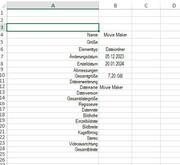
         Let ActiveCell.Offset(Rw, 0) = objFolder.GetDetailsOf("Goolies", 0): Let ActiveCell.Offset(Rw, 1) = objFolder.GetDetailsOf(Fil, 0)
         'Let ActiveCell.Offset(Rw + 1, 0) = "Größe": Let ActiveCell.Offset(Rw + 1, 1) = objFolder.GetDetailsOf(Fil, 1)
         Let ActiveCell.Offset(Rw + 1, 0) = objFolder.GetDetailsOf(71, 1): Let ActiveCell.Offset(Rw + 1, 1) = objFolder.GetDetailsOf(Fil, 1)
         'Let ActiveCell.Offset(Rw + 2, 0) = "Elementtyp": Let ActiveCell.Offset(Rw + 2, 1) = objFolder.GetDetailsOf(Fil, 2)
         Let ActiveCell.Offset(Rw + 2, 0) = objFolder.GetDetailsOf(Parf, 2): Let ActiveCell.Offset(Rw + 2, 1) = objFolder.GetDetailsOf(Fil, 2)
         'Let ActiveCell.Offset(Rw + 3, 0) = "Änderungsdatum": Let ActiveCell.Offset(Rw + 3, 1) = Left(objFolder.GetDetailsOf(Fil, 3), InStr(1, objFolder.GetDetailsOf(Fil, 3), " ", vbBinaryCompare))
         Let ActiveCell.Offset(Rw + 3, 0) = objFolder.GetDetailsOf(Ws, 3): Let ActiveCell.Offset(Rw + 3, 1) = Left(objFolder.GetDetailsOf(Fil, 3), InStr(1, objFolder.GetDetailsOf(Fil, 3), " ", vbBinaryCompare))
         'Let ActiveCell.Offset(Rw + 4, 0) = "Erstelldatum": Let ActiveCell.Offset(Rw + 4, 1) = Left(objFolder.GetDetailsOf(Fil, 4), InStr(1, objFolder.GetDetailsOf(Fil, 4), " ", vbBinaryCompare))
         Let ActiveCell.Offset(Rw + 4, 0) = objFolder.GetDetailsOf(Left("gh", 2), 4): Let ActiveCell.Offset(Rw + 4, 1) = Left(objFolder.GetDetailsOf(Fil, 4), InStr(1, objFolder.GetDetailsOf(Fil, 4), " ", vbBinaryCompare))
    '     Let ActiveCell.Offset(Rw + 9, 0) = "Dateiversion": Let ActiveCell.Offset(Rw + 9, 1) = objFolder.GetDetailsOf(Fil, 166)
         Let ActiveCell.Offset(Rw + 5, 0) = objFolder.GetDetailsOf("Bum", 166): Let ActiveCell.Offset(Rw + 5, 1) = objFolder.GetDetailsOf(Fil, 166)

         Rem 4
         ActiveCell.Offset(0, 2).Activate
         ' 4b
         Call ReoccurringFileFolderProps2(Parf & "\Movie Maker")
         Exit For ' Once we have passed on the full path of the folder,  Movie Maker  , then we are finished with this macro, so we don't need loop further looking fot the Movie Maker folder
        Else
        End If
    Next Fil ' ===========================================================================================
End Sub

'    https://www.excelfox.com/forum/showthread.php/2936-YouTube-Video-making-and-editing-etc-coupled-to-excelfox-(-windows-Movie-Maker-)/page2#post23774
Private Sub ReoccurringFileFolderProps2(ByVal Pf As String)
Rem 0
 Let Reocopy = Reocopy + 1 ' Originally the variable  Reocopy  is zero.  It will become 1 on first entering the macro.  Every time we leave this macro, this number is reduced by 1   So in simple use it will be 1 or zero indicating that a copy is in use.  However, should this macro "Call itself", before its finished , ( the recursion idea ) then the value will be 2  and so on.  So effectively it tells us which copy is running at any time
Rem 1
Dim objShell As Shell32.Shell: Set objShell = New Shell32.Shell            '    https://i.postimg.cc/Fz9zrnNm/Tools-Referrences-Microsoft-Shell-Controls-And-Automation.jpg     https://i.postimg.cc/sDC9S54h/Tools-Referrences-Microsoft-Shell-Controls-And-Automation.jpg
Dim objFolder As Shell32.Folder: Set objFolder = objShell.Namespace(Pf)  '
Rem 2
Dim Fil As Shell32.FolderItem
    For Each Fil In objFolder.Items ' ======= Main Loop ==================================================|
    ' Dim Clm As Long: ' Global variable
     Let Clm = Clm + 1
    Dim Rw As Long: Let Rw = 1 + Reocopy + 1
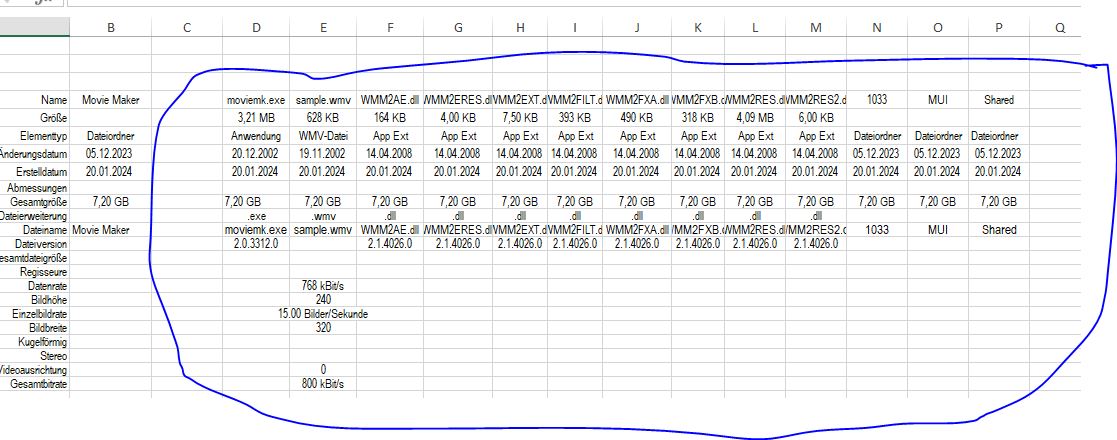
         Let ActiveCell.Offset(Rw, Clm) = objFolder.GetDetailsOf(Fil, 0)
         Let ActiveCell.Offset(Rw + 1, Clm) = objFolder.GetDetailsOf(Fil, 1)
         Let ActiveCell.Offset(Rw + 2, Clm) = objFolder.GetDetailsOf(Fil, 2)
         Let ActiveCell.Offset(Rw + 3, Clm) = Left(objFolder.GetDetailsOf(Fil, 3), InStr(1, objFolder.GetDetailsOf(Fil, 3), " ", vbBinaryCompare))
         Let ActiveCell.Offset(Rw + 4, Clm) = Left(objFolder.GetDetailsOf(Fil, 4), InStr(1, objFolder.GetDetailsOf(Fil, 4), " ", vbBinaryCompare))
    '                                     Let ActiveCell.Offset(Rw + 9, 0) = "Dateiversion": Let ActiveCell.Offset(Rw + 9, 1) = objFolder.GetDetailsOf(Fil, 166)
         Let ActiveCell.Offset(Rw + 5, Clm) = objFolder.GetDetailsOf(Fil, 166)
        '_________________________________________________________________________________________________
        ' 2b  Here we may pause the macro, whilst another copy of it is started
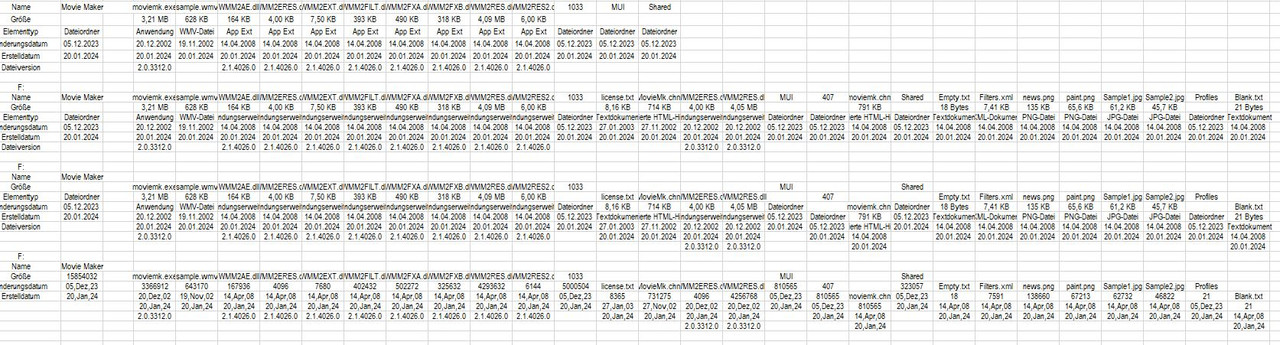
        If objFolder.GetDetailsOf(Fil, 2) = "Dateiordner" Then Call ReoccurringFileFolderProps2(Pf & "\" & objFolder.GetDetailsOf(Fil, 0))
        '_________________________________________________________________________________________________
    '   If we did pause whilst the abobe code line set off another copy, then when that is finished we will come here and resume the paused previous copy
    Next Fil ' ============================== Main Loop  =================================================|


 Let Reocopy = Reocopy - 1  ' We are finished at this point with this running copy of the macro. (The next code line ends it). This code line here will reduce the value used to keep track of the  copy number being run
End Sub



 Reply With Quote





Bookmarks