Page 7 of 12 FirstFirst ... 56789 ... LastLast
Results 61 to 70 of 117

Thread: Tests and Notes on Range objects in Excel Cell

Hybrid View

Previous Post Previous Post   Next Post Next Post
  1. #1
    Fuhrer, Vierte Reich DocAElstein's Avatar
    Join Date
    Aug 2014
    Posts
    10,457
    Rep Power
    10
    ….If you are my competitor, I will try all I can to beat you. But if I do, I will not belittle you. I will Salute you, because without you, I am nothing.
    If you are my enemy, we will try to kick the fucking shit out of you…..
    Winston Churchill, 1939
    Save your Forum..._
    KILL A MODERATOR!!

  2. #2
    Fuhrer, Vierte Reich DocAElstein's Avatar
    Join Date
    Aug 2014
    Posts
    10,457
    Rep Power
    10

    Spreadsheet cell concept and Range Objects.

    In support of these Thread comments and posts
    comment from 27 October, 2021-10-28 2021-10-27 05:05:17 https://excelribbon.tips.net/T011440...rrent_Row.html
    https://excelfox.com/forum/showthrea...ll=1#post10035
    http://www.excelforum.com/showthread...11#post4551080 https://www.excelforum.com/developme...ml#post4551080
    http://www.excelforum.com/showthread...11#post4551509 https://www.excelforum.com/developme...ml#post4551509
    http://www.excelforum.com/showthread...11#post4555023 https://www.excelforum.com/developme...ml#post4555023


    Copy from http://www.excelforum.com/showthread...11#post4551080
    https://www.excelforum.com/developme...ml#post4551080


    Spreadsheet cell concept and Range Objects.

    In my opinion, some unfortunate choice of words can set a new user of Excel slightly of course from the very start.
    Further, form my experience in learning effective use of Excel , I would recommend, that any new user of Excel should try at least to get some basics of Excel’s programming ability, Visual Basic for Appplications, ( VBA ) , or at least understand some of the basic concept at an early stage. I am not alone in people who have been very annoyed to learn at a later date how much simpler and more effective use of VBA programming can be to many spreadsheet ways of doing things.
    This language is, in simple terms , the programming language used to make most things happen when you manually do things in the spreadsheet. So you can replicate and modify existing Functions or write new ones from scratch. You can further arrange for them to happen automatically as a result of other things happening, or even , for example, at a certain time of day.
    But the possibilities are almost endless, ( and consequently it seems to have been given up years ago trying to make any sort of all encompassing programming manuals! )
    So I cannot possibly explain all Excel programming here, but I intend to touch on , from a Layman’s point of view, some of the parallel concepts in VBA to Spreadsheet things, in particular those I have found to confuse at a later stage of learning. I am at a very early learning stage myself and am not a programming professional. Much of my explanations are from a Layman’s observation point of view

    Starting right at the beginning with the default Spreadsheet “grid” or “cell” structure.
    We start typing things such as text or simple formulas in a cell. Right here we can go off course. The use of the word cell or cells is not a good idea in my opinion. Better would be the box you “write a string value or number in” ( or the “box you colour or format” in some way ) or if you are familiar with basic map or Atlas reading, you can regard it as the row and column numbers being like the y and x axis.
    The main reason I say this, is that Cells is used specifically to refer to something else which specifically is not a “thing” or Object. It is much better, even before you start understanding any VBA, to get in the habit of using “Range Object” for the “box” “thing”. This should become clear in the next few sections.

    Cells Property ( Method ) EDIT. This section is probably inorrect - see a few post later where I question the fundamental ideas of the Cells Property for referencing Range Objects
    The word Cell, or more specifically a form like Cells(1, 2) is a VBA Property, ( what a layman would more easily initially understand as a Method or “way to do something”. ( Indeed it was previously referred, and some experts still do refer, to as a Method) . This can be thought of the programming equivalent of you taking ( that is to say , observing in your mind ) , for the given example, the entire first Spreadsheet first row ( from the top) , and the entire spreadsheet second column, ( from the left ). Where these intercept is taken as the “box” of interest which you are “referring to through the Cells Property”. In other words we have a “way” of getting it. Or at least a way to make reference to it. So in the first instance we would think of it as a Method or way of doing something. Such things, ( the “boxes” and all that can be done to them or “got” from them) are often held in a large list, at least a virtual list. We can “get at”, that is to say we have access to this list. This explains why often such things may be described as a Property, that is to say, something “belonging to it”, even if it is a “way of doing something”, - we cannot necessarily use all ways to do things on differentl things.

    Object Orientated Programming
    Some basics of Object Orientated Programming, OOP, is required at this point. Very , very simplified we have in most case a type of hierarchical system starting from the “biggest thing”, ( Object as we call them ) , from the left. Then going along to the right via a dot, . , we “go down the chain”, to under Objects , or use a Method or Property of an Object, applied to the object to return some Property.

    Getting at ( referring to ) a cell ( Range Object )
    Initially we are considering a simple case , or a single cell ( “box” ), but noting that in most cases we can do similar things to a collection of cells (“boxes”). The discussions are very similar for more than one “box”

    Range Object
    In my Opinion, it really is worth understanding what a Range Object is, even if you are not initially interested in VBA programming.
    In simple terms, all that can be done to or changed, or “seen” in a “box”, ( and much more besides, such as various information ) , are stored in a massive “thing” called a Range Object.
    Using VBA you can easily “get at” all this information. In a spreadsheet, you only see some of this information. Taking for example a simple formula, =A2 , in the first “box”, ( the “box” at A1 “coordinate” ) that is to say the Range Object to be found at, that is to say by “using”, Cells(1, 1).
    In the spreadsheet we can see for example the formula in “column letter and row number notation” displayed in the formula bar, ( small fx window at the top ), and the evaluated value in the first “box”. A simple VBA code can be written such as this below, to show much more detail. ( Further code could then be used to retrieve all that information )
    Code:
    Option Explicit 
    ' To Run Code, Click within code, Hit play Button or F5 (or F8 to step through)
    Sub Cell1EqualsCell2()
     Let Worksheets("RangeObjects").Cells(1, 1).Value = "=A2"
    Dim RngObj As Range                                             '    ' EP Dim: For the Variable type declared, there should be some Blue Print or master Instruction list. If not The code will error at the start as it need to examine and therefore prepare for usage of the variable in the code run. The variable itself will go to some “Pigeon hole” that has a copy of the instructions or in some way has information on how to use the original instructions such that it can distinguish between different variables of the same type. When the code meets the variable it will look in the Pigeon Hole Pointer for instructions as to what to do in various situations. Knowing of the type allows in addition to get easily at the Methods and Properties through the applying of a period ( .Dot) ( intellisense ). Note this is a look up type list and may not be a guarantee that every offered thing is available – most will be typically.
     Set RngObj = Worksheets("RangeObjects").Cells(1, 1)            '    ' EP Set: Setting to a Class will involve the use of an extra New at this code line. I will then have an Object referred to as an instance of a Class. At this point I include information on my Pointer Pigeon hole for a distinct distinguishable usage of an Object of the Class. For the case of something such as a Workbook this instancing has already been done, and in addition some values are filled in specific memory locations which are also held as part of the information in the Pigeon Hole Pointer. Wed will have a different Pointer for each instance. In most excel versions we already have a few instances of Worksheets. Such instances Objects can be further used., - For this a Dim to the class will be necessary, but the New must be omitted at Set. I can assign as many variables that I wish to the same existing instance
    End Sub ' Click in left margin to get brown stop icon. Run Code. It will then stop here
    ' Highlight either  ' 
    ' RngObj
    '.Hit Shift+F9. Select Add.
    ' Hit +'s in Watch Window to reveal contents of Watch Window
    To Run the Code:
    To Install a macro:
    1. Copy the code given to the clipboard. ( Highlight code and Hit Ctrl C )
    2. Open a NEW workbook ( or the one you want the code in )
    (2a. Either rename a Tab now to RangeObjects, or later, **change the code in two places to the name of a spare existing Worksheet tab Name ( Typically this will be “Sheet1” for English Excel, corresponding to the first tab named Sheet1 ) )
    3. Press the keys ALT + F11 to open the Visual Basic Editor
    At this point you should see the cursor flashing in a big empty window
    ( If not then select from the VB Editor ribbon ---- Insert ------ module )
    4. Where the cursor is flashing, paste the code
    ( 5a. **Do any editing of the code you wish to at this stage. )

    To run in “Development mode”
    5b. Adjust window Sizes if necessary so as to see both the Visual Basic Editor and the Spreadsheet
    5c. Click within code
    5d(i). Hit play Button or F5 (or F8 to step through)
    5d(ii). If you wish to look into filled variables, stop the code at the End Sub and follow ‘ instructions to reveal variables contents )

    To Run Code in final finished form
    6. Press the keys ALT + F11 to return to Excel ( or press ALT and q simultaneously to close the VB Editor )
    7. When in Excel, press ALT + F8 to display the Run Macro Dialog.
    8. You can choose to run the code ( alternatively Double Click the macro's name to Run it.)
    Or
    9. You can choose to work on it. – This option is good to find the macro if you have many and are not sure where they all are )

    This is what you should see if you follow the instructions to bring up the Watch Window to reveal the contents of the variable used for the Range Object of the first Worksheet cell ( “box” )
    Cells1EqualsCells2.JPG http://imgur.com/wXjd0xq
    Attachment 495283Attachment 3659
    Attached Images Attached Images

  3. #3
    Fuhrer, Vierte Reich DocAElstein's Avatar
    Join Date
    Aug 2014
    Posts
    10,457
    Rep Power
    10

    There may be no Cells( ) Property in the way that Microsoft confuses us into thinking

    Copy from http://www.excelforum.com/showthread...11#post4551509 https://www.excelforum.com/developme...ml#post4551509


    _1 ) Referring to Range Objects in VBA

    I guess to some extent, I may be questioning / commenting on two basic statements or ideas
    _(i) ... “...the most basic way of referring to Excel’s VBA Range object: the Range ( or Cells ) Property..”...
    and
    _(ii) whether there may be an additional Range Object ( The Application Range Object ) , that is to say , additional to the
    ..”... Range Object is “ .. (always ) .. “ contained within the Worksheet Object...”...
    The latter, _(ii) , is possibly dubious, and possibly I could alternatively be suggesting that we have a sort of Application Range(“ “) Method ( or Application Range(“ “) Property, which is an alternative _c) to _..
    _a) Cells Property
    _b) Range Property
    _.. , and which can be used to reference a Range

    _1a ) _1b) Referring to Range Object contained within a Worksheet Object
    _1c ) Referring to a ( Application ? ) Range Object

    The documentation is not perfectly clear on this, at least that is the opinion of much more VBA experienced people than me. So the following is partly my interpretation.( Especially _1c) ).
    I would suggest we can get at a Range Object in three basic ways. I deliberately list things a bit in a jumbled order, as things in the “imaginary” world are often in a seemingly incorrect order.
    _1c) Directly through some specific reference.
    ( http://excelmatters.com/referring-to...comment-197138 )
    _1a) indirectly using the Cells Property ( Method ) already discussed. http://www.excelforum.com/showthread...84#post4551080 http://www.excelforum.com/showthread...84#post4551484
    _1b) indirectly using a similar Property to that in _1a), which unfortunately someone in their wisdom decided to call the Range Property. This Range Property is a “way” or “Method like” thing and should not be confused with the final big “thing” of the Range Object.

    _1a) 1b) The general typical Ideas given for referring to Range Objects in VBA.

    Let’s say, I have defined Rng as a Range Object. Then this type of code ( used within the Excel Application in VBA code ): _..
    _1a)(i) Rng=Worksheets(1).Cells(1, 1)
    or
    _1a)(i) Rng=Worksheets.Item(1).Cells(1, 1)
    _.. is using the Cells Property of a Worksheet to return the Range Object of the first cell in the first Worksheet ( Index / Item Number 1 counting Worksheet Tabs from the left ).
    The same again using a string name ( assuming the first Worksheets has the default English Excel name of “Sheet1” )
    _1a)(i) Rng=Worksheets(“Sheet1”).Cells(1, 1)
    or
    _1a)(i) Rng=Worksheets.Item(“Sheet1”).Cells(1, 1)

    Similarly the Range Property of the worksheet can be used
    _1a)(ii) Rng=Worksheets(1).Range(“A1”)
    or
    _1a)(ii) Rng=Worksheets(“Sheet1”).Range(“A1”)
    etc.. etc....

    My experiments suggest the following is also acceptable for the same, and I am not sure if VBA may actually change _1a(ii) “internally” as it were, to this type of form
    _1a)(iii) Rng=Worksheets(1).Range("='[MyFile.xlsm]Sheet1'!A1")
    This last :1a)(iii) would still be using the Range Property of the worksheet. I think before and up to this point we are clearly using the Cells or Range Properties of a Worksheet. This last suggestion, _1a)(iii) , I am, in fact not too sure about and in end effect a Range Object must be returned, so this could be how VBA finally sees the final returned Range Object:-
    _1b)(i) Rng=Application.Range("='[MyFile.xlsm]Sheet1'!A1")
    This last one, I think, is a Range Object, but I am not too sure? We could have used this initially and hence , I think, possibly would have a more basic way of cell referencing with _1b)(i), that is to say explicitly referring to the Application Range. So finally we have _1c) Rng=Application.Range("='[MyFile.xlsm]Sheet1'!A1") ( A suggestion / proposal from me )

    _._____________________________
    A few further related concepts

    Unqualified Range reference,
    One sees most typically a shortened version, an “unqualified” Range reference, of this type of form
    Rng=Range(“A1”)
    This leads to uncertainties.
    _A) Used within a Normal code module. The last code line above will default ( that is to say what VBA “sees” ) to this sort of form
    _1b)(ii) Rng=Application.Range("='[" & ActiveWorkbook.Name & "]" & ActiveSheet.Name & "'!A1")
    which is again, I think, a Range reference, possibly to be regarded as referencing explicitly or directly by a Range Object? So I think we are referring Explicitly through a Range Object.
    We are defaulting here, in the case of the code line in a Normal Code module, to the Application Range and not to the Active Worksheets as often said.
    It is possible that my idea of an Explicit reference through an Application Range Object could be called an Application Range Property, So I am touching on dodgy uncertain ground here.
    Application Range Object *#*#*
    http://www.mrexcel.com/forum/excel-q...ml#post4357003
    http://excelmatters.com/referring-to...comment-197138
    _B) Use of an “unqualified” Range reference for the instance of a Class Worksheets, that is to say put in, for example, the Worksheet code module of Worksheets(2), will default ( that is to say what VBA “sees” ) to this sort of form
    _1a)(iii) Rng= Worksheets(2).Range("='[" & ActiveWorkbook.Name & "]" & Worksheets(2).Name & "'!A1")
    Which I think is referring through a Range Property.

    Range and Cells() ( and Item ) Properties of Ranges ( Range Range Property , Range Item Property ) and Range Cells Property )
    We have been talking so far about the Range and Cells() Properties of Worksheets as well as my suggestion of an Application Range ( which we are leaving it uncertain currently as to whether it is an Application Range Object or Application Range Property *#*#* )
    In any case we have finally in all cases a Range Object. Regardless of where this is, we have a further (a)(ii)) Range(“ “) and (a)(i)) Cells() Property!!!!!, of a form such as
    Range(“A2”) and Cells(2, 1) , or pseudo like
    Range(strAddress) and Cells(row_coordinate, column_coordinate)
    Specifically here for the Range( ) case, we are limited to an Address string and not a full reference.
    The Range and Cells() Properties of a worksheet we have seen extend from ( are referenced to ) the Top left of a Worksheet. Similarly, the Range and Cells() Properties of a Range Object extend from (are referenced to ) the Top left of the range Object. _...
    _... For example:
    _1c) Rng=Application.Range("=[Workbook]Worksheets(1)!A1").Range(strAddress)
    Is applying the a Range Property to the Range Object from _1b)(i)
    You can keep going infinitely with rng.Range.Range.Range.Range. Each Range Property returning a new modified Range Object to which the next Range property is applied.
    For the case of a Range Object Range Property, negative numbers and negative column letters are not from the syntax allowed.
    However for the case of the Range Object Cells() Property, negative co ordinates are permitted.. Note here however two things here:
    Firstly, the Range Object will need to have its top left far enough away from the Worksheet Top left origin such that the negative co ordinate applied Cells() Property does not go “further back to the left” or “further back up” than the Spreadsheet boundaries; and secondly, zeros in such as this Property reference, Cells( 0, 0 ) , is also from the syntax valid. So For example, _..
    Range("A2:C5").Cells(0, 1)
    _.. will return finally the Range Object of the ( cell ) “box” at Address A1, ... ( We apply the Cells() Property to the top left cell of the range Object which is A2. O gives 1 row back up from row 2, and 1 gives the same column as column A )

    ( ......The Item Property: Many things in VBA can be referenced through a consecutive Item Number, or Index, like 1, 2, 3 ... etc. The order is determined in various ways for the different things. The typical syntax is then Item(Whole_Number) and is usually read only.
    For the case of a Range Object, this number relates to each ( cell ) “box” in the Range Object. This ordering follows the typical Excel Spreadsheet ( cells ) “boxes” order convention of numbered from left to right and from top to bottom. We may use this to reference (cells) “boxes” outside the Range Object that lie within the Worksheet boundaries. These "Overshoot" Items follow further the row then column convention , effectively "duplicating down" the Worksheet, that is to say repeating the original Range Object vertically down the Worksheet )..
    It is a further confusing aspect of the Range Object that for the Range Item Property we may also use two arguments in the ( ) bracket representing the row, and column. If this option is chosen then we can use Numbers or , for the columns , also the letter (wrapped in quotations). In the two argument case we extend beyond the original Range Object from the top left in the Original Range Object in the usual row, column way, ( we do not proceed in a duplicate type way in Ranges Objects stacked down the Worksheet ) .
    !!!!!To complete the confusion_... there may be no Cells Property see next post......).
    _..................................

    What is all this Post about. ?
    Two things really
    _( One) 1a) 1b) ) A review of the more common ideas of Range Objects and Range and Cells() Properties, with a mind to going on to make a suggestion , or at least discussion on a , a possible Explicit-er Application Range Object ( or Application Range Property or even Application Range Method )_.. that is to say _1c) _..
    _.. _( Two) 1c) ) The end result of all the above, is that I have got recently into always using variations of this type of way to reference a Range Object.
    Code:
    Sub strRefAppRngObj() ' http://www.excelforum.com/showthread.php?t=1154829&page=11&p=4551509&highlight=#post4551509
    ' 1c) Application Range Object
    Dim strRef As String                                       ' Prepares "Pointer" to a "Blue Print" (or Form, Questionnaire not yet filled in, a template etc.)"Pigeon Hole" in Memory, sufficient in construction to house a piece of Paper with code text giving the relevant information for the particular Variable Type. VBA is sent to it when it passes it. In a Routine it may be given a particular “Value”, or (“Values” for Objects). There instructions say then how to do that and handle(store) that(those). At Dim the created Paper is like a Blue Print that has some empty spaces not yet filled in. String is a a bit tricky. The Blue Print code line Paper in the Pigeon Hole will allow to note the string Length and an Initial start memory Location. This Location well have to change frequently as strings of different length are assigned. Instructiions will tell how to do this. Theoretically a specilal value vbNullString is set to aid in quick checks.. But...http://www.mrexcel.com/forum/excel-q...html#post44           '
     Let strRef = "='[" & ThisWorkbook.Name & "]" & Worksheets.Item(1).Name & "'!A1:C3"
    Dim Rng As Range                                           ' EP Dim: For the Variable type declared, there should be some Blue Print or master Instruction list. If not The code will error at the start as it need to examine and therefore prepare for usage of the variable in the code run. The variable itself will go to some “Pigeon hole” that has a copy of the instructions or in some way has information on how to use the original instructions such that it can distinguish between different variables of the same type. When the code meets the variable it will look in the Pigeon Hole Pointer for instructions as to what to do in various situations. Knowing of the type allows in addition to get easily at the Methods and Properties through the applying of a period ( .Dot) ( intellisense ). Note this is a look up type list and may not be a guarantee that every offered thing is available – most will be typically.
     Set Rng = Application.Range(strRef)                       ' EP Set: Setting to a Class will involve the use of an extra New at this code line. I will then have an Object referred to as an instance of a Class. At this point I include information on my Pointer Pigeon hole for a distinct distinguishable usage of an Object of the Class. For the case of something such as a Workbook this instancing has already been done, and in addition some values are filled in specific memory locations which are also held as part of the information in the Pigeon Hole Pointer. Wed will have a different Pointer for each instance. In most excel versions we already have a few instances of Worksheets. Such instances Objects can be further used., - For this a Dim to the class will be necessary, but the New must be omitted at Set. I can assign as many variables that I wish to the same existing instance
    End Sub
    Although the long string reference, strRef, looks daunting, I find this a robust way to reference a Range Object:
    It gives me flexibility in the string build, and I have no confusion arising from where the code line might be... ( ... I reference the same Range Object, without generally any errors arising in the attempt, for the code line in any code Module )

    Alan

    ' Rem Ref http://powerspreadsheets.com/excel-vba-range-object/


  4. #4
    Fuhrer, Vierte Reich DocAElstein's Avatar
    Join Date
    Aug 2014
    Posts
    10,457
    Rep Power
    10

    There may be no Cells( ) Property in the way that Microsoft confuses us into thinking

    Copy from http://www.excelforum.com/showthread...11#post4551509 https://www.excelforum.com/developme...ml#post4551509


    _1 ) Referring to Range Objects in VBA

    I guess to some extent, I may be questioning / commenting on two basic statements or ideas
    _(i) ... “...the most basic way of referring to Excel’s VBA Range object: the Range ( or Cells ) Property..”...
    and
    _(ii) whether there may be an additional Range Object ( The Application Range Object ) , that is to say , additional to the
    ..”... Range Object is “ .. (always ) .. “ contained within the Worksheet Object...”...
    The latter, _(ii) , is possibly dubious, and possibly I could alternatively be suggesting that we have a sort of Application Range(“ “) Method ( or Application Range(“ “) Property, which is an alternative _c) to _..
    _a) Cells Property
    _b) Range Property
    _.. , and which can be used to reference a Range

    _1a ) _1b) Referring to Range Object contained within a Worksheet Object
    _1c ) Referring to a ( Application ? ) Range Object

    The documentation is not perfectly clear on this, at least that is the opinion of much more VBA experienced people than me. So the following is partly my interpretation.( Especially _1c) ).
    I would suggest we can get at a Range Object in three basic ways. I deliberately list things a bit in a jumbled order, as things in the “imaginary” world are often in a seemingly incorrect order.
    _1c) Directly through some specific reference.
    ( http://excelmatters.com/referring-to...comment-197138 )
    _1a) indirectly using the Cells Property ( Method ) already discussed. http://www.excelforum.com/showthread...84#post4551080 http://www.excelforum.com/showthread...84#post4551484
    _1b) indirectly using a similar Property to that in _1a), which unfortunately someone in their wisdom decided to call the Range Property. This Range Property is a “way” or “Method like” thing and should not be confused with the final big “thing” of the Range Object.

    _1a) 1b) The general typical Ideas given for referring to Range Objects in VBA.

    Let’s say, I have defined Rng as a Range Object. Then this type of code ( used within the Excel Application in VBA code ): _..
    _1a)(i) Rng=Worksheets(1).Cells(1, 1)
    or
    _1a)(i) Rng=Worksheets.Item(1).Cells(1, 1)
    _.. is using the Cells Property of a Worksheet to return the Range Object of the first cell in the first Worksheet ( Index / Item Number 1 counting Worksheet Tabs from the left ).
    The same again using a string name ( assuming the first Worksheets has the default English Excel name of “Sheet1” )
    _1a)(i) Rng=Worksheets(“Sheet1”).Cells(1, 1)
    or
    _1a)(i) Rng=Worksheets.Item(“Sheet1”).Cells(1, 1)

    Similarly the Range Property of the worksheet can be used
    _1a)(ii) Rng=Worksheets(1).Range(“A1”)
    or
    _1a)(ii) Rng=Worksheets(“Sheet1”).Range(“A1”)
    etc.. etc....

    My experiments suggest the following is also acceptable for the same, and I am not sure if VBA may actually change _1a(ii) “internally” as it were, to this type of form
    _1a)(iii) Rng=Worksheets(1).Range("='[MyFile.xlsm]Sheet1'!A1")
    This last :1a)(iii) would still be using the Range Property of the worksheet. I think before and up to this point we are clearly using the Cells or Range Properties of a Worksheet. This last suggestion, _1a)(iii) , I am, in fact not too sure about and in end effect a Range Object must be returned, so this could be how VBA finally sees the final returned Range Object:-
    _1b)(i) Rng=Application.Range("='[MyFile.xlsm]Sheet1'!A1")
    This last one, I think, is a Range Object, but I am not too sure? We could have used this initially and hence , I think, possibly would have a more basic way of cell referencing with _1b)(i), that is to say explicitly referring to the Application Range. So finally we have _1c) Rng=Application.Range("='[MyFile.xlsm]Sheet1'!A1") ( A suggestion / proposal from me )

    _._____________________________
    A few further related concepts

    Unqualified Range reference,
    One sees most typically a shortened version, an “unqualified” Range reference, of this type of form
    Rng=Range(“A1”)
    This leads to uncertainties.
    _A) Used within a Normal code module. The last code line above will default ( that is to say what VBA “sees” ) to this sort of form
    _1b)(ii) Rng=Application.Range("='[" & ActiveWorkbook.Name & "]" & ActiveSheet.Name & "'!A1")
    which is again, I think, a Range reference, possibly to be regarded as referencing explicitly or directly by a Range Object? So I think we are referring Explicitly through a Range Object.
    We are defaulting here, in the case of the code line in a Normal Code module, to the Application Range and not to the Active Worksheets as often said.
    It is possible that my idea of an Explicit reference through an Application Range Object could be called an Application Range Property, So I am touching on dodgy uncertain ground here.
    Application Range Object *#*#*
    http://www.mrexcel.com/forum/excel-q...ml#post4357003
    http://excelmatters.com/referring-to...comment-197138
    _B) Use of an “unqualified” Range reference for the instance of a Class Worksheets, that is to say put in, for example, the Worksheet code module of Worksheets(2), will default ( that is to say what VBA “sees” ) to this sort of form
    _1a)(iii) Rng= Worksheets(2).Range("='[" & ActiveWorkbook.Name & "]" & Worksheets(2).Name & "'!A1")
    Which I think is referring through a Range Property.

    Range and Cells() ( and Item ) Properties of Ranges ( Range Range Property , Range Item Property ) and Range Cells Property )
    We have been talking so far about the Range and Cells() Properties of Worksheets as well as my suggestion of an Application Range ( which we are leaving it uncertain currently as to whether it is an Application Range Object or Application Range Property *#*#* )
    In any case we have finally in all cases a Range Object. Regardless of where this is, we have a further (a)(ii)) Range(“ “) and (a)(i)) Cells() Property!!!!!, of a form such as
    Range(“A2”) and Cells(2, 1) , or pseudo like
    Range(strAddress) and Cells(row_coordinate, column_coordinate)
    Specifically here for the Range( ) case, we are limited to an Address string and not a full reference.
    The Range and Cells() Properties of a worksheet we have seen extend from ( are referenced to ) the Top left of a Worksheet. Similarly, the Range and Cells() Properties of a Range Object extend from (are referenced to ) the Top left of the range Object. _...
    _... For example:
    _1c) Rng=Application.Range("=[Workbook]Worksheets(1)!A1").Range(strAddress)
    Is applying the a Range Property to the Range Object from _1b)(i)
    You can keep going infinitely with rng.Range.Range.Range.Range. Each Range Property returning a new modified Range Object to which the next Range property is applied.
    For the case of a Range Object Range Property, negative numbers and negative column letters are not from the syntax allowed.
    However for the case of the Range Object Cells() Property, negative co ordinates are permitted.. Note here however two things here:
    Firstly, the Range Object will need to have its top left far enough away from the Worksheet Top left origin such that the negative co ordinate applied Cells() Property does not go “further back to the left” or “further back up” than the Spreadsheet boundaries; and secondly, zeros in such as this Property reference, Cells( 0, 0 ) , is also from the syntax valid. So For example, _..
    Range("A2:C5").Cells(0, 1)
    _.. will return finally the Range Object of the ( cell ) “box” at Address A1, ... ( We apply the Cells() Property to the top left cell of the range Object which is A2. O gives 1 row back up from row 2, and 1 gives the same column as column A )

    ( ......The Item Property: Many things in VBA can be referenced through a consecutive Item Number, or Index, like 1, 2, 3 ... etc. The order is determined in various ways for the different things. The typical syntax is then Item(Whole_Number) and is usually read only.
    For the case of a Range Object, this number relates to each ( cell ) “box” in the Range Object. This ordering follows the typical Excel Spreadsheet ( cells ) “boxes” order convention of numbered from left to right and from top to bottom. We may use this to reference (cells) “boxes” outside the Range Object that lie within the Worksheet boundaries. These "Overshoot" Items follow further the row then column convention , effectively "duplicating down" the Worksheet, that is to say repeating the original Range Object vertically down the Worksheet )..
    It is a further confusing aspect of the Range Object that for the Range Item Property we may also use two arguments in the ( ) bracket representing the row, and column. If this option is chosen then we can use Numbers or , for the columns , also the letter (wrapped in quotations). In the two argument case we extend beyond the original Range Object from the top left in the Original Range Object in the usual row, column way, ( we do not proceed in a duplicate type way in Ranges Objects stacked down the Worksheet ) .
    !!!!!To complete the confusion_... there may be no Cells Property see next post......).
    _..................................

    What is all this Post about. ?
    Two things really
    _( One) 1a) 1b) ) A review of the more common ideas of Range Objects and Range and Cells() Properties, with a mind to going on to make a suggestion , or at least discussion on a , a possible Explicit-er Application Range Object ( or Application Range Property or even Application Range Method )_.. that is to say _1c) _..
    _.. _( Two) 1c) ) The end result of all the above, is that I have got recently into always using variations of this type of way to reference a Range Object.
    Code:
    Sub strRefAppRngObj() ' http://www.excelforum.com/showthread.php?t=1154829&page=11&p=4551509&highlight=#post4551509
    ' 1c) Application Range Object
    Dim strRef As String                                       ' Prepares "Pointer" to a "Blue Print" (or Form, Questionnaire not yet filled in, a template etc.)"Pigeon Hole" in Memory, sufficient in construction to house a piece of Paper with code text giving the relevant information for the particular Variable Type. VBA is sent to it when it passes it. In a Routine it may be given a particular “Value”, or (“Values” for Objects). There instructions say then how to do that and handle(store) that(those). At Dim the created Paper is like a Blue Print that has some empty spaces not yet filled in. String is a a bit tricky. The Blue Print code line Paper in the Pigeon Hole will allow to note the string Length and an Initial start memory Location. This Location well have to change frequently as strings of different length are assigned. Instructiions will tell how to do this. Theoretically a specilal value vbNullString is set to aid in quick checks.. But...http://www.mrexcel.com/forum/excel-q...html#post44           '
     Let strRef = "='[" & ThisWorkbook.Name & "]" & Worksheets.Item(1).Name & "'!A1:C3"
    Dim Rng As Range                                           ' EP Dim: For the Variable type declared, there should be some Blue Print or master Instruction list. If not The code will error at the start as it need to examine and therefore prepare for usage of the variable in the code run. The variable itself will go to some “Pigeon hole” that has a copy of the instructions or in some way has information on how to use the original instructions such that it can distinguish between different variables of the same type. When the code meets the variable it will look in the Pigeon Hole Pointer for instructions as to what to do in various situations. Knowing of the type allows in addition to get easily at the Methods and Properties through the applying of a period ( .Dot) ( intellisense ). Note this is a look up type list and may not be a guarantee that every offered thing is available – most will be typically.
     Set Rng = Application.Range(strRef)                       ' EP Set: Setting to a Class will involve the use of an extra New at this code line. I will then have an Object referred to as an instance of a Class. At this point I include information on my Pointer Pigeon hole for a distinct distinguishable usage of an Object of the Class. For the case of something such as a Workbook this instancing has already been done, and in addition some values are filled in specific memory locations which are also held as part of the information in the Pigeon Hole Pointer. Wed will have a different Pointer for each instance. In most excel versions we already have a few instances of Worksheets. Such instances Objects can be further used., - For this a Dim to the class will be necessary, but the New must be omitted at Set. I can assign as many variables that I wish to the same existing instance
    End Sub
    Although the long string reference, strRef, looks daunting, I find this a robust way to reference a Range Object:
    It gives me flexibility in the string build, and I have no confusion arising from where the code line might be... ( ... I reference the same Range Object, without generally any errors arising in the attempt, for the code line in any code Module )

    Alan

    ' Rem Ref http://powerspreadsheets.com/excel-vba-range-object/


  5. #5
    Fuhrer, Vierte Reich DocAElstein's Avatar
    Join Date
    Aug 2014
    Posts
    10,457
    Rep Power
    10

    Function and demo Codes to Demonstrate Range Item Property

    This is post #22047


    Copy from http://www.excelforum.com/showthread...11#post4555023 https://www.excelforum.com/developme...ml#post4555023


    Function and demo Codes to Demonstrate Range Item Property
    Introduction, what is this post about? :
    This Post explains some preliminary ideas that covers the basics behind putting displayed text into a cell through using VBA to fill in one of the Formula Properties memories of the Range Object of that cell, that is to say passing a formula string ( .Formula ( .Formula is the column letter and row number convention formula type ) ) to the Range Object to which the displayed cell obtains the value ( .Value ) it displays. ( So it ends up looking like this in the Spreadsheet http://imgur.com/k9IYFUj . For that example we will learn that in VBA we need to do something like this "=" & """""""" & "Hello from C3" & """""""" to put those values in )
    The code of which the first half is described in this post, ( and shown in the next post http://www.excelforum.com/showthread...24#post4555024 is a demo code routine ( not a Function ) to illustrate the basic ideas behind the Function in the over over next posts. But it makes a good parallel alternative explanation of the
    Range Item Property
    The Range Item Property is used to return a single cell Range Object starting from the top left cell of a Range Object of one or more contiguous ( all there ) cells (More correctly said a Range Object of one or more Range Objects from a contiguous spreadsheet rectangular area ). It applies specifically to one area. ( A Range Object can be that of only one rectangular area of contiguous spreadsheet rectangular, but strictly speaking the first area , which mostly we talk about, is just one of many possible. Strictly speaking a Range Object is a collection of one or more Range Objects from a contiguous spreadsheet rectangular areas. Typically we use just one and when we use a code part like Rng. VBA assumes we meant to write Rng.Areas.Item(1). )
    Range Item Property and Demo code description
    The Range Item Property follows for two argument case the usual spreadsheet ( row_coordinate , column_coordinate ) convention starting from top left and going ( for positive coordinates ) “down” the “rows” and “across to the right” of columns.
    For the single argument case, ( integer item number or integer index ) , the Range Item Property follows the usual all columns “across to the right” , then next row “down” convention.
    Rem 1) The first few code lines use the Cells Property to return a Range Object of all the cells ( Range Objects ) in a Worksheet.
    ( Lines 50 – 70 shows how it comes about that we typically see a code line such as code line 70. I would suggest that is one of the main uses of the Cells Property http://www.excelforum.com/showthread...11#post4552374 http://www.excelforum.com/showthread...11#post4553399 )
    Quotes in Excel VBA
    As an aside we need to tackle this tricky theme, as a quick review will help make the following explanations and code lines a little less daunting.
    http://www.excelfox.com/forum/showth...page2#post8836
    http://www.mrexcel.com/forum/excel-q...ml#post4283381
    http://www.excelfox.com/forum/showth...=9517#post9517
    http://www.eileenslounge.com/viewtop...196259#p196259
    Our final goal in this sub section is to be able to confidentially put a formula string in a cell using VBA. That is to say ...putting displayed text into a cell through using VBA to fill in one of the Formula Properties memories of the Range Object of that cell, that is to say passing a formula string to the Range Object to which the displayed cell obtains the value ( .Value ) it displays...( and doing that such that literal quotes appear within the final “seen” cell displayed text )

    Display text in cell from text in Range Object .Value
    Generally in VBA a start and a stop quote “ “ signal that what between is a String. So a code line like_..
    Range(“A1”).Value = “Some Text
    _.. or code lines like
    Dim strText As String
    __ strText = "Some Text"
    __ Range("A1").Value = strText
    _..will recognise __ Some Text __ as a literal string and give the Range Object of the first cell that value, __ Some Text __ The .Value Property will become this string value by virtue of the ( write ) lines 100 and 110. ( The .Value Property is the Range Object value that is displayed by default in the spreadsheet cell ). This can also be seen clearly by stepping past ( F8 Debug mode code progression ) the code line 115 and hitting Ctrl+G to reveal in the Immediate ( Debug ) window, what the code line Debug.Print has “printed out” to that Window. ( The Immediate ( Debug ) Window is a help window available to us ) . The code Ws.Range("A1").Value has effectively read what is held in the Range Object of cell A1 for its .Value
    ( In line 140, we “write” via .Formula our string formula in column letter and row number notation type to the Range Object Property which houses those type of strings. That sounds reasonable. But using .Value will also work. I expect there is a parallel or the same thing going on there to when you manually write in a cell = ... after this Excel is expecting a formula and assigns appropriately the various values Properties, and then finally displays in the cell the .Value, and in the formula bar the .Formula )

    Adding quotes to strings
    To have a quote displayed requires generally within the string a double quote. If there is a strict theory to that then I expect very few people are privy to that. Two possible explanations I can think off are
    _ the complier or similar simply looks inside text after a single quote for pairs and makes the appropriate addition in the held string
    _ a syntax of a pair of quotes is always required and as such allowed. Effectively as in typical HTML type code these “start and stop “Tags”” signal that what within is a literal text. As such a pair like “” is valid ( and signals an empty string ) , a double quote within like “””” or ” “” “ is also valid syntax . Possibly there is some sort of confusion or uncertainty in what the complier actual sees here. Somehow I am going in and out of a literal string but at the same time joining them with a valid literal character of no length. Possibly somehow simultaneously two strings are seen but accompanying or applied to the same memory space, such as seeing the blue and purple in the following at the same point of zero length . Having recognised a literal at “zero” length, it therefore joins the two sides of that text string with a single between at that point. This “ being added at point of zero length is like “inserting in” , which then somehow “shifts” appropriately, effectively adding 1 to the length ( Ref A.E. Jan 2016 )

    Display text and quotes in cell from text in Range Object .Formula
    Just taking the above one step further as this will also help in the understanding of the code routines discussed here. The Range Object can be given a formula, (with VBA as in Line 140) . (This typically is then seen displayed in the Formula bar). Writing manually in a cell = is recognised by Excel as indicating that what comes after is a formula. Text can be included in a formula, and the same convention is used as in VBA to indicate this by enclosing the text in a quote pair “ “. ( We would write manually like = "Some Text" ).
    ( _ .. At this point, in an attempt to help minimise the inevitable confusion that arises from the whole quotes theme, I use a general convention of
    _ ..Blue font showing all VBA stuff which includes the quotes and ampersands used to build formula expressions
    _ ..and
    Green font showing what one actually would write in a spreadsheet cell and includes the literal quotes and ampersands needed to assign to the Range Object to get the final wanted result in the spreadsheet cell
    _.. and Purple font showing what one needs to write ( in our discussions quote pairs ) differently within a VBA String in order to get something similar ( In our discussions a single quote ) in a String text written to a cell. For most normal simple characters and numbers ( in other words mostly non punctuation ) the color Purple translates directly to the color green , so will be shown in green to help the necessary different Purple more apparent.

    In a spreadsheet one would manually write something of this form
    ="Some Text” or ="Some " & "Text" – Note here that I often include extra coupling through some redundant &s , as this helps constancy and compatibility / modifying and building strings.
    In a string built in VBA to paste out to a cell we need to produce a string which internally looks like those_.
    _. This would then take these forms in VBA code ( Lines 170 and 180 )
    strText = "=" & """Some Text""" or strText = "=" & """Some “”" & "&" & """Text"""

    Note: In a Range Object the formula String values, such as .Formula and the “value” String values are related. We may therefore assign out formula String, strText to either the Range Object .Formula or .Value. Regardless we will see displayed the Formula in the Formula bar, and the value, .Value, in the cell Some_Text_Formula_Value.JPG http://imgur.com/XVEzS7H

    ' '2b)(i)
    It can be confusing to go finally to the case of a VBA string which will produce a final seen string value in a cell which may also include a quote. But really it is just a careful progression of the steps and ideas discussed thus far.
    For example, say, we finally want this displayed in a cell
    Some Text and a Quote "
    But we want that to come from a formula ( as seen in the Formula bar )
    Based on what we have disused thus far, we would need to write manually in the cell something of this form
    =”Some Text and a Quote “ & “”””
    One way to achieve this would be produce this String in VBA to be written to the Range Object of that cell
    strText = "= " & """Some Text and a Quote """ & "&" & """"""""""
    Once again for clarity here: That last line needs to produce the string in Debug.Print ( or as seen by hovering with the mouse over strText after the code has passed that line in debug, F8 mode ) which looks like we would manually write in the cell
    Code lines in ' '2b)(i) take us through the above

    Lines in ' '2b)(ii) follow a similar development to finally put a Formula into the Range Object of cell C3 to produce a simple test string displayed in the spreadsheet cell. HelloFromC3.JPG http://imgur.com/k9IYFUj
    Note here: Lines 240 – 260 shows how it comes about that we typically see a code line such as code line 260 which I suggest gives the false idea of a Cells( ) Property which takes arguments. In fact I believe we are looking at the default Property of the Range Item Property applied to the first area Range Object of contiguous cells of the Range Object returned by the Cells Property. ( The Cells Property applied to a Worksheet can only return a single area of contiguous cells , but a Range Object is organised into a collection such areas of contiguous cells )


    _.......
    That covers the basics behind putting displayed text into a cell through using VBA to fill in the Formula of the Range Object of that cell, that is to say passing a formula string to the Range Object to which the displayed cell obtains the value it displays. The reason for doing that will become apparent in the explanation of the second part of the code on the over next post is reviewed
    _....
    Last edited by DocAElstein; 08-01-2023 at 02:49 PM.

  6. #6
    Fuhrer, Vierte Reich DocAElstein's Avatar
    Join Date
    Aug 2014
    Posts
    10,457
    Rep Power
    10

    Function and demo Codes to Demonstrate Range Item Property

    This is post #22049


    Copy from http://www.excelforum.com/showthread...11#post4555023 https://www.excelforum.com/developme...ml#post4555023


    Function and demo Codes to Demonstrate Range Item Property
    Introduction, what is this post about? :
    This Post explains some preliminary ideas that covers the basics behind putting displayed text into a cell through using VBA to fill in one of the Formula Properties memories of the Range Object of that cell, that is to say passing a formula string ( .Formula ( .Formula is the column letter and row number convention formula type ) ) to the Range Object to which the displayed cell obtains the value ( .Value ) it displays. ( So it ends up looking like this in the Spreadsheet http://imgur.com/k9IYFUj . For that example we will learn that in VBA we need to do something like this "=" & """""""" & "Hello from C3" & """""""" to put those values in )
    The code of which the first half is described in this post, ( and shown in the next post http://www.excelforum.com/showthread...24#post4555024 is a demo code routine ( not a Function ) to illustrate the basic ideas behind the Function in the over over next posts. But it makes a good parallel alternative explanation of the
    Range Item Property
    The Range Item Property is used to return a single cell Range Object starting from the top left cell of a Range Object of one or more contiguous ( all there ) cells (More correctly said a Range Object of one or more Range Objects from a contiguous spreadsheet rectangular area ). It applies specifically to one area. ( A Range Object can be that of only one rectangular area of contiguous spreadsheet rectangular, but strictly speaking the first area , which mostly we talk about, is just one of many possible. Strictly speaking a Range Object is a collection of one or more Range Objects from a contiguous spreadsheet rectangular areas. Typically we use just one and when we use a code part like Rng. VBA assumes we meant to write Rng.Areas.Item(1). )
    Range Item Property and Demo code description
    The Range Item Property follows for two argument case the usual spreadsheet ( row_coordinate , column_coordinate ) convention starting from top left and going ( for positive coordinates ) “down” the “rows” and “across to the right” of columns.
    For the single argument case, ( integer item number or integer index ) , the Range Item Property follows the usual all columns “across to the right” , then next row “down” convention.
    Rem 1) The first few code lines use the Cells Property to return a Range Object of all the cells ( Range Objects ) in a Worksheet.
    ( Lines 50 – 70 shows how it comes about that we typically see a code line such as code line 70. I would suggest that is one of the main uses of the Cells Property http://www.excelforum.com/showthread...11#post4552374 http://www.excelforum.com/showthread...11#post4553399 )
    Quotes in Excel VBA
    As an aside we need to tackle this tricky theme, as a quick review will help make the following explanations and code lines a little less daunting.
    http://www.excelfox.com/forum/showth...page2#post8836
    http://www.mrexcel.com/forum/excel-q...ml#post4283381
    http://www.excelfox.com/forum/showth...=9517#post9517
    http://www.eileenslounge.com/viewtop...196259#p196259
    Our final goal in this sub section is to be able to confidentially put a formula string in a cell using VBA. That is to say ...putting displayed text into a cell through using VBA to fill in one of the Formula Properties memories of the Range Object of that cell, that is to say passing a formula string to the Range Object to which the displayed cell obtains the value ( .Value ) it displays...( and doing that such that literal quotes appear within the final “seen” cell displayed text )

    Display text in cell from text in Range Object .Value
    Generally in VBA a start and a stop quote “ “ signal that what between is a String. So a code line like_..
    Range(“A1”).Value = “Some Text
    _.. or code lines like
    Dim strText As String
    __ strText = "Some Text"
    __ Range("A1").Value = strText
    _..will recognise __ Some Text __ as a literal string and give the Range Object of the first cell that value, __ Some Text __ The .Value Property will become this string value by virtue of the ( write ) lines 100 and 110. ( The .Value Property is the Range Object value that is displayed by default in the spreadsheet cell ). This can also be seen clearly by stepping past ( F8 Debug mode code progression ) the code line 115 and hitting Ctrl+G to reveal in the Immediate ( Debug ) window, what the code line Debug.Print has “printed out” to that Window. ( The Immediate ( Debug ) Window is a help window available to us ) . The code Ws.Range("A1").Value has effectively read what is held in the Range Object of cell A1 for its .Value
    ( In line 140, we “write” via .Formula our string formula in column letter and row number notation type to the Range Object Property which houses those type of strings. That sounds reasonable. But using .Value will also work. I expect there is a parallel or the same thing going on there to when you manually write in a cell = ... after this Excel is expecting a formula and assigns appropriately the various values Properties, and then finally displays in the cell the .Value, and in the formula bar the .Formula )

    Adding quotes to strings
    To have a quote displayed requires generally within the string a double quote. If there is a strict theory to that then I expect very few people are privy to that. Two possible explanations I can think off are
    _ the complier or similar simply looks inside text after a single quote for pairs and makes the appropriate addition in the held string
    _ a syntax of a pair of quotes is always required and as such allowed. Effectively as in typical HTML type code these “start and stop “Tags”” signal that what within is a literal text. As such a pair like “” is valid ( and signals an empty string ) , a double quote within like “””” or ” “” “ is also valid syntax . Possibly there is some sort of confusion or uncertainty in what the complier actual sees here. Somehow I am going in and out of a literal string but at the same time joining them with a valid literal character of no length. Possibly somehow simultaneously two strings are seen but accompanying or applied to the same memory space, such as seeing the blue and purple in the following at the same point of zero length . Having recognised a literal at “zero” length, it therefore joins the two sides of that text string with a single between at that point. This “ being added at point of zero length is like “inserting in” , which then somehow “shifts” appropriately, effectively adding 1 to the length ( Ref A.E. Jan 2016 )

    Display text and quotes in cell from text in Range Object .Formula
    Just taking the above one step further as this will also help in the understanding of the code routines discussed here. The Range Object can be given a formula, (with VBA as in Line 140) . (This typically is then seen displayed in the Formula bar). Writing manually in a cell = is recognised by Excel as indicating that what comes after is a formula. Text can be included in a formula, and the same convention is used as in VBA to indicate this by enclosing the text in a quote pair “ “. ( We would write manually like = "Some Text" ).
    ( _ .. At this point, in an attempt to help minimise the inevitable confusion that arises from the whole quotes theme, I use a general convention of
    _ ..Blue font showing all VBA stuff which includes the quotes and ampersands used to build formula expressions
    _ ..and
    Green font showing what one actually would write in a spreadsheet cell and includes the literal quotes and ampersands needed to assign to the Range Object to get the final wanted result in the spreadsheet cell
    _.. and Purple font showing what one needs to write ( in our discussions quote pairs ) differently within a VBA String in order to get something similar ( In our discussions a single quote ) in a String text written to a cell. For most normal simple characters and numbers ( in other words mostly non punctuation ) the color Purple translates directly to the color green , so will be shown in green to help the necessary different Purple more apparent.

    In a spreadsheet one would manually write something of this form
    ="Some Text” or ="Some " & "Text" – Note here that I often include extra coupling through some redundant &s , as this helps constancy and compatibility / modifying and building strings.
    In a string built in VBA to paste out to a cell we need to produce a string which internally looks like those_.
    _. This would then take these forms in VBA code ( Lines 170 and 180 )
    strText = "=" & """Some Text""" or strText = "=" & """Some “”" & "&" & """Text"""

    Note: In a Range Object the formula String values, such as .Formula and the “value” String values are related. We may therefore assign out formula String, strText to either the Range Object .Formula or .Value. Regardless we will see displayed the Formula in the Formula bar, and the value, .Value, in the cell Some_Text_Formula_Value.JPG http://imgur.com/XVEzS7H

    ' '2b)(i)
    It can be confusing to go finally to the case of a VBA string which will produce a final seen string value in a cell which may also include a quote. But really it is just a careful progression of the steps and ideas discussed thus far.
    For example, say, we finally want this displayed in a cell
    Some Text and a Quote "
    But we want that to come from a formula ( as seen in the Formula bar )
    Based on what we have disused thus far, we would need to write manually in the cell something of this form
    =”Some Text and a Quote “ & “”””
    One way to achieve this would be produce this String in VBA to be written to the Range Object of that cell
    strText = "= " & """Some Text and a Quote """ & "&" & """"""""""
    Once again for clarity here: That last line needs to produce the string in Debug.Print ( or as seen by hovering with the mouse over strText after the code has passed that line in debug, F8 mode ) which looks like we would manually write in the cell
    Code lines in ' '2b)(i) take us through the above

    Lines in ' '2b)(ii) follow a similar development to finally put a Formula into the Range Object of cell C3 to produce a simple test string displayed in the spreadsheet cell. HelloFromC3.JPG http://imgur.com/k9IYFUj
    Note here: Lines 240 – 260 shows how it comes about that we typically see a code line such as code line 260 which I suggest gives the false idea of a Cells( ) Property which takes arguments. In fact I believe we are looking at the default Property of the Range Item Property applied to the first area Range Object of contiguous cells of the Range Object returned by the Cells Property. ( The Cells Property applied to a Worksheet can only return a single area of contiguous cells , but a Range Object is organised into a collection such areas of contiguous cells )


    _.......
    That covers the basics behind putting displayed text into a cell through using VBA to fill in the Formula of the Range Object of that cell, that is to say passing a formula string to the Range Object to which the displayed cell obtains the value it displays. The reason for doing that will become apparent in the explanation of the second part of the code on the over next post is reviewed
    _....
    Last edited by DocAElstein; 08-01-2023 at 02:57 PM.
    ….If you are my competitor, I will try all I can to beat you. But if I do, I will not belittle you. I will Salute you, because without you, I am nothing.
    If you are my enemy, we will try to kick the fucking shit out of you…..
    Winston Churchill, 1939
    Save your Forum..._
    KILL A MODERATOR!!

  7. #7

  8. #8
    Fuhrer, Vierte Reich DocAElstein's Avatar
    Join Date
    Aug 2014
    Posts
    10,457
    Rep Power
    10
    Number stored as text, alignment of numeric values in cells
    Evaluate Range correction


    The problem from the last post lends itself nicely to the Evaluate Range ideas. As often, this idea is based on a simple mathematical formula, which is itself one of a few ways in Excel and VBA we have a few ways to coerce a text to a number:
    In Excel and VBA we have a few ways to coerce or "Methods to convert", http://www.eileenslounge.com/viewtop...309140#p309140
    One simple way is to multiply by 1.

    As ever with these Evaluate Range solutions, we start with a single cell formula which works in Excel.
    Take the screenshot example from the last post. In C11 this appears to work, =1*A11
    _____ Workbook: Number stored as text, alignment of numeric values in cells.xls ( Using Excel 2013 32 bit )
    Row\Col A B C
    10 3
    11 4 5 =1*A11
    12
    Worksheet: Sheet1
    https://i.postimg.cc/prJFZt2s/1xA11.jpg
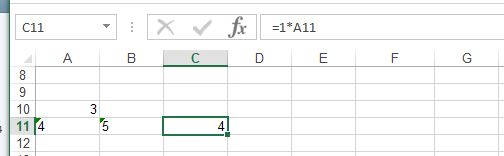
    Attachment 5105
    What that simple formula appears to do is to make the 4 in cell A11 be written in cell C11 a true number, and so we effectively get rid of that warning of the form , "Number stored as Text"

    Now the Evaluate Range bit.
    Evaluate Range ideas are often a neat alternative to looping in VBA
    Staying with Excel initially. (**Note: This explanation may not suit so well for an Excel version with the Spill/Dynamic arrays stuff, (currently from about version 365).)
    In Excel, like in a lot of computer stuff, what we look at, or get as output to see, is based on something
    chucking out from left to right
    ,then returning to the left, ( sometimes referred to as "invisible" character like Carriage Return vbCr )
    , and then going to a new line/row, ( sometimes referred to as "invisible" character like LineFeed vbLf )
    , then starting again until we get a 2 dimensional picture we as humans understand. In some cases this means that similar calculations may be done by default over an extended range, but normally we don’t see that as in Excel we look at doing stuff in one of excel boxes/cells. Somehow Excel will be wired to show a single value in a cell in a typical formula such as our =1*A11
    Whether by design or accident, right from the start of when Excel came about, we can get some interesting results if we replace a single cell reference by a multiple one.
    For example, in C11, write =1*A11:B11 instead, so as to maybe see if we can somehow do our basic formula for cells A11 and B11 at the same time.
    But, try that and it will error**. Never mind. Let’s keep experimenting.
    https://i.postimg.cc/k5CmNLgp/1x-A11-B11.jpg
    https://i.postimg.cc/zBXY6WWw/1xA11B11.jpg

    (** For Excel 365 it may not error, and I prefer not to consider yet what is happening there)

    Type 1 CSE entry
    There may be some reason such as extra overheads for Excel to show the same calculation for both cells, resulting in perhaps a deliberate prevention of the thing working, but my guess is that it does work without too much effort. Often we talk about Type 1 CSE entry, or CSE entry in general, as a way to tell Excel that you would like to take advantage of the possibility to do the calculation for a range other than a single cell.
    To get the first inclination about what I am talking about, do this: do the same thing again, in C11, write =1*A11:B11 , but don’t hit Enter yet. Instead, hold keys Ctrl+Shift and then hit Enter
    We don’t error anymore. But we still only see one value. https://i.postimg.cc/m2v5xMCx/1x-A11-B11-CSE1.jpg
    If you apply a bit of lateral thinning to what we said earlier about how computer things work , ( ……chucking out from left to right , returning to the left and gong to a new line/row, then starting again ) , a good guess might be that in our example the other calculated value might be somewhere close to the right. That takes us nicely on to the next section, and how that relates to our example

    Type 2 CSE entry
    CSE generally seems to tell Excel to do multiple cell calculations, at least that is what we suggested. (We talk sometimes about "array calculations", but this may be strictly in mathematical definitions a bit incorrect)
    But we generally write things in a cell, and generally for simple formulas we would expect a result in a cell.

    But let's try it a bit differently, bearing in mind our example. So, start again, but before you type =1*A11:B11, first select the two cells, C11 and D11. Then after you type that, do the CSE entry again, not a simple Enter
    https://i.postimg.cc/m2w2rQN9/1x-A11-B11-CSE2.jpg
    Bingo!
    https://i.postimg.cc/m2RgRdMR/1x-A11-B11-CSE2-Bingo.jpg
    Attachment 5106


    Evaluate Range Solution as alternative to VBA Looping
    So far we have just considered an Excel solution. That background was necessary to understand the Evaluate Range type Solution as alternative to VBA Looping
    In VBA, a conventional way to do multi cell calculations would be to Loop. It loops, in other words does a similar codung a few times. It would need to do it twice, https://i.postimg.cc/Wb8ZRJM7/Loop-i...mn-A-and-B.jpg , in our example:
    Code:
    Sub LoopItTwice()  '  https://www.excelfox.com/forum/showthread.php/2909-Appendix-Thread-Evaluate-Range-(-Codes-for-other-Threads-HTML-Tables-etc-)?p=21924&viewfull=1#post21924
    Dim Nmbr As Long
        For Nmbr = 1 To 2 Step 1
         Let ActiveSheet.Cells.Item(12, Nmbr + 2).Value = ActiveSheet.Cells.Item(11, Nmbr).Value  '    Always uses row 12 ,   done twice, first  for  column 3 value = column 1 value    and  then   column 4 value = column 2
        Next Nmbr
    End Sub
    We have just discussed that the CSE stuff in Excel gives us a way to do it in one go. Let’s investigate if we can do something like that in VBA

    Do Excel stuff in VBA
    In VBA there is a Evaluate("__") function. In simple terms, to a first approximation, we can put Excel formulas inside the quotes, here
    Evaluate("here")
    , and the result is returned, similar to what would be returned in a cell with that formula in it.
    Exactly what may be "returned" (chucked at us from Evaluate("__") ) , may be many things, depending on the exact formula, so it makes sense that the thing is wired to return a Variant type, so that can hold whatever actual type comes from the evaluation. So something like this sort of form would be done in VBA
    Dim Var As Variant
    _Let Var = Evaluate("=A11:B11*1")


    If you put a Stop statement (or alternatively click in the left margin to get a brown circle which works the same), then run the following full macro, then while it is paused, (or before you start) , highlight Var , hold key Shift and then hit key F9, to put a watch on that variable, then you can see the results.
    https://i.postimg.cc/vmPf13Cx/Put-a-watch-on-Var.jpg
    https://i.postimg.cc/mDtM77GX/Put-a-watch-on-Var.jpg
    Code:
    Sub RangeEvaluate()
    Dim Var As Variant
     Let Var = Evaluate("=A11:B11*1")
    
    Stop   '     If you put a Stop statement (or alternatively click in the left margin to get a brown circle which works the same), then run the following full macro, then while it is paused, (or before you start) , highlight Var , hold key Shift  and then hit key F9, to put a watch on that variable, then you can see the results.
    'https://i.postimg.cc/vmPf13Cx/Put-a-watch-on-Var.jpg
    'https://i.postimg.cc/mDtM77GX/Put-a-watch-on-Var.jpg
    End Sub
    
    https://i.postimg.cc/9Mb931YQ/Put-a-watch-on-Var.jpg
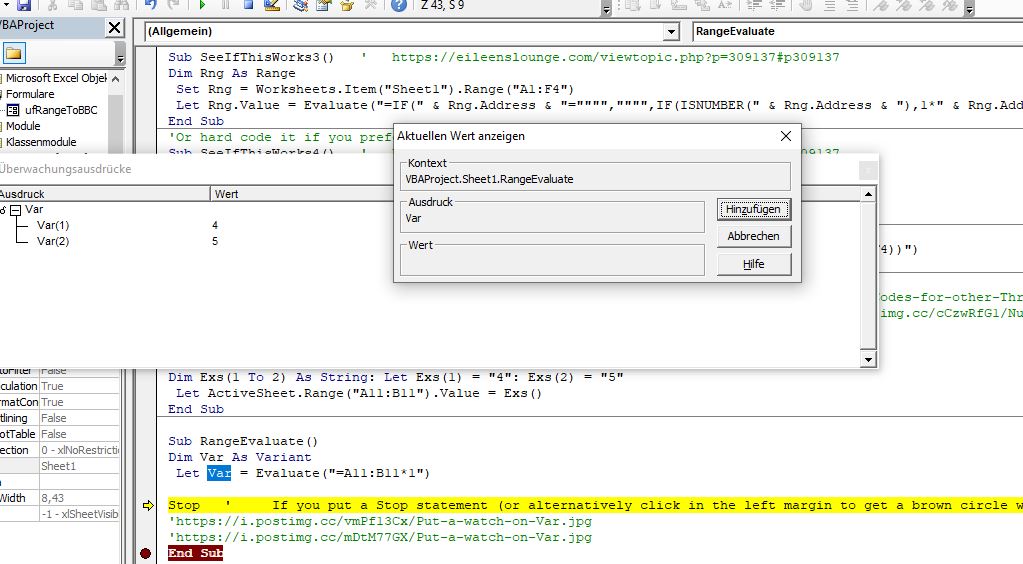

    Occasionally, the Evaluate(" ") does not "return" more than one result in formulas involving multi cell ranges, but this appears to be a separate issue to the need for CSE measures. Often we can do empirically derived tricks to overcome such problems.
    But in many cases the Evaluate(" ") does returns the same results immediately that are only returned in a spreadsheet via the CSE way discussed. It would appear that principally the Evaluate(" ") is not restricted by the single cell , or need for CSE entry issues as in the spreadsheet. Perhaps this is because in use, Evaluate(" ") is not tied in some way to a particular spreadsheet format to show its output. There appears to be a lot of uncertainty ad empirically derived solutions and tricks in Evaluate Range

    So, we have our result, or a way to get it chucked at us , "returned" , by using an Excel spreadsheet formula from within VBA
    So what do we do with it/ how do we get it in a cell, or more specifically in our example, how do we get it in cells,
    ……. Next post
    Attached Images Attached Images

  9. #9
    Fuhrer, Vierte Reich DocAElstein's Avatar
    Join Date
    Aug 2014
    Posts
    10,457
    Rep Power
    10
    From last post, to recap a bit……
    Do Excel stuff in VBA
    In VBA there is a Evaluate("__") function. In simple terms, to a first approximation, we can put Excel formulas inside the quotes, here
    Evaluate("here")
    , and the result is returned, similar to what would be returned in a cell with that formula in it.
    Exactly what may be "returned" (chucked at us from Evaluate("__") ) , may be many things, depending on the exact formula, so it makes sense that the thing is wired to return a Variant type, so that can hold whatever actual type comes from the evaluation. So something like this sort of form would be done in VBA
    Dim Var As Variant
    _Let Var = Evaluate("=A11:B11*1")


    If you put a Stop statement (or alternatively click in the left margin to get a brown circle which works the same), then run the following full macro, then while it is paused, (or before you start) , highlight Var , hold key Shift and then hit key F9, to put a watch on that variable, then you can see the results.
    https://i.postimg.cc/vmPf13Cx/Put-a-watch-on-Var.jpg
    https://i.postimg.cc/mDtM77GX/Put-a-watch-on-Var.jpg
    Code:
    Sub RangeEvaluate()
    Dim Var As Variant
     Let Var = Evaluate("=A11:B11*1")
    
    Stop   '     If you put a Stop statement (or alternatively click in the left margin to get a brown circle which works the same), then run the following full macro, then while it is paused, (or before you start) , highlight Var , hold key Shift  and then hit key F9, to put a watch on that variable, then you can see the results.
    'https://i.postimg.cc/vmPf13Cx/Put-a-watch-on-Var.jpg
    'https://i.postimg.cc/mDtM77GX/Put-a-watch-on-Var.jpg
    End Sub
    
    https://i.postimg.cc/9Mb931YQ/Put-a-watch-on-Var.jpg


    So, we have our result, or a way to get it chucked at us , "returned" , by using an Excel spreadsheet formula from within VBA
    So what do we do with it/ how do we get it in a cell, or more specifically in our example, how do we get it in cells


    Simple application of Evaluate("=A11:B11*1")type solutions
    ( Put what is chucked at us, ("returned") into cells )
    Conveniently, Excel VBA allows a “field” or array of values, in other words a “square” or grid full of values to be applied directly to a rectangular range, pseudo code examples:

    Simple application of Evaluate("=A11:B11*1") type solutions
    Conveniently, Excel VBA allows a “field” or array of values, in other words a “square” or grid full of values to be applied directly to a rectangular range, pseudo code examples:

    Range(“A1:B2”) values = { a b
    _________________--__________c d
    }

    Range(“A1:C1”) values = { x y z }

    Range(“D1:E1”) values = { 4, 5 }

    The right hand side of that last equation could be the array or field of values which was returned by our example, Evaluate("=A11:B11*1") . An actual working syntax to do in VBA what we did via CSE techniques previously would be
    Range("C11:D11").Value = Evaluate("=A11:B11*1")

    VBA coding “ works backwards “ , doing the right hand side first, so if we wanted to replace the original range with the values without the Number stored as text thing, then this would work

    Range("A11:B11").Value = Evaluate("=A11:B11*1")

    At this point we note that this basic coding layout can be written in a few different forms. In particular, we have great flexibility on the right hand side by virtue of the fact that the Evaluate takes a string argument. We are free to build up strings in VBA as we choose. They can be built up from hard coded text, as we currently have, or we can also include VBA things which would be converted at run time to what they evaluate to. For example, Range("A11:B11").Address returns $A$11:$B$11 , which for our purposes, in spreadsheet syntax, as used in a spreadsheet cell, has the same effect as A11:B11. So that last code line could be written

    Range("A11:B11").Value = Evaluate("=" & Range("A11:B11").Address & "*1")


    The last two code lines are effectively replacing a range which might have the Number stored as text thing showing to a range without that showing. In other words, it removes the Number stored as text thing.
    We are free to replace the range Range("A11:B11") with any range we choose.
    _ It could be some variable defined as a range like this
    Dim Rng As Range
    Set Rng = Range("A11:B11")
    Let Rng.Value = Evaluate("=" & Rng.Address & "*1")

    _ Similarly, we could make some selection in the spreadsheet, and then run the macro on this range using
    Let Selection.Value = Evaluate("=" & Selection.Address & "*1")
    This last macro is often the most convenient, but bear in mind that it will replace the original range, and things done by VBA can’t be undone. Best would be to test first by pasting a copy in a spare range. For example, if you have data up to column F, then this would put the test range to the side of it.
    Selection.Offset(0, 6).Value = Evaluate("=" & Selection.Address & "*1")
    (As often in VBA, the Offset works on the top left, shifting the whole range with it. In the inner workings of Excel VBA, things are often anchored or referenced to the top left)

    In a few posts time we some simple variations of the Evaluate range way to remove the Number stored as text thing issue, specifically we are making the last few coding version less susceptible to problems / more workable on different data types
    But first we will recap and discuss a useful typical format / versions of our final coding for test and developments


    https://www.youtube.com/channel/UCnxwq2aGJRbjOo_MO54oaHA
    https://www.youtube.com/watch?v=jdPeMPT98QU
    https://www.youtube.com/watch?v=QdwDnUz96W0&lc=Ugx3syV3Bw6bxddVyBx4AaABAg
    https://www.youtube.com/watch?v=U76ZRIzBhOA&lc=UgxsozCmRd3RAmIPO5B4AaABAg.9fxrOrrvTln9g9wr8mv2 CS
    https://www.youtube.com/watch?v=U76ZRIzBhOA&lc=Ugw6zxOMtNCfmdllKQl4AaABAg
    https://www.youtube.com/watch?v=U76ZRIzBhOA&lc=UgyT1lo2YMUyZ50bLeR4AaABAg.9fz3_oaiUeK9g96yGbAX 4t
    https://www.youtube.com/watch?v=U76ZRIzBhOA&lc=Ugx5d-LrmoMM_hsJK2N4AaABAg.9fyL20jCtOI9g7pczEpcTz
    https://www.youtube.com/watch?v=U76ZRIzBhOA&lc=UgyT1lo2YMUyZ50bLeR4AaABAg.9fz3_oaiUeK9g7lhoX-ar5
    https://www.youtube.com/watch?v=U76ZRIzBhOA&lc=Ugx5d-LrmoMM_hsJK2N4AaABAg.9fyL20jCtOI9gD0AA-sfpl
    https://www.youtube.com/watch?v=U76ZRIzBhOA&lc=Ugx5d-LrmoMM_hsJK2N4AaABAg.9fyL20jCtOI9gECpsAVGbh
    https://www.youtube.com/watch?v=U76ZRIzBhOA&lc=Ugw6zxOMtNCfmdllKQl4AaABAg.9g9wJCunNRa9gJGhDZ4R I2
    https://www.youtube.com/channel/UCnxwq2aGJRbjOo_MO54oaHA

  10. #10
    Fuhrer, Vierte Reich DocAElstein's Avatar
    Join Date
    Aug 2014
    Posts
    10,457
    Rep Power
    10
    Number stored as text, alignment of numeric values in cells

    Improved/ Extended Evaluate Range solution. Recap General Purpose solution
    In a few posts time we will discusses extending the last solution to overcome a couple of problems that may occur with certain types of range data, specifically, if there may be empty cells or cells with real text in it. In this and the following 2 posts we will recap and come up with a general purpose solution to then go on and modify.

    General all purpose version of our final Evaluate Range solution Range variable, Rng
    Let us both standardise and recap on a good general purpose version of our Evaluate Range solution, with emphasis on learning and test and developing

    Range variable, Rng
    It’s probably more often than not a good idea to use a variable for our main data range. In technical terms we might re say that, as a variable for our main Range object. Using a variable for things is often a good idea, and particular a good idea for a range object, since Excel and Excel is all about boxes and manipulating them, and in VBA in particular, we have a lot of useful built in things like Methods, Properties, and the such, that we can use on them/ with them, in particular the range object since that is in particular to do with the box, and boxes structure that Excel is all about.
    So for some test range, such as A1:F1,
    https://i.postimg.cc/nctNH0WJ/Range-A1-F7.jpg
    Attachment 5113
    , then somewhere towards the start of any macro we might have something like this
    Dim Rng As Range
    _Set Rng = Worksheets.Item("Sheet1").Range("A1:F7")

    You can often get away without the Worksheets.Item("Sheet1"). , if you know what you are doing and are sure that Excel will guess correctly which worksheet you are wanting to refer to, but often in a final coding, Excel may guess wrong, so more fully referencing a range is a good habit to get into.
    We may as well, from the start of our coding get fully into such good habits, and use a variable for the worksheet also
    Dim Ws1 As Worksheet
    _Set Ws1 = ThisWorkbook.Worksheets.Item("Sheet1")
    Dim Rng As Range
    _Set Rng = Ws1.Range("A1:F7")

    This Rng is referring to the test data range……._
    Attached Images Attached Images

Similar Threads

  1. Some Date Notes and Tests
    By DocAElstein in forum Test Area
    Replies: 5
    Last Post: 03-26-2025, 02:56 AM
  2. Replies: 116
    Last Post: 02-23-2025, 12:13 AM
  3. Tests and Notes on Range Referrencing
    By DocAElstein in forum Test Area
    Replies: 70
    Last Post: 02-20-2024, 01:54 AM
  4. Tests and Notes for EMail Threads
    By DocAElstein in forum Test Area
    Replies: 29
    Last Post: 11-15-2022, 04:39 PM
  5. Notes tests. Excel VBA Folder File Search
    By DocAElstein in forum Test Area
    Replies: 39
    Last Post: 03-20-2018, 04:09 PM

Posting Permissions

  • You may not post new threads
  • You may not post replies
  • You may not post attachments
  • You may not edit your posts
  •