Remote ( Cloud P2P ) Access of DVR over the internet with a PC using Guarding Vision Windows PC Client Software,
2b) -A- ______ Following on from previously obtaining LAN local access, and
Adding ( making available ) DVR for remote Cloud use for the first time: DVR is not yet Registered for P2P remote Access
In this explanation version 2b)–A- , we are following on from having just made available ( Added ) , the DVR for the local LAN viewing way . As noted previously, we don’t need to do have just done that, but this can help simplify the explanation, especially for a first time setting up of the Cloud 2P2 remote way
So initially we are still managing and seeing information related to the available standard local LAN Device. In our working example, the particular standard local LAN Device that we have been considering is the DVR connected via a LAN RJ45 Ethernet cable to our router/modem. This device is still showing in the Online Device window.
https://i.postimg.cc/yNQGbbVP/Online-Device-window.jpg
( The Online Device window is independent of anything else that we are doing and simply shows and gives various details about any device that is connected to the same router/ modem as the computer running the Guarding Vision Software, and specifically any devices that the Guarding Vision Software recognises as a DVR or any other device which it thinks may be of interest to us. ( You will not necessarily see all other devices such as other computers connected to the same router/ modem ) )
Add a New Device Type of the Cloud P2P type
Our first step is to Add a New Device Type of the Cloud P2P type. Unlike the case of the standard LAN local device type, the Guarding Vision Software does not have one of the Cloud P2P types added by default. I don’t know why that is. I see no obvious reason: All any device type shown in the Device is , is a button on which to call in the process to allow adding a particular device of that type. Never mind
So we follow a similar procedure as for the local LAN device case, to add a new device type, the only difference being that in the dialogue window that pops up, we now check the Cloud P2P Device check box https://i.postimg.cc/mgb3v0sM/Add-Ne...first-time.jpg ( In this example we are assuming that no cloud P2P device type has ever been added, and so the Cloud P2P Device check box would typically not be checked by default )
This last action by us causes a new device type to appear _#_ Cloud P2P Device ____
|
But note that at the present time we are still looking at and managing the local LAN connected DVR, https://i.postimg.cc/ZR1FXnbK/but-st...ed-LAN-DVR.jpg
________Device Managemant
|
_#_ Cloud P2P Device ____
|
https://i.postimg.cc/xTPqWGgG/Added-...ighlighted.jpg
Added P2P Device Type but not highlighted.jpg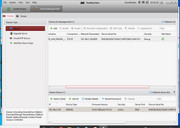
Once again, note that in that last screenshot we see the new Cloud P2P Device Type appear in the left margin device type window , but it is not highlighted, so that at the present time we are still looking at and managing the local LAN connected DVR, https://i.postimg.cc/ZR1FXnbK/but-st...ed-LAN-DVR.jpg
Click on the Cloud P2P Device type to set off….. ….
If we now click on/ select the new Cloud P2P Device Type , you may see for a split second the highlighting in the Device window change to
________Device Managemant
|
_#_ Cloud P2P Device ____
|
But that may occur too quickly to see, -. but what should open, and stay open, and fill most of the screen, is a large Login window pop up: What is happening is that the device management is interrupted , because you cannot manage a P2P device without logging in to an authorised account………
https://i.postimg.cc/ryr9x1jd/select...ill-appear.jpg
https://i.postimg.cc/KvF8F0Sb/mcecli...in-country.png
We are now ready for considering the registration of this final , 4th , of the 4 username and password pairs associated with the Sannce DVR using Guarding Vision Software.
( At this point, if you have not already done so, its worth reading the extra notes about this last user name and password which you need to know about, here https://excelfox.com/forum/showthrea...ll=1#post15911 )


 Reply With Quote
Bookmarks