2a) LAN Access
( A Default device Type has been opened/selected automatically )
The instructions in section Step 2a: LAN Access here , https://support.sannce.com/hc/en-us/...arding-Vision- , are reasonably good and accurate, and the instructions I am giving are basically those , with some elaborations and expanded clarifications and explanations.
So we should be on opening for the first time at the point in the discussions of seeing this: https://i.postimg.cc/MpHYJzYB/Initia...ine-device.jpg
But that initial opening screenshot is somewhat misleading as something has already been done on opening to produce that.
To explain:
#_ Standard Device Selection (Selected by Default) ( Default standard device selected on/by opening software: Device )
A Default device type has been opened/selected automatically
This emphasises again, that a device type has been added automatically. I am and have been continuingly stressing this because it helps to understand later sections, where we need to add the type ourselves
( #_ A “Standard device” could be any directly / locally connected device so can include our PC LAN Access )
What all the current literature does not explain very well is that, by default, the Guarding Vision has one Device type by default selected / highlighted in brown,
https://i.postimg.cc/vH04cL3V/Device...ype-Device.jpg
________Device Managemant
|
which has effectively been pre selected , and has evoked the large window to the right, and so that is what the large window to the right ( Device For management (0) ) is referring to:
https://i.postimg.cc/3xWdp4cb/Device...ype-Device.jpg
+ Add New Device ( automatically done on software opening )
Just to clarify what I am saying: Effectively the software on the event of opening , has itself automatically selected the
+ Add New Device Type
, then a default device was added
https://i.postimg.cc/Mp4XYZkZ/Add-De...ult-device.jpg https://i.postimg.cc/3xWdp4cb/Device...ype-Device.jpg
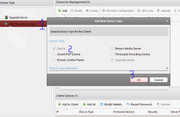
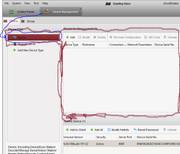
At this stage we have no entry : The large “Standard device” window to the right is empty. We have to Add something there to make the device with the Added details available. A “Standard device” could be any directly / locally connected device so can include our PC LAN Access
So we have in this post , ( or rather by default the opening of the Guarding Vision software has automatically ) , Added a Device Type.
The next step, in the next post, will be to Add a specific device, ( in this case our DVR in the local LAN direct connection )
I would just make one final comment here. The final indication of our device in the Device Management showing as this,
, is somewhat misleading in my opinion. - Whilst the small blue symbol is attempting to indicate that we are referring to locally connected to the DVR things since that symbol is of a DVR, https://i.postimg.cc/50LNjJyP/Small-...ice-symbol.jpg
, I personally think something like this ,
, would better help us distinguish from the P2P entry which we will later encounter and looks like this


 Reply With Quote
Bookmarks