|
Main Code |
Second routine copy 1 |
Second routine copy 2 |
Second routine copy 3 |
|
|
|
CopyNumber1=1 |
CopyNumber2=2 |
CopyNumber3=3 |
Main first routine, ( Sub( ) ) , starts |
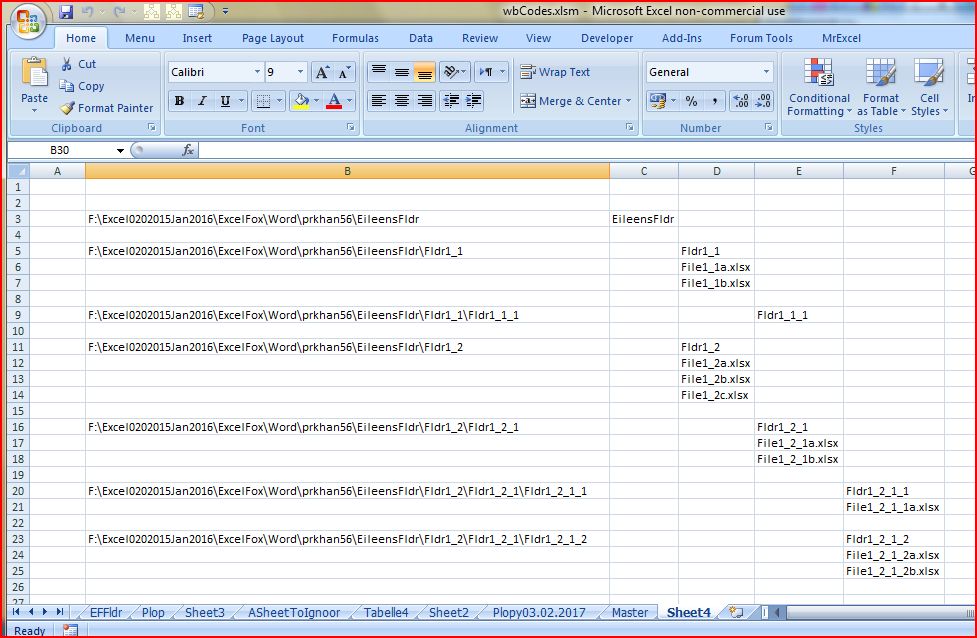
| G:\Excel0202015Jan2016\ExcelForum\wbSheetMakerClsd WbADOMsQueery\EileensFldr |
EileensFldr |
|
|
|
( Folder Details of Main Folder are written by Main routine ( Sub( ) ) ) |
|
|
|
|
|
Main first routine, ( Sub( ) ) , pauses |
| G:\Excel0202015Jan2016\ExcelForum\wbSheetMakerClsd WbADOMsQueery\EileensFldr\Fldr1_1 |
|
Fldr1_1 |
|
|
First copy of second routine starts |
|
|
File1_1a.xlsx |
|
|
|
|
|
File1_1b.xlsx |
|
|
|
|
|
|
|
|
First copy of second routine pauses |
| G:\Excel0202015Jan2016\ExcelForum\wbSheetMakerClsd WbADOMsQueery\EileensFldr\Fldr1_1\Fldr1_1_1 |
|
|
Fldr1_1_1 |
|
Second copy of second routine starts |
|
|
|
|
|
Second copy of second routine Ends |
| G:\Excel0202015Jan2016\ExcelForum\wbSheetMakerClsd WbADOMsQueery\EileensFldr\Fldr1_2 |
|
Fldr1_2 |
|
|
First copy of second routine resumes |
|
|
File1_2a.xlsx |
|
|
|
|
|
File1_2b.xlsx |
|
|
|
|
|
File1_2c.xlsx |
|
|
|
|
|
|
|
|
First copy of second routine pauses |
| G:\Excel0202015Jan2016\ExcelForum\wbSheetMakerClsd WbADOMsQueery\EileensFldr\Fldr1_2\Fldr1_2_1 |
|
|
Fldr1_2_1 |
|
Another (Second) copy of second routine starts |
|
|
|
File1_2_1a.xlsx |
|
|
|
|
|
File1_2_1b.xlsx |
|
|
|
|
|
|
|
Second copy of second routine pauses |
| G:\Excel0202015Jan2016\ExcelForum\wbSheetMakerClsd WbADOMsQueery\EileensFldr\Fldr1_2\Fldr1_2_1\Fldr1_ 2_1_1 |
|
|
|
Fldr1_2_1_1 |
Third copy of second routine starts |
|
|
|
|
File1_2_1_1a.xlsx |
|
|
|
|
|
|
|
| G:\Excel0202015Jan2016\ExcelForum\wbSheetMakerClsd WbADOMsQueery\EileensFldr\Fldr1_2\Fldr1_2_1\Fldr1_ 2_1_2 |
|
|
|
Fldr1_2_1_2 |
|
|
|
|
|
File1_2_1_2a.xlsx |
|
|
|
|
|
File1_2_1_2b.xlsx |
|
|
|
|
|
|
Third copy of second routine resumes and Ends |
|
|
|
|
|
Second copy of second routine resumes and Ends |
|
|
|
|
|
First copy of second routine resumes and Ends |
|
|
|
|
|
Main first routine, ( Sub( ) ) , resumes and Ends. |
|
|
|
|
|
|
| Yellow indicates code copy currently running: The main code is copied and run once. For the example Folder shown, |
|
|
|
|
|
| the second routine is copied and run once for the first Folder level, twice for the second level, and once for the third level. |
|
|
|
|
|


 Loop Through Files In A Folder Using VBA

 Reply With Quote

 Originally Posted by snb



Bookmarks